
Tutorial: Draft Portfolio
A Draft Portfolio is a private "what-if" copy of your portfolio where you can buy, sell, accept PortfolioPilot's recommendations, or run the Portfolio Optimizer and see exactly how each change would move your Portfolio Score, allocation, expected return, and risk, all without touching your real accounts or moving any money. When a draft looks right, PortfolioPilot turns the difference from your real portfolio into a precise list of trades to place at your brokerage, so it is the safe way to test any decision before you commit.
What you'll find in this tutorial
You do not have to follow these in order. Click any section to jump straight to it, or open your Draft Portfolios in the app to follow along. PortfolioPilot works the same on desktop and mobile, where the navigation differs on a phone, this tutorial calls it out and shows the mobile screen.
- Create a draft portfolio
- Make changes in draft mode
- Add a recommendation to your draft
- Undo changes in a draft
- Apply your draft with the Order Execution List
- Manage and compare your drafts
- Learn more: How draft portfolios work, Common use cases, and Next steps
Throughout, the red markings on each screenshot point to exactly what the text is describing: a (1) in the text matches the 1 badge on the image. Where the phone layout differs, a mobile screenshot follows the desktop one.
Create a draft portfolio
Start with what you want to do: spin up a private sandbox you can experiment in. Go to Track → Drafts, and you will see two ways to create one:
- Copy current portfolio: the draft starts as an exact copy of your real holdings, so you can test changes against what you actually own (1).
- Start from all cash: the draft starts as a blank slate of cash, so you can build a hypothetical portfolio from scratch (2).
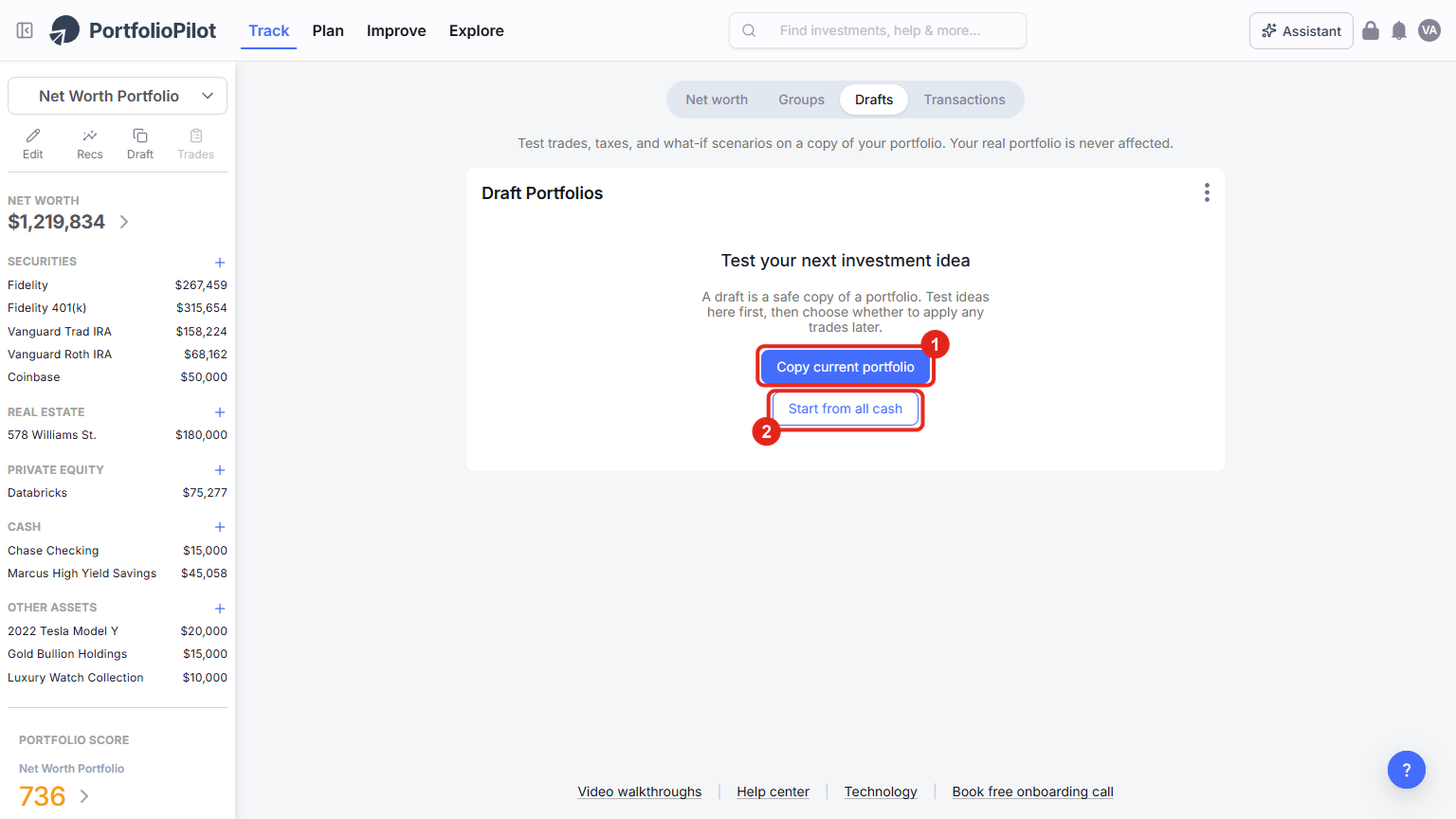
Desktop: Track → Drafts, Copy current portfolio (1) or Start from all cash (2). Figures shown are illustrative.
On a phone, the Drafts tab shows the same two options.
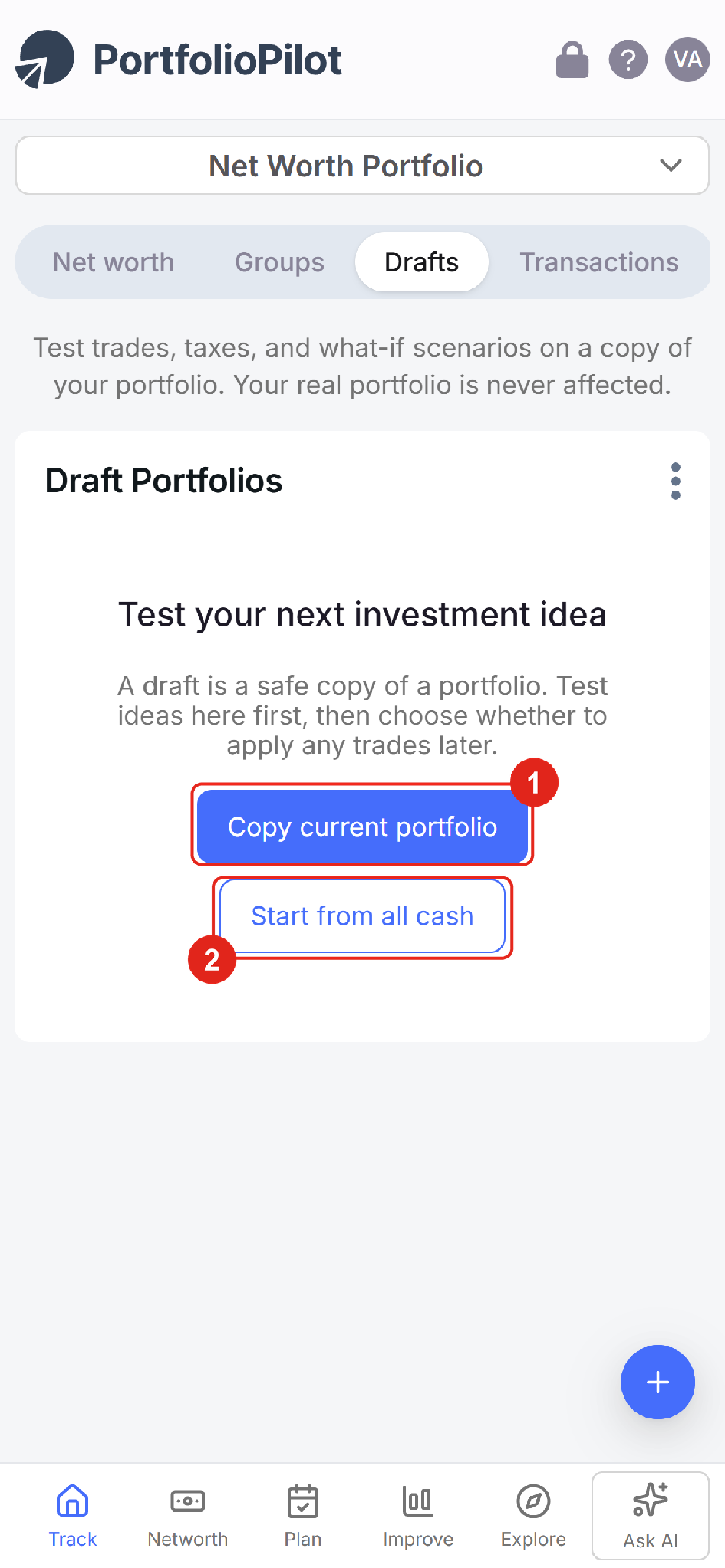
Mobile view: the same Copy current portfolio (1) and Start from all cash (2) options. Figures shown are illustrative.
You can also start a draft from anywhere with Quick Actions: on desktop, the bar on the left of the Net Worth, Improve, and Explore pages has a Draft button (1); on a phone, tap the + button at the bottom right (1).
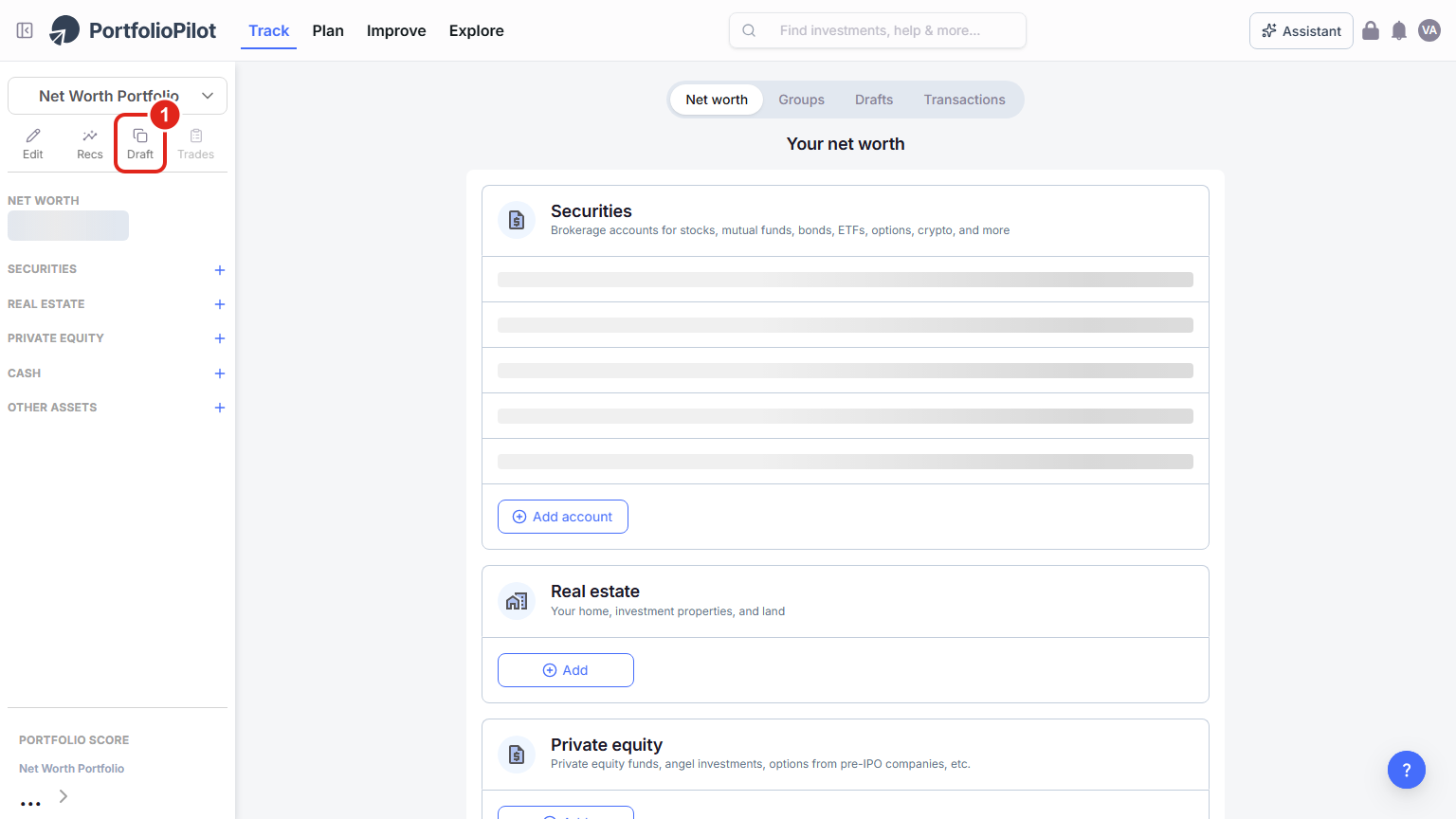
Desktop: the Quick Actions bar, choose Draft (1). Figures shown are illustrative.
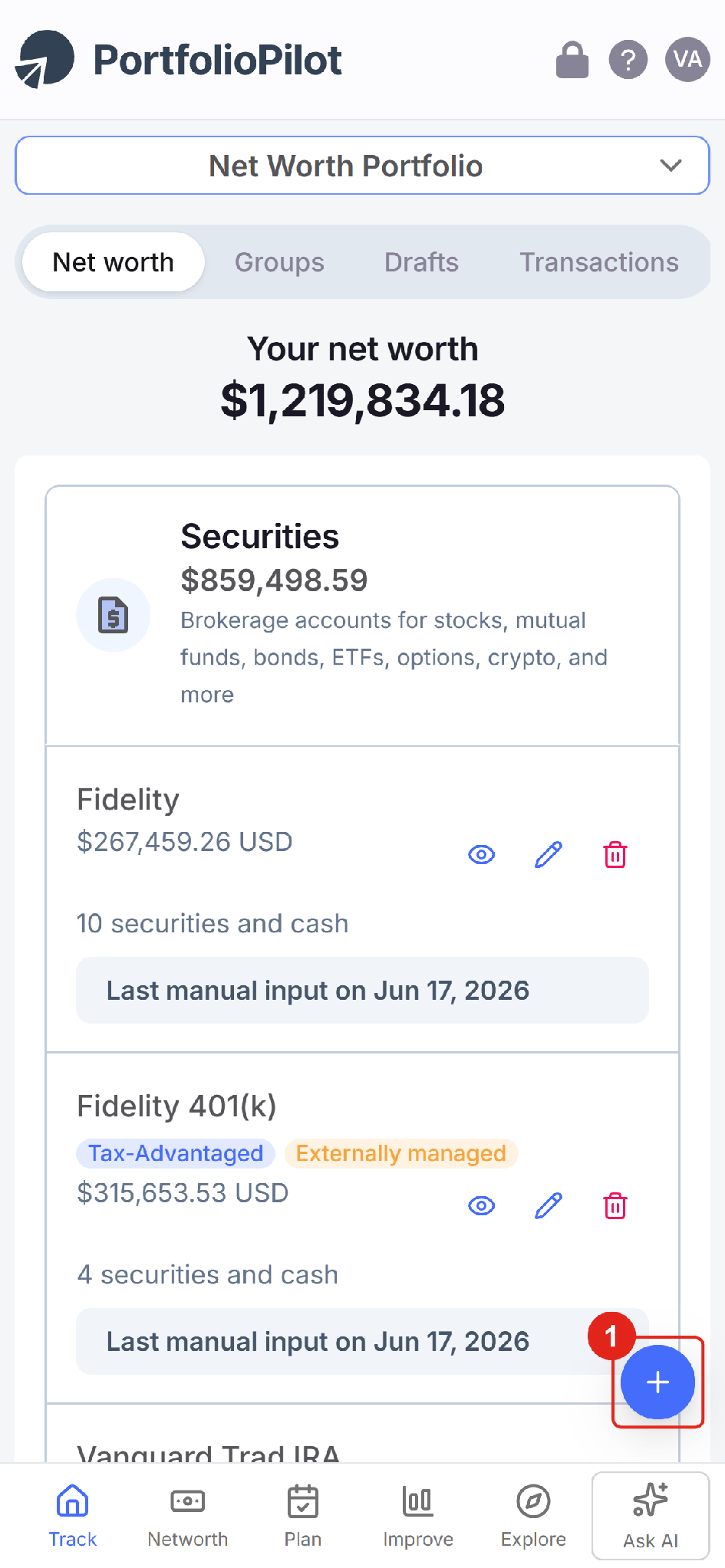
Mobile view: tap the + Quick Actions button (1) to create a draft. Figures shown are illustrative.
Either way, PortfolioPilot asks you to name the draft (1) and confirm what it is Based on: your current portfolio (a copy) or cash only (a blank slate) (2), then choose Create draft (3).
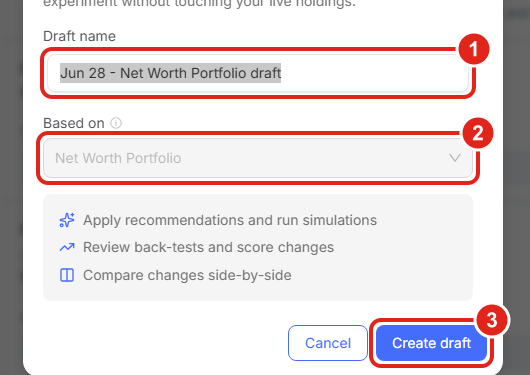
Desktop: name the draft (1), choose what it is Based on: copy or all cash (2), then Create draft (3). Figures shown are illustrative.
Make changes in draft mode
Once you are in a draft, you can tell at a glance: the background turns purple and the Portfolio Selector at the top shows the draft's name with a Draft label (1). Everything you do now affects only the draft. Use the action bar to work on it (2):
- Edit: add, remove, or resize holdings.
- Recs: pull in PortfolioPilot's recommendations.
- Reset: undo every change at once.
- Trades: build your Order Execution List.
Your Portfolio Score, allocation, expected return, and risk recalculate as you go, and the score panel shows your real portfolio and the draft side by side.
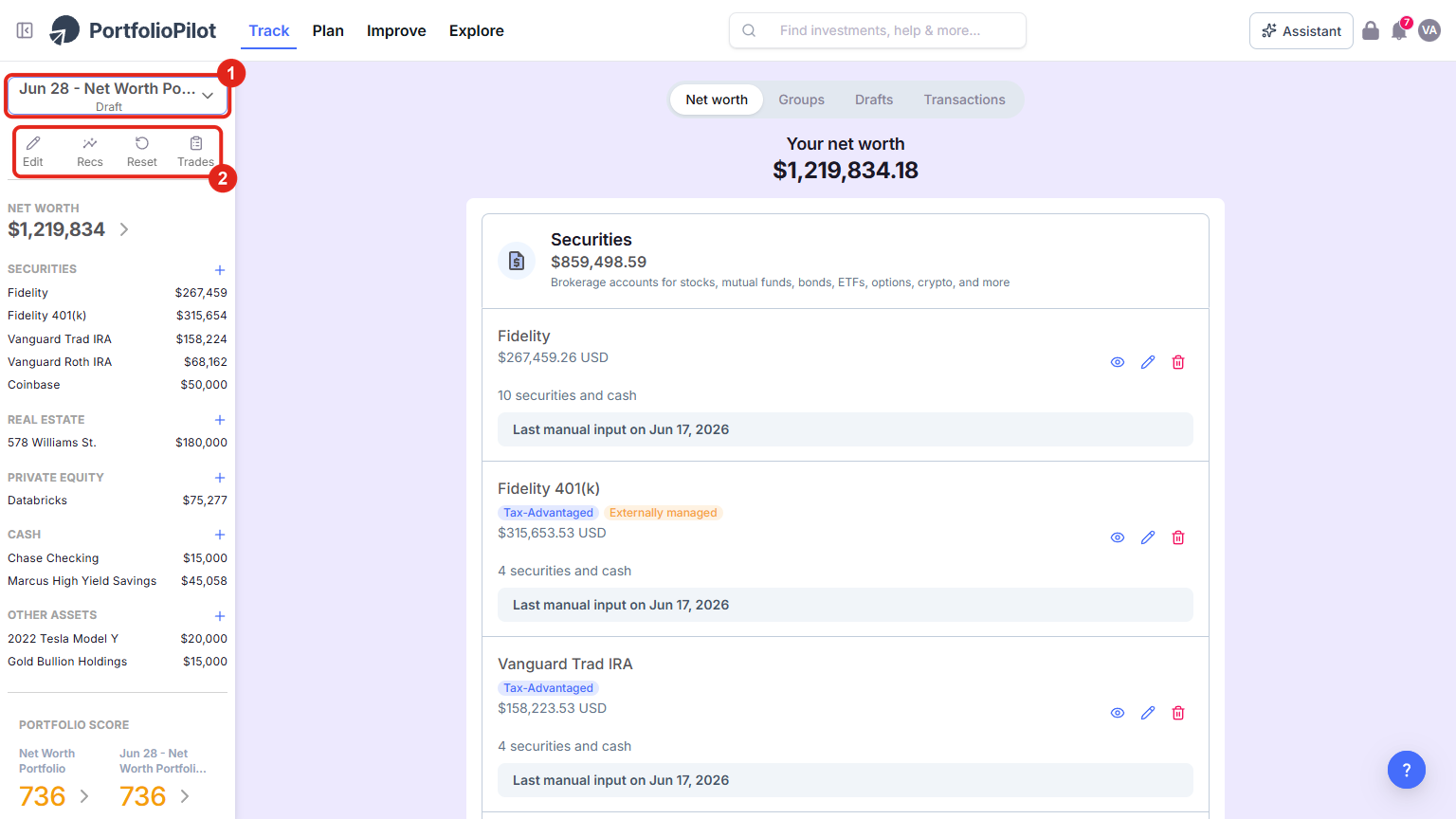
Desktop: the purple background and the Draft label in the selector (1) show you are sandboxed; the action bar (2) holds Edit, Recs, Reset, and Trades. Figures shown are illustrative.
On a phone, the same purple draft banner and selector appear at the top (1), with the Edit, Recs, Reset, and Trades actions in the menu (2).
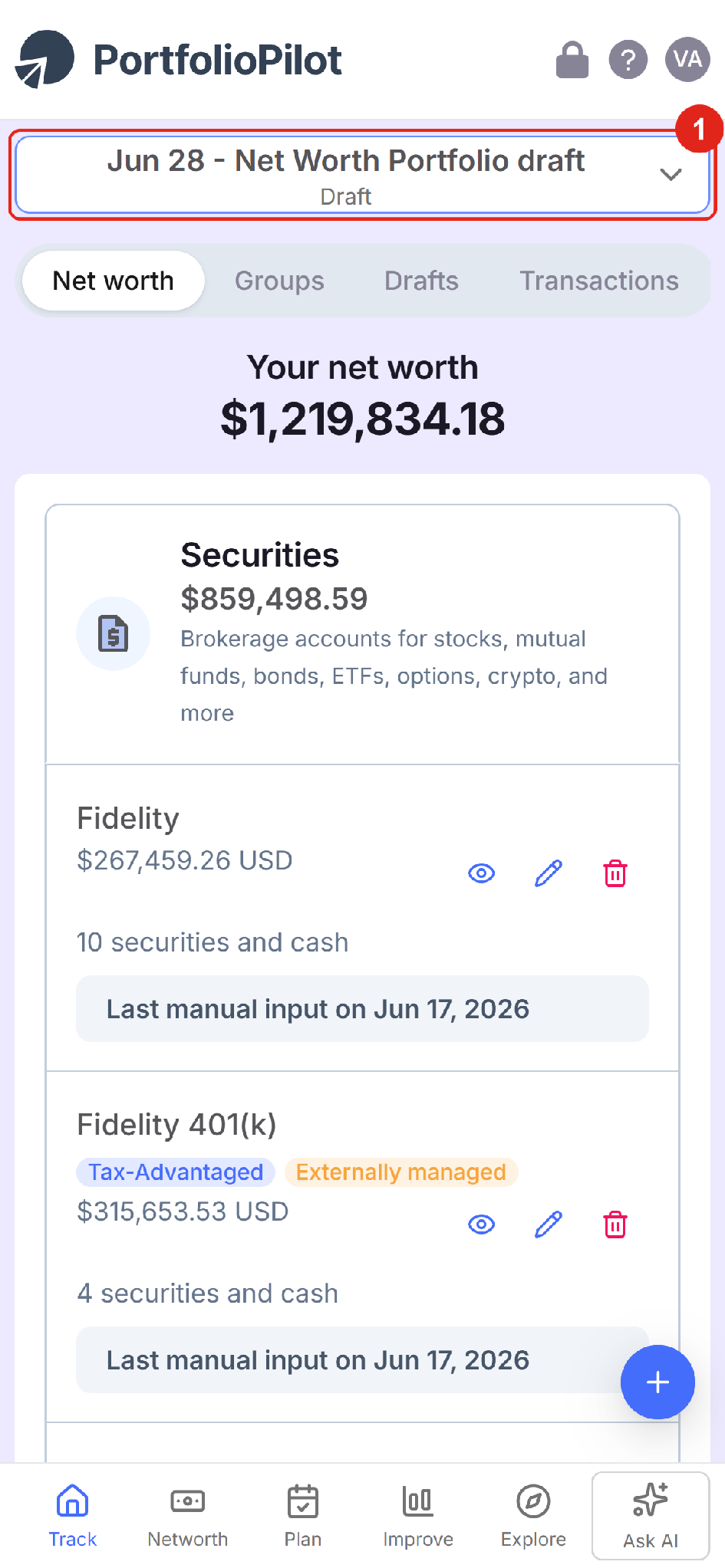
Mobile view: draft mode shows the same selector and actions on a phone. Figures shown are illustrative.
Add a recommendation to your draft
PortfolioPilot's recommendations are a menu of improvements, and a draft is the safe place to try them. Open them from the Recs button or the Investing Advice page, and start with Top Recommendations (1); while you are in a draft, your picks go to the draft for review rather than to your real portfolio (2).
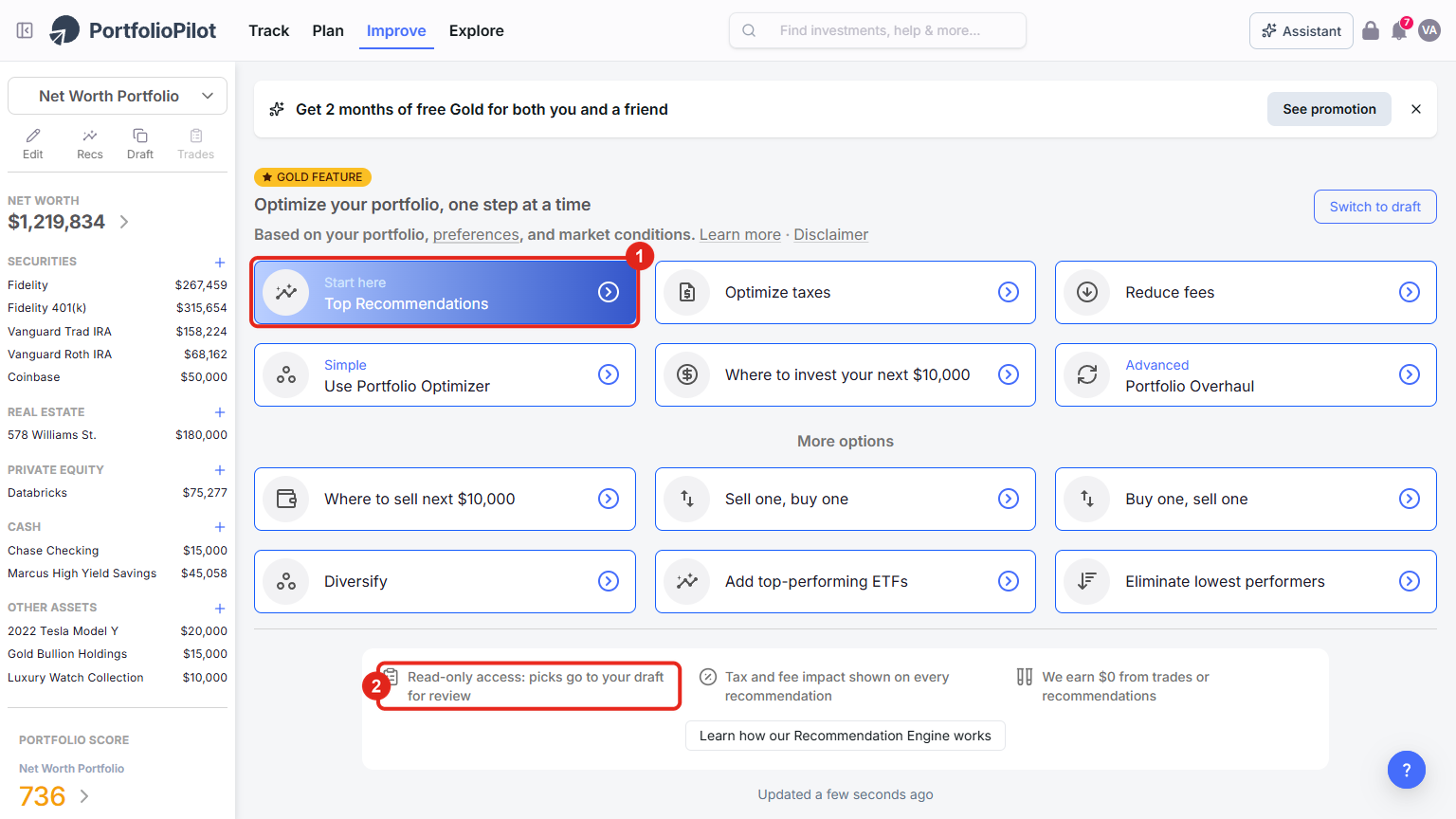
Desktop: the recommendations menu, start with Top Recommendations (1); in a draft, picks go to your draft for review (2). Figures shown are illustrative.
Open a recommendation, review its projected effect on your Portfolio Score, and choose Add to draft. PortfolioPilot then asks how much to hold and pre-fills a calculated optimal amount. Keep it or type your own, then choose Add to drop the security into your draft and recalculate (1). Add as many as you like to compare; you apply them one at a time, so you can keep the ones that help and reset the rest.
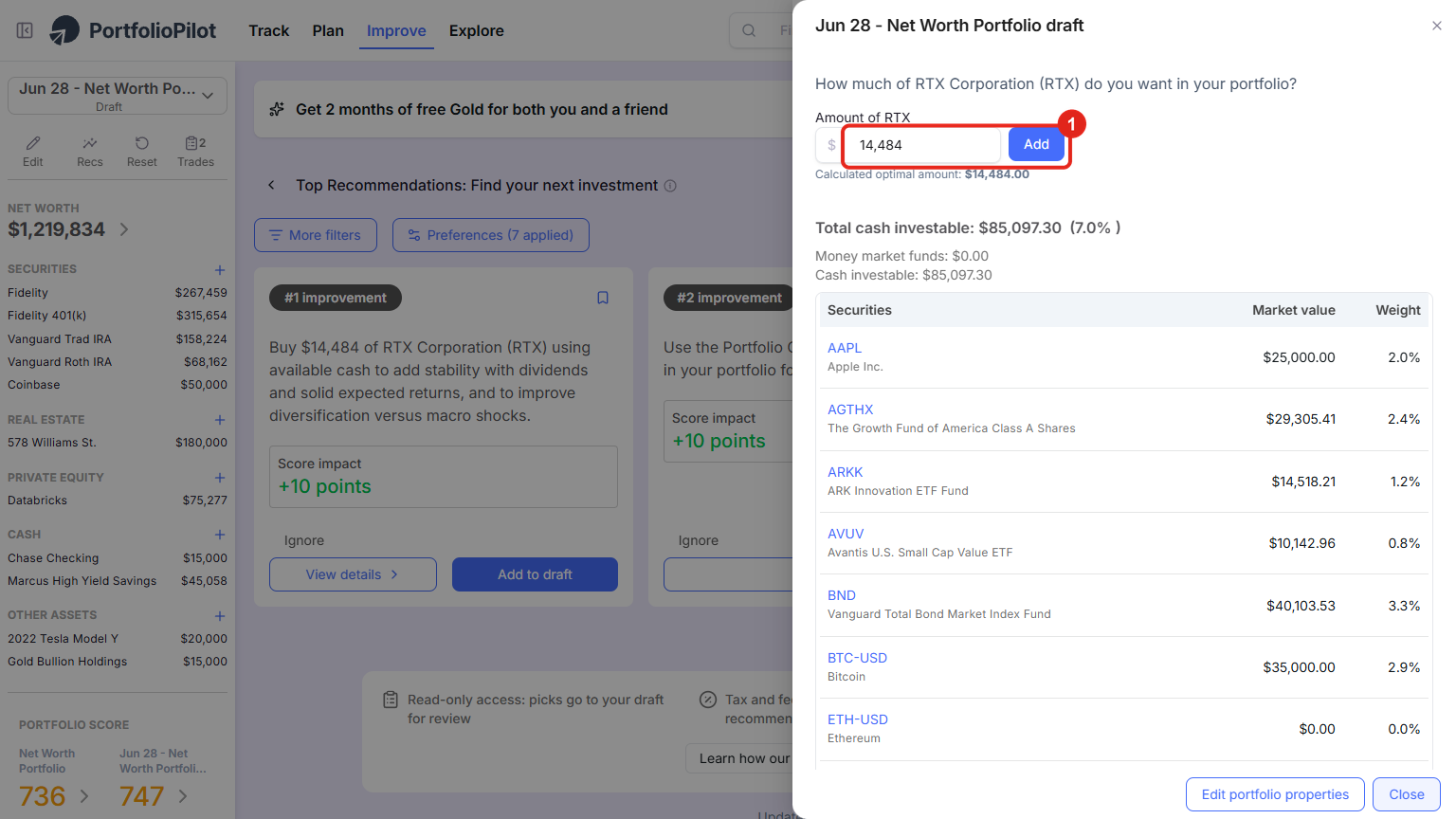
Desktop: set the amount, or keep the calculated optimal amount, then choose Add (1). Content shown is illustrative.
Undo changes in a draft
Because a draft never touches your real accounts, nothing here is permanent. There are three ways to roll back:
- Start over: choose Reset in the action bar (shown above) to set the whole draft back to your current real portfolio, clearing every change at once.
- Undo one change: open the holding and edit its shares or dollar amount back. To remove a holding you added, use the red trash icon on its row. (Setting the amount to zero does not delete the row, so use the trash icon.)
- Delete the whole draft: on the Drafts page, delete any draft you no longer need (see Manage and compare your drafts).
Apply your draft with the Order Execution List
PortfolioPilot never places trades or moves money for you. To make a draft real, you carry out the trades yourself at your brokerage, and the Order Execution List tells you exactly what to do. While you are in the draft, choose Trades in the Quick Actions bar. PortfolioPilot compares your real portfolio to the draft and lists the precise buys and sells needed to close the gap (1), along with the Portfolio Score change you are working toward (2). Place those trades at your brokerage, then choose Mark all trades as completed so PortfolioPilot resyncs (3).
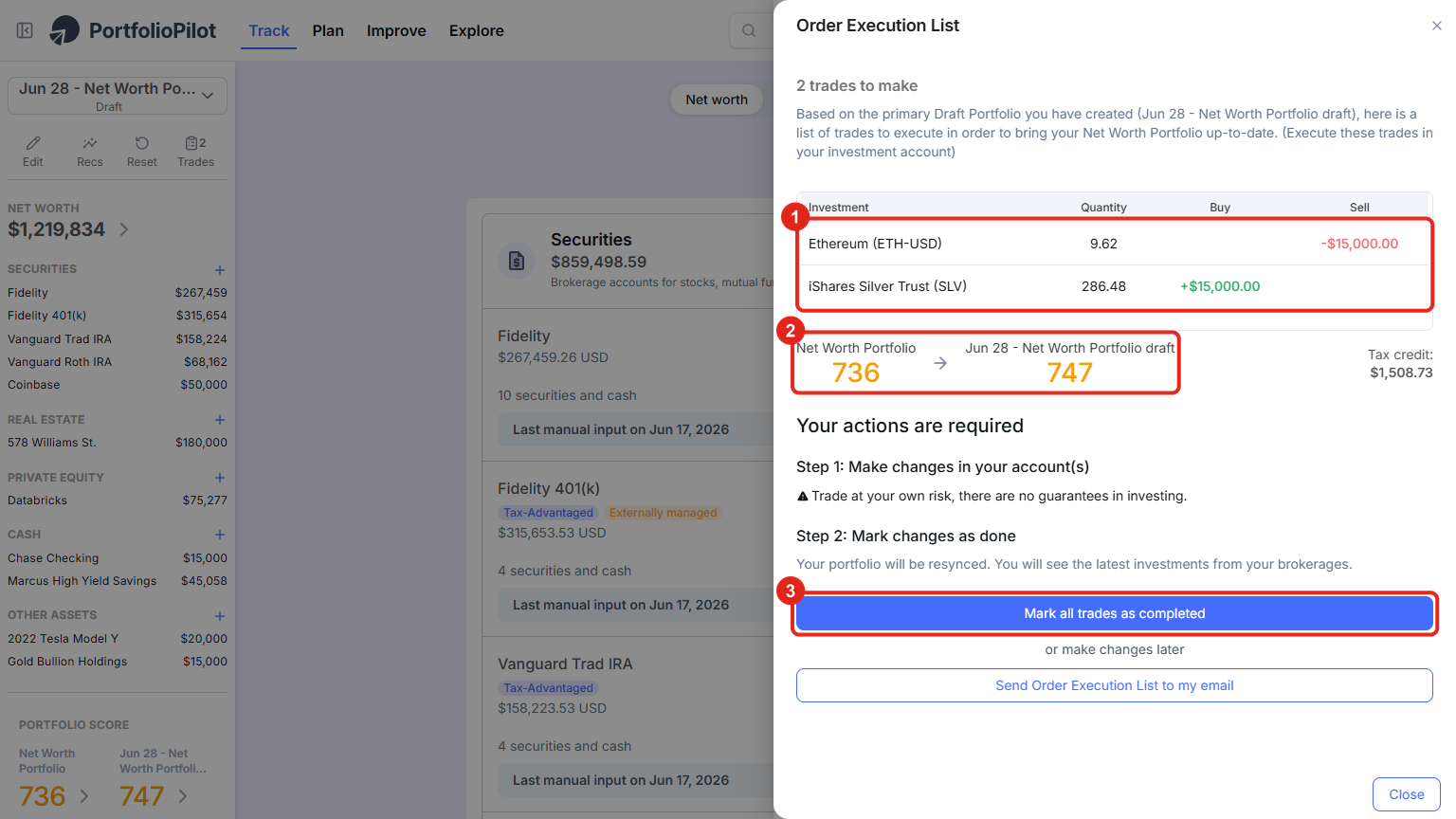
Desktop: the Order Execution List: the exact trades (1), the Score change (2), and Mark all trades as completed (3). Holdings shown are illustrative.
On a phone, the Order Execution List opens as a full-screen sheet with the same trade list and the same Mark all trades as completed button, the steps are identical to desktop.
Manage and compare your drafts
All of your drafts live on the Drafts tab (Track → Drafts, shown above). Once you have created one, each draft is a card showing its Score, expected return, and number of investments, so you can compare strategies side by side. Use the icons on a card to open, edit, or delete a draft, and choose Add Draft Portfolio, or Copy current portfolio / Start from all cash, to create another. Keep as many as you like, on desktop or mobile: for example, a "more income" draft next to a "lower risk" draft.
The sections that follow, How draft portfolios work, Common use cases, and Next steps, are background reading rather than steps to complete.
How draft portfolios work
- A copy, not your real money: a draft is a full copy of the portfolio it is based on (or all cash if you start blank). Changes stay in the draft until you place real trades and mark them done.
- Live recalculation: your Portfolio Score, allocation, expected return, dividend income, and risk update every time you change the draft.
- Unlimited and saved: create as many drafts as you want; they save to your PortfolioPilot profile, on desktop and mobile alike, so you can leave and come back.
- One menu, applied your way: recommendations are a menu to pick from, not a fixed sequence; add them one at a time and keep only the ones that help.
Common use cases
- Test selling a concentrated position: trim an oversized holding and watch your Portfolio Score and risk update before you commit a single trade.
- Raise your Score with one recommendation: add a single recommended position and see the projected Score change, then use the Order Execution List to place the one trade. (Illustrative.)
- Model a new bond or ETF before buying: add the security to a draft to see how it changes your allocation, income, and Score, then decide whether to place the trade.
- Compare two strategies: build one draft for more income and another for lower risk, then compare their cards on the Drafts tab.
Next steps
- Tutorial: Personalized Recommendations. How the recommendation menu and the Portfolio Optimizer work with drafts.
- Tutorial: Asset Groups. Separate taxable and tax-advantaged accounts so your drafts and recommendations are accurate.
- Tutorial: Import Your Net Worth. Get all of your accounts and holdings into PortfolioPilot first.
Global Predictions provides investment advice only through its internet-based application, PortfolioPilot, and only to individuals who are advisory clients of Global Predictions pursuant to written advisory Client Agreements ("Advisory Services"). The publicly available portions of the Platform (i.e., the sections of the Platform that are available to individuals who are not party to a Client Agreement, including globalpredictions.com and portions of portfoliopilot.com) are provided for educational purposes only and are not intended to provide legal, tax, or financial planning advice. To the extent that any of the content published on publicly available portions of the Platform may be deemed to be investment advice, such information is impersonal and not tailored to the investment needs of any specific person. Nothing on the publicly available portions of the Platform should be construed as a solicitation or offer, or recommendation, to buy or sell any security. All charts, figures, and graphs on the publicly available websites are for illustrative purposes only. Before investing, you should consider whether any investment, investment strategy, security, other asset, or related transaction is appropriate for you based on your personal investment objectives, financial circumstances, and risk tolerance. You are also encouraged to consult your legal, tax, or investment professional regarding your specific situation. Registration does not imply a certain level of skill or training. Investing involves risk. The value of your investment will fluctuate, and you may gain or lose money.
The contents of the Platform may contain forward-looking statements that are based on management's beliefs, assumptions, current expectations, estimates, and projections about the financial industry, the economy, or Global Predictions itself. Forward-looking statements are not guarantees of the underlying expected actions or future performance, and future results may differ significantly from those anticipated by the forward-looking statements. Therefore, actual results and outcomes may materially differ from what may be expressed or forecasted in such forward-looking statements.
Case studies and examples presented are hypothetical scenarios intended for illustrative purposes only. They do not represent an actual client, investment, or experience, but rather are meant to provide an example of the intended investment process and methodology. An individual's experience may vary based on his or her circumstances. There can be no assurance that the Firm will be able to achieve similar results in comparable situations. No portion of these examples is to be interpreted as a testimonial or endorsement of the Firm's investment advisory services. The information contained herein should not be construed as personal investment advice.
Note: our use of the term AI refers to all artificial intelligence models used, including large language models, proprietary economic models that incorporate regression or dynamic factors, and machine learning methods like supervised learning. For more information, see our disclosures at globalpredictions.com/disclosures.
Creating, editing, and comparing draft portfolios is free, on desktop and mobile. The personalized recommendations and the Portfolio Optimizer described above are part of Investing Advice, available to Gold, Platinum, or Pro subscribers (all with a 10-day free trial, no credit card required).
