
Tutorial: Asset Groups
Asset Groups let you split the accounts you own into separate buckets: retirement apart from your "fun money," or taxable apart from tax-advantaged, so PortfolioPilot can analyze and make recommendations for each part of your money on its own, each with its own risk preference. Just as important, this is where you tell PortfolioPilot how each account is taxed, the single setting that makes every recommendation you get tax-aware and aligned with your goals.
What you'll find in this tutorial
You do not have to follow these in order. Click any section to jump straight to it, or open the Groups tab in the app to follow along.
- Find Asset Groups on the Net Worth page
- Set up your groups and organize your accounts
- Give each group a name and risk preference
- Switch between views
- Set each account's tax treatment
- Put the right assets in the right accounts
Learn more: How Asset Groups work, Common use cases, and Next steps.
Throughout, the red markings on each screenshot point to exactly what the text is describing: a (1) in the text matches the 1 badge on the image. Where the phone layout differs, a mobile screenshot follows the desktop one.
A quick note before you start: we believe the best setup for most people is to keep everything together as one Net Worth Portfolio, so PortfolioPilot can optimize across all your money and weigh risk holistically. Asset Groups were added by popular demand for the cases where you genuinely want to manage a slice separately. If you're not sure, leave everything in the Net Worth Portfolio. You can always group later.
Find Asset Groups on the Net Worth page
Go to Track, open your Net worth page, then select the Groups tab (1) at the top, next to Net worth, Drafts, and Transactions. You'll see:
- (2) Your Net Worth Portfolio card: everything you own, treated as one portfolio. It's marked Default group and Currently selected, and it shows the risk level it's being managed to.
- (3) The Add Asset Group button. The very first time, before you've created any groups, this reads Set up Asset Groups. Pressing it turns on grouping and creates your first groups.
The explainer at the top sums up the feature: group or exclude accounts to get separate analysis and recommendations, each with its own risk preference, with examples like Retirement vs fun money, Real estate vs investable assets, or Taxed vs tax-advantaged.
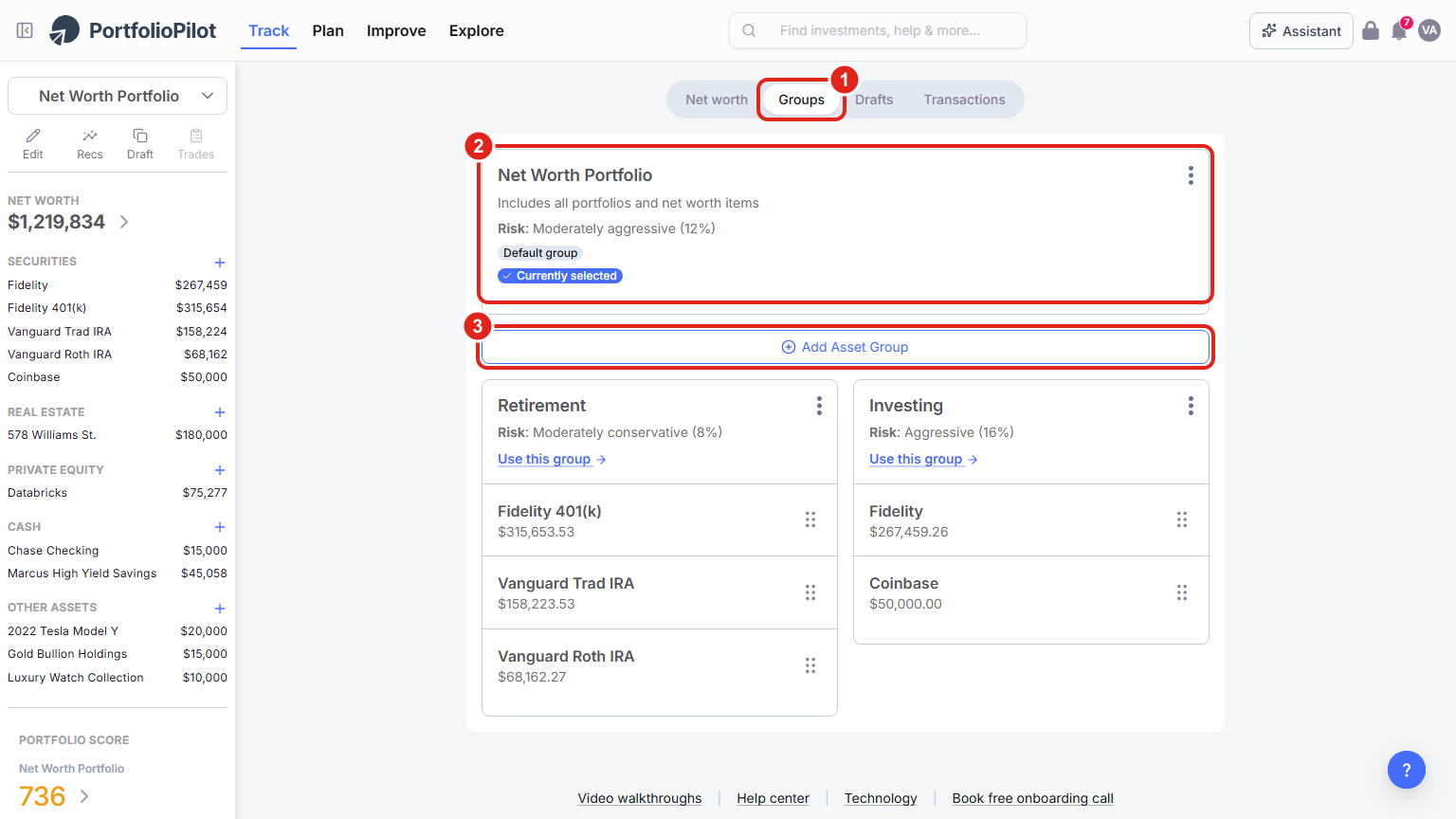
Track → Net worth → Groups: where Asset Groups live. The Groups tab (1), your Net Worth Portfolio default group (2), and Add Asset Group (3). Figures shown are illustrative.
Set up your groups and organize your accounts
Press Add Asset Group (or Set up Asset Groups the first time). PortfolioPilot creates a starter layout: a group that already contains your accounts, plus an empty group ready for you to fill, and from there you can build out as many groups as you need:
- (1) Press Add Asset Group to create another group.
- (2) Each group card shows its risk level, a Use this group link to view it on its own, and the accounts inside it. Move an account by dragging it (using the handle on the right of each row) from one group into another.
- An empty group shows a "Drag an account here to add it to this group" drop zone: drop an account on it to move it in.
If you have more than one account connected, PortfolioPilot may first ask you to Choose management approach: I'll use Net Worth Portfolio (one view and one set of recommendations for everything) or I'll create asset groups (independent groups, each with its own goals and preferences). You can change this later.
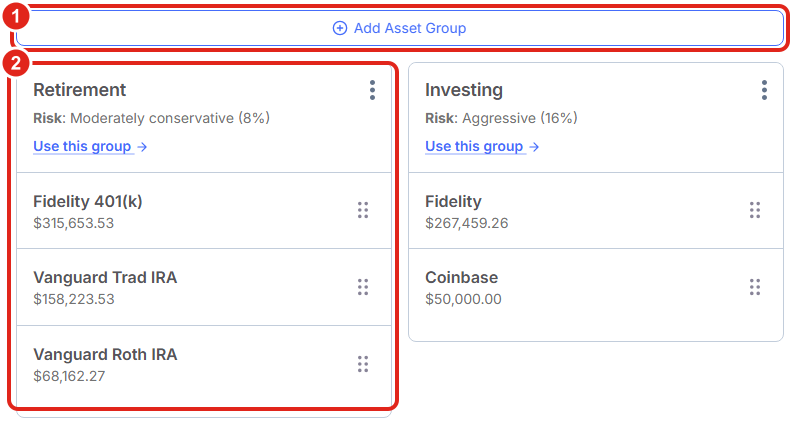
After setup: Add Asset Group (1), and each group card (2) holds its accounts, which you drag between groups by the handle on the right. Figures shown are illustrative.
On a phone, the groups stack vertically. The same Add Asset Group button (1) sits above your group cards (2), each showing its risk level, Use this group, and the accounts inside with the same drag handle to move them.
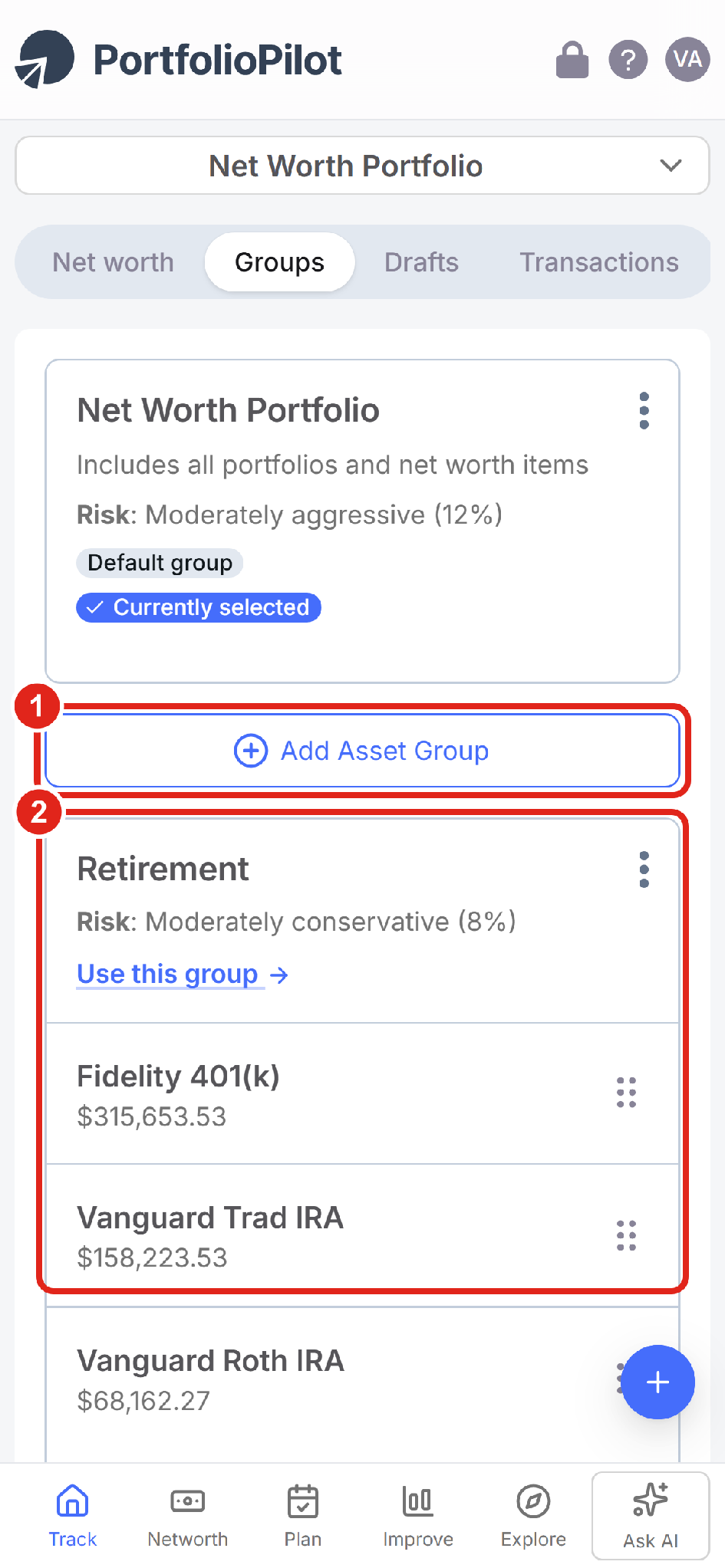
Mobile view: groups stack vertically, with Add Asset Group (1) above each group card (2). Figures shown are illustrative.
Give each group a name and risk preference
When you add a group (or choose Edit properties from a group's three-dot menu), the Create Group dialog opens:
- (1) Give the group a Name: something like "Retirement" or "Taxable brokerage."
- (2) Set its Risk preference. This is the risk level PortfolioPilot manages and scores that group to, independent of your other groups, so a conservative retirement group and an aggressive "fun money" group can live side by side.
- (3) Press Save. You can also choose Add specific context for recommendations to tell PortfolioPilot anything special about how this group should be handled.
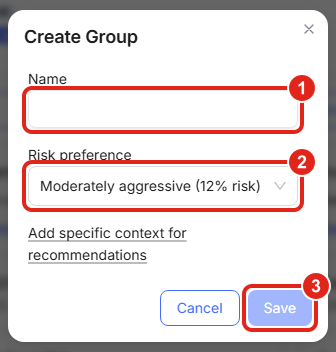
Create Group: name the group (1) and choose the risk level it's managed to (2), then Save (3). Figures shown are illustrative.
On a phone, the same dialog opens centered on screen with the Name field (1), Risk preference (2), and Save (3) stacked vertically.
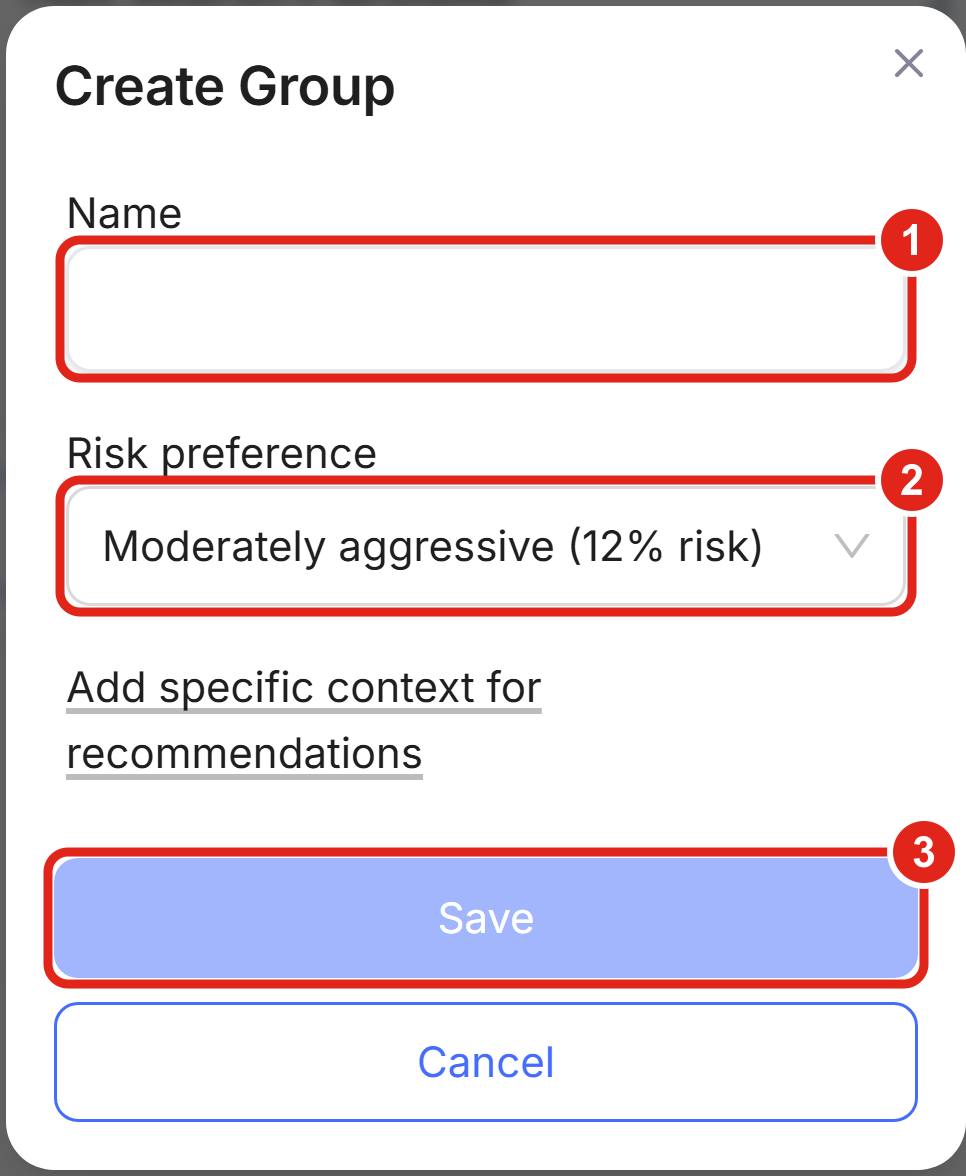
Mobile view: the Create Group dialog with Name (1), Risk preference (2), and Save (3). Figures shown are illustrative.
Switch between views
Each group has its own analysis, Portfolio Score, and recommendations. To move between them:
- (1) Use the portfolio selector at the top of the left-side menu (it reads Net Worth Portfolio by default) to switch between your whole Net Worth Portfolio, any Asset Group, an individual account, or a Draft Portfolio.
- (2) Or press Use this group on a group's card to jump straight into that group.
Whatever you select becomes the Currently selected view, and the sidebar, Portfolio Score, and recommendations all update to match it. Switch back to Net Worth Portfolio any time to see everything together again. On a phone, the same selector sits at the top of the screen, just above the Net worth / Groups / Drafts / Transactions tabs.
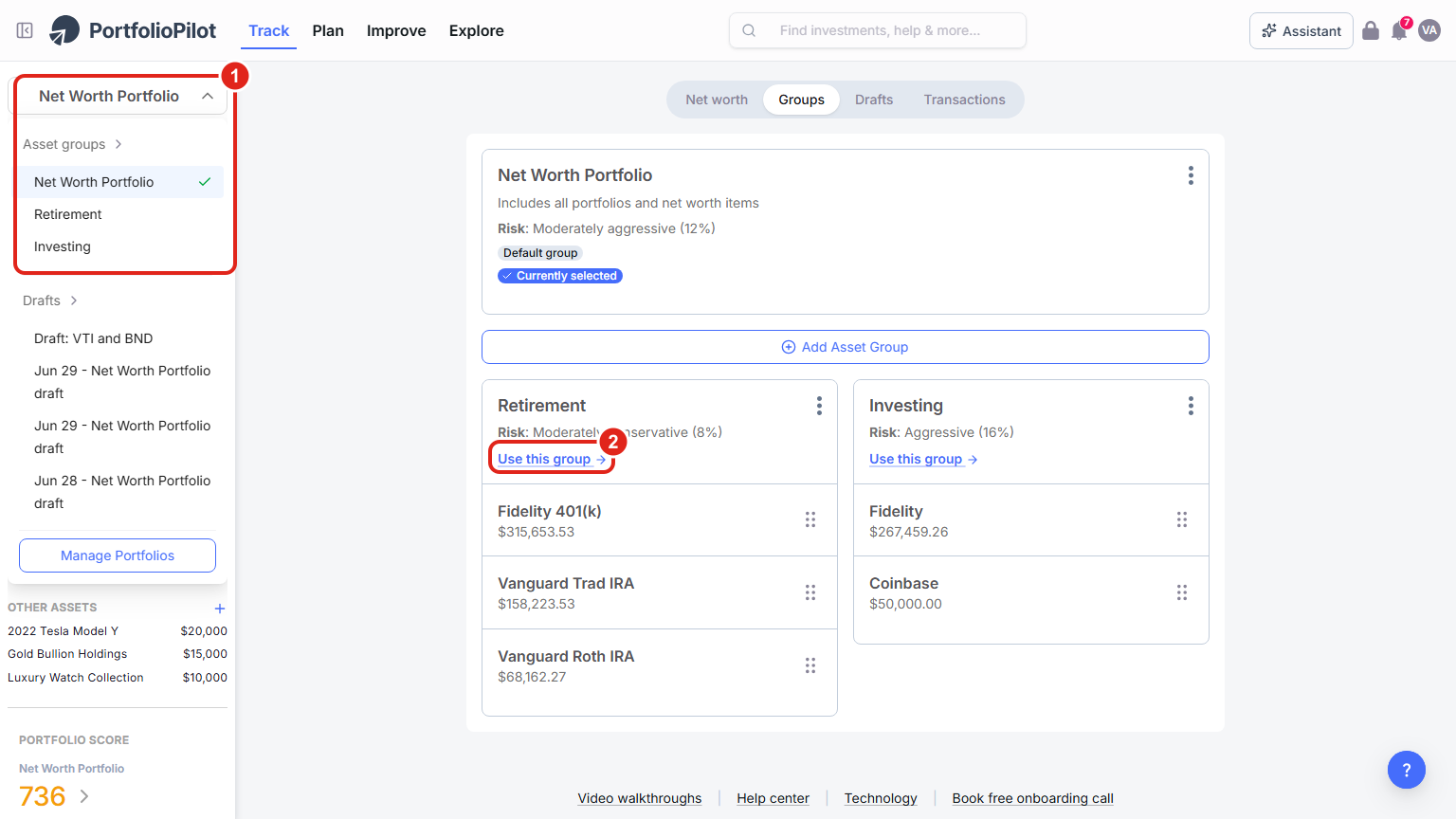
Switch between a single group and your whole Net Worth Portfolio with the selector (1) or Use this group (2). Figures shown are illustrative.
Set each account's tax treatment
This is the most valuable thing you can do here. PortfolioPilot makes tax-aware recommendations, and to do that it needs to know how each account is taxed. Tax treatment is set on the account, not on the group. To set or check it, open your Net worth page, find the account, press its pencil (edit) icon, and look at the Tax treatment field (1). There are three options:
- Taxable: regular brokerage accounts, where dividends and capital gains are taxed each year.
- Tax-Advantaged: Traditional IRA, 401(k), SEP-IRA, and the like. Contributions may be tax-deductible; withdrawals are taxed as income.
- Tax-Free: Roth IRA, Roth 401(k), HSA, and similar. Contributions are after-tax, but growth and withdrawals are generally tax-free.
PortfolioPilot suggests a treatment from the account's name (an account with "401k" or "IRA" in it is suggested as Tax-Advantaged; "Roth" or "HSA" as Tax-Free) and warns you if the name and your choice don't match, but you should confirm it. If the treatment is wrong (say, a 401(k) marked as taxable), tax-aware features such as tax-loss harvesting and where-to-place-an-asset guidance can give you the wrong answer. This is why it's worth a minute to get right.
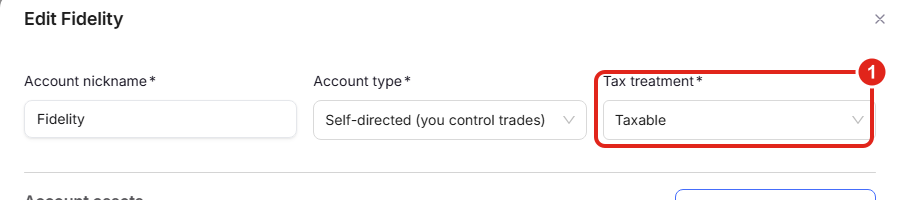
Tax treatment is set per account (Taxable, Tax-Advantaged, or Tax-Free) in the account's Edit drawer (1). Figures shown are illustrative.
On a phone, the Edit drawer opens full-screen with the same Tax treatment field (1) just below Account nickname and Account type.
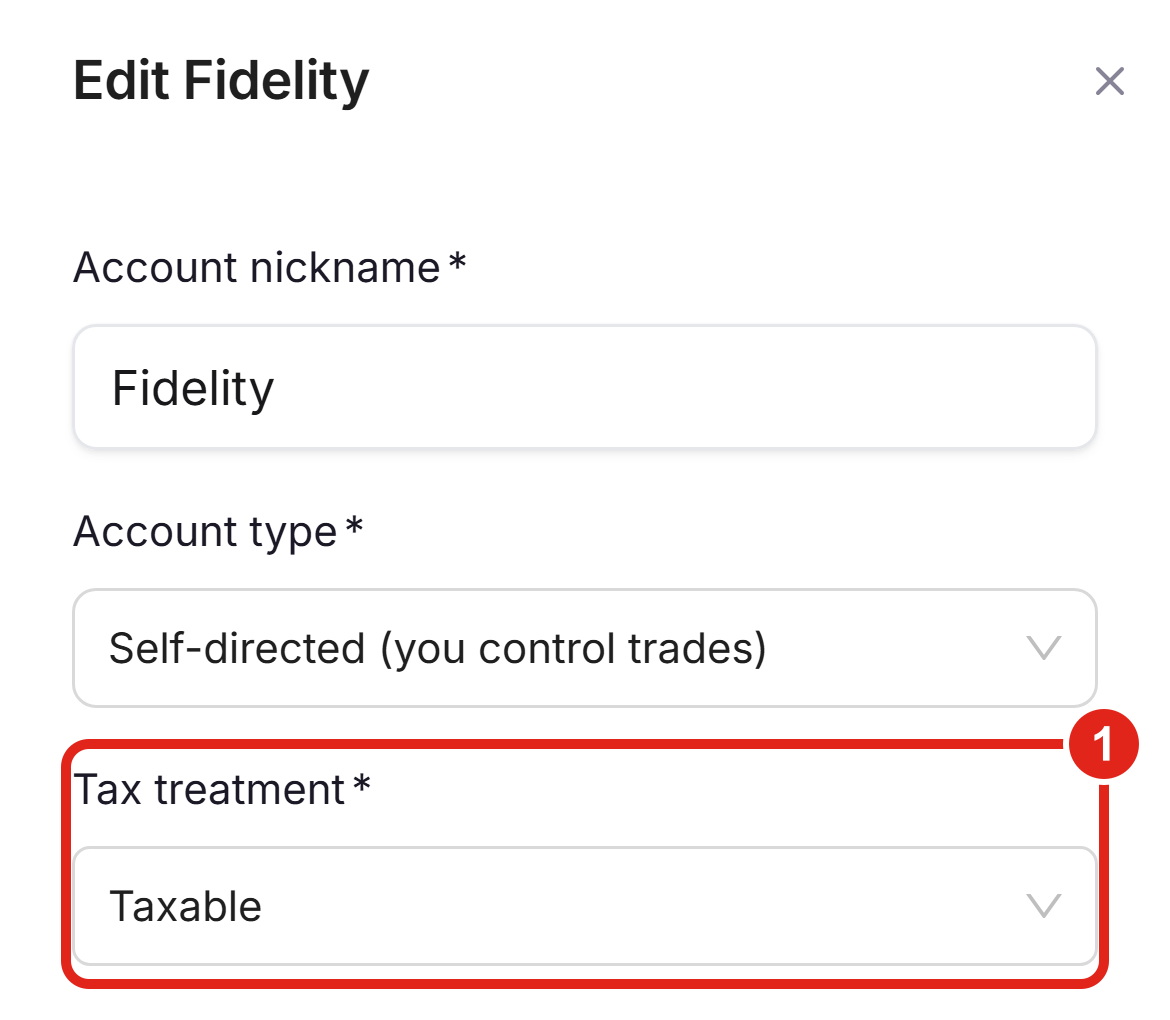
Mobile view: the Edit account drawer full-screen, with the Tax treatment field (1). Figures shown are illustrative.
Put the right assets in the right accounts
Once PortfolioPilot knows how each account is taxed, it can help with asset location: not just what you own, but which account each holding sits in. Asset allocation is your mix of stocks, bonds, and other assets; asset location is where you hold them. Two people with the same allocation can end up with very different after-tax results purely because of location.
As a general principle (this is general education, not personalized tax advice: consider checking with a tax professional):
- Tax-advantaged and tax-free accounts (IRA, 401(k), Roth, HSA) are usually the best home for tax-inefficient assets: taxable bonds, REITs, and high-turnover or high-income funds, because the income they throw off isn't taxed every year. A Roth, where growth is generally tax-free, is often an appropriate place for your highest-growth holdings.
- Taxable accounts are usually the best home for tax-efficient assets: broad-market stock index funds and ETFs with low turnover and qualified dividends, and municipal bonds, and for anything you might want to tax-loss harvest later.
Because PortfolioPilot knows each account's tax treatment, it factors location into your Personalized Recommendations, including which account to buy or sell in, so you can optimize across all your accounts at once instead of treating each one in isolation. Setting tax treatment correctly is what makes that possible.
The sections that follow, How Asset Groups work, Common use cases, and Next steps, are background reading rather than steps to complete.
How Asset Groups work
- Independent analysis: each group gets its own Portfolio Score, risk analysis, and recommendations, managed to the risk preference you set for it.
- The Net Worth Portfolio still sees everything: grouping a slice doesn't hide it from the whole-portfolio view. Switch back to Net Worth Portfolio to see all your accounts together.
- New accounts join the default group: any account you add later is placed in the default group until you move it.
- Grouping is safe and reversible: changes on the Groups tab don't touch your connected accounts or their data. You can rename, move, or delete a group freely, and Reset all groups (from the Net Worth Portfolio card's three-dot menu) returns every account to a single group.
- Investment accounts, for now: you can group investment accounts (portfolios). Other net worth items, such as real estate and cash, are tracked at the Net Worth Portfolio level.
Common use cases
- Taxed vs. tax-advantaged: set each account's tax treatment correctly, then (optionally) group your taxable and tax-advantaged accounts separately. PortfolioPilot still uses both together to recommend which account should hold which asset.
- Retirement vs. fun money: manage long-term retirement accounts conservatively and a small "fun money" account aggressively: two groups, each with its own risk preference, each scored to its own level.
- Real estate vs. investable assets: look at your liquid, investable accounts on their own for investment decisions, while the Net Worth Portfolio keeps the whole picture.
Next steps
- Tutorial: Import Your Net Worth. Add or connect the accounts you'll group.
- Tutorial: Tax Optimization. Tax-loss harvesting and seeing the tax impact of a change before you accept it.
- Tutorial: Personalized Recommendations. Act on the tax-aware, account-level recommendations Asset Groups make possible.
- Tutorial: Portfolio Score. Understand the score each group is optimized to improve.
Global Predictions provides investment advice only through its internet-based application, PortfolioPilot, and only to individuals who are advisory clients of Global Predictions pursuant to written advisory Client Agreements ("Advisory Services"). The publicly available portions of the Platform (i.e., the sections of the Platform that are available to individuals who are not party to a Client Agreement, including globalpredictions.com and portions of portfoliopilot.com) are provided for educational purposes only and are not intended to provide legal, tax, or financial planning advice. To the extent that any of the content published on publicly available portions of the Platform may be deemed to be investment advice, such information is impersonal and not tailored to the investment needs of any specific person. Nothing on the publicly available portions of the Platform should be construed as a solicitation or offer, or recommendation, to buy or sell any security. All charts, figures, and graphs on the publicly available websites are for illustrative purposes only. Before investing, you should consider whether any investment, investment strategy, security, other asset, or related transaction is appropriate for you based on your personal investment objectives, financial circumstances, and risk tolerance. You are also encouraged to consult your legal, tax, or investment professional regarding your specific situation. Registration does not imply a certain level of skill or training. Investing involves risk. The value of your investment will fluctuate, and you may gain or lose money.
PortfolioPilot is not a tax advisor. Information about tax treatment, asset location, and tax-advantaged accounts is general and educational, may not reflect current tax law, and is not personalized tax advice. Consult a qualified tax professional before acting.
Case studies presented are hypothetical scenarios and intended for illustrative purposes only. They do not represent an actual client, investment or experience, but rather are meant to provide an example of the intended investment process and methodology. An individual's experience may vary based on his or her circumstances. There can be no assurance that the Firm will be able to achieve similar results in comparable situations. No portion of this case study is to be interpreted as a testimonial or endorsement of the Firm's investment advisory services. The information contained herein should not be construed as personal investment advice.
Note: our use of the term AI refers to all artificial intelligence models used, including large language models, proprietary economic models that incorporate regression or dynamic factors, and machine learning methods like supervised learning. For more information, see our disclosures at globalpredictions.com/disclosures.
Asset Groups, tax treatment, and net worth tracking are part of the free plan. Acting on the recommendations they inform, investing recommendations and tax-loss harvesting, is available with Gold, Platinum, or Pro (all with a 10-day free trial, no credit card required).
