
Tutorial: Invest Together as a Couple
Most couples share their financial life, but their money is spread across two sets of brokerages, retirement accounts, and banks. PortfolioPilot brings both partners' accounts together under one login so you can see your true combined net worth, get recommendations on the whole picture, share access securely, and plan a retirement built on both of your incomes and Social Security benefits.
What you'll find in this tutorial
You do not have to follow these in order. Click any section to jump straight to it, or open PortfolioPilot in the app to follow along.
- Two ways to invest together
- Add both partners' accounts
- Keep each partner's accounts separate with Asset Groups
- Share access with your partner (Pro)
- Plan retirement as a couple
- Learn more: Common use cases and Next steps.
Throughout, the red markings on each screenshot point to exactly what the text is describing: a (1) in the text matches the 1 badge on the image. Where the phone layout differs, a mobile screenshot follows the desktop one.
Two ways to invest together
PortfolioPilot has no single "joint account" that two people co-own; instead, there are two ways for a couple to use it, and you can mix them:
- One shared login: both partners' accounts live in a single PortfolioPilot account that you both use. Your net worth, Portfolio Score, recommendations, and retirement plan all cover the two of you automatically.
- Separate logins with shared access: each partner keeps their own PortfolioPilot login, and one of you invites the other to view or manage their account. Sharing access is a Pro feature, covered below.
Choose one shared login if you manage your money together; choose shared access if you each want to keep your own login. To keep both partners under one login but analyzed separately, use asset groups, covered below.
Add both partners' accounts
Go to Track, then Net worth. Add each partner's accounts the same way you added your own:
- Add account: in the Securities section, choose Add account to connect a brokerage or bank by searching for the institution, or use a statement upload or manual entry for anything that will not connect (1). Repeat for every account that belongs to either of you, both partners' brokerages, IRAs, 401(k)s, and bank accounts; your combined net worth at the top updates as you add them.
- Adding a second account from the same institution: if you are connecting another account from an institution you have already linked, first log out of that institution's website in your browser. The secure sign-in reuses your existing session, so without logging out it will reopen the account you already added instead of letting you connect the new one.
- Keep each partner separate: use the portfolio selector at the top left to create a separate portfolio per partner (for example, "Alex's accounts" and "Sam's accounts"), then switch between them or view everything together (2).
For every way to bring accounts in, see Tutorial: Import Your Net Worth.

Track → Net worth: use Add account to bring in each partner's accounts (1), and the portfolio selector to keep a separate portfolio per partner (2). Figures shown are illustrative.
On a phone, the left sidebar becomes the bottom navigation bar and the page stacks in a single column: the Securities section with Add account (1), and the portfolio selector at the top (2).
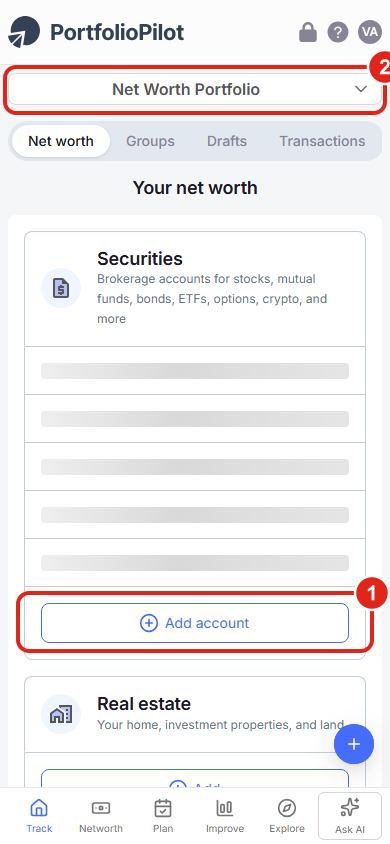
Mobile view: the Securities section and Add account, with the portfolio selector at the top. Figures shown are illustrative.
Keep each partner's accounts separate with Asset Groups
If you keep both partners in one account but want PortfolioPilot to analyze each person, or each tax treatment, separately:
- Open the Groups tab: on the Net Worth page, switch to Groups (1).
- Add Asset Group: choose Set up Asset Groups for your first group, or Add Asset Group once you already have one, to split your holdings into separate profiles (for example, one group per partner, or "taxed vs tax-advantaged"), each with its own risk preference, so recommendations are tuned to that group instead of being averaged across both of you (2).
Without groups, all accounts roll up into a single Net Worth Portfolio. For the full walkthrough, see Tutorial: Asset Groups.
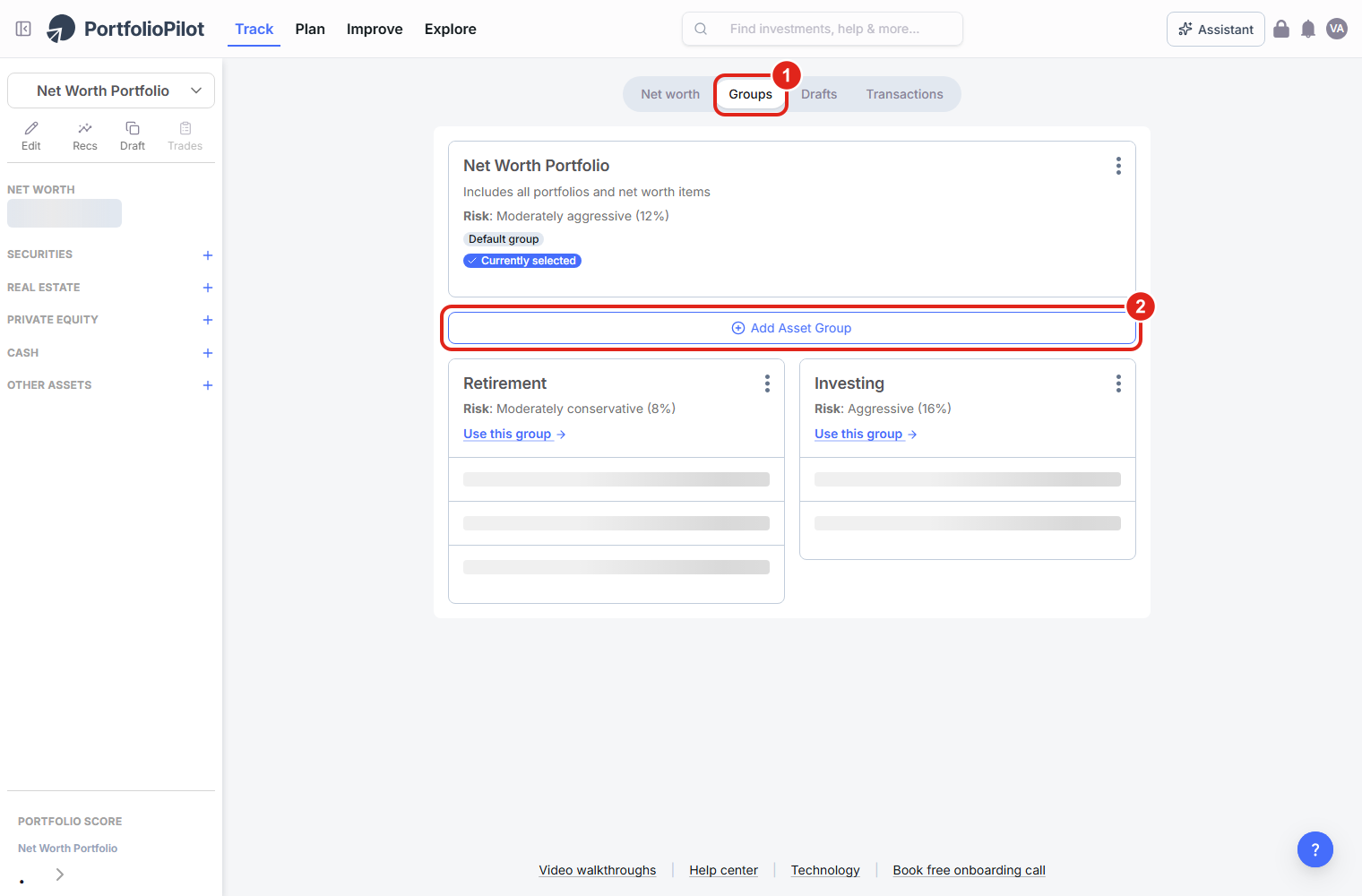
The Groups tab: open it (1) and choose Add Asset Group (2) to analyze each partner, or each purpose, separately.
On a phone, the Groups tab (1) and the Add Asset Group button (2) appear stacked in a single column.
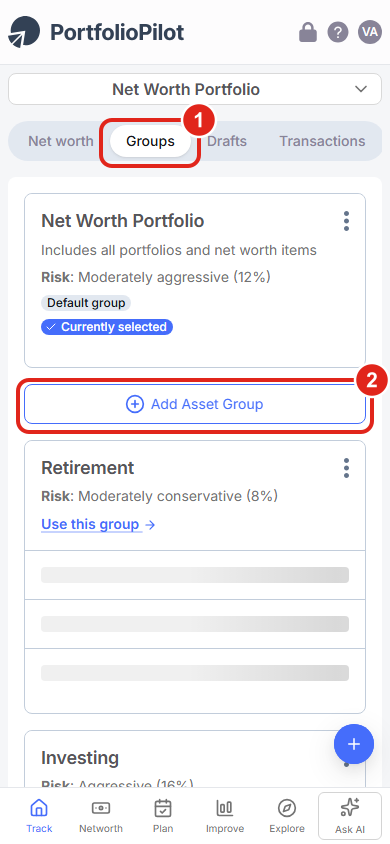
Mobile view: the Groups tab and the Set up Asset Groups button.
Share access with your partner (Pro)
If each of you wants your own login, the account owner can invite the other from Settings → Shared access. Choose Add a person, then:
- Invitee email: enter your partner's email address (1).
- Permission: pick Read only (see everything, change nothing) or Full control (view and manage, just like you) (2).
- Send invite: choose it, and your partner accepts from their own PortfolioPilot login (3).
Your data stays protected: access is by invitation only, you choose the permission level, and you can change or remove it at any time. Sharing access (multi-user login) is part of the Pro plan.
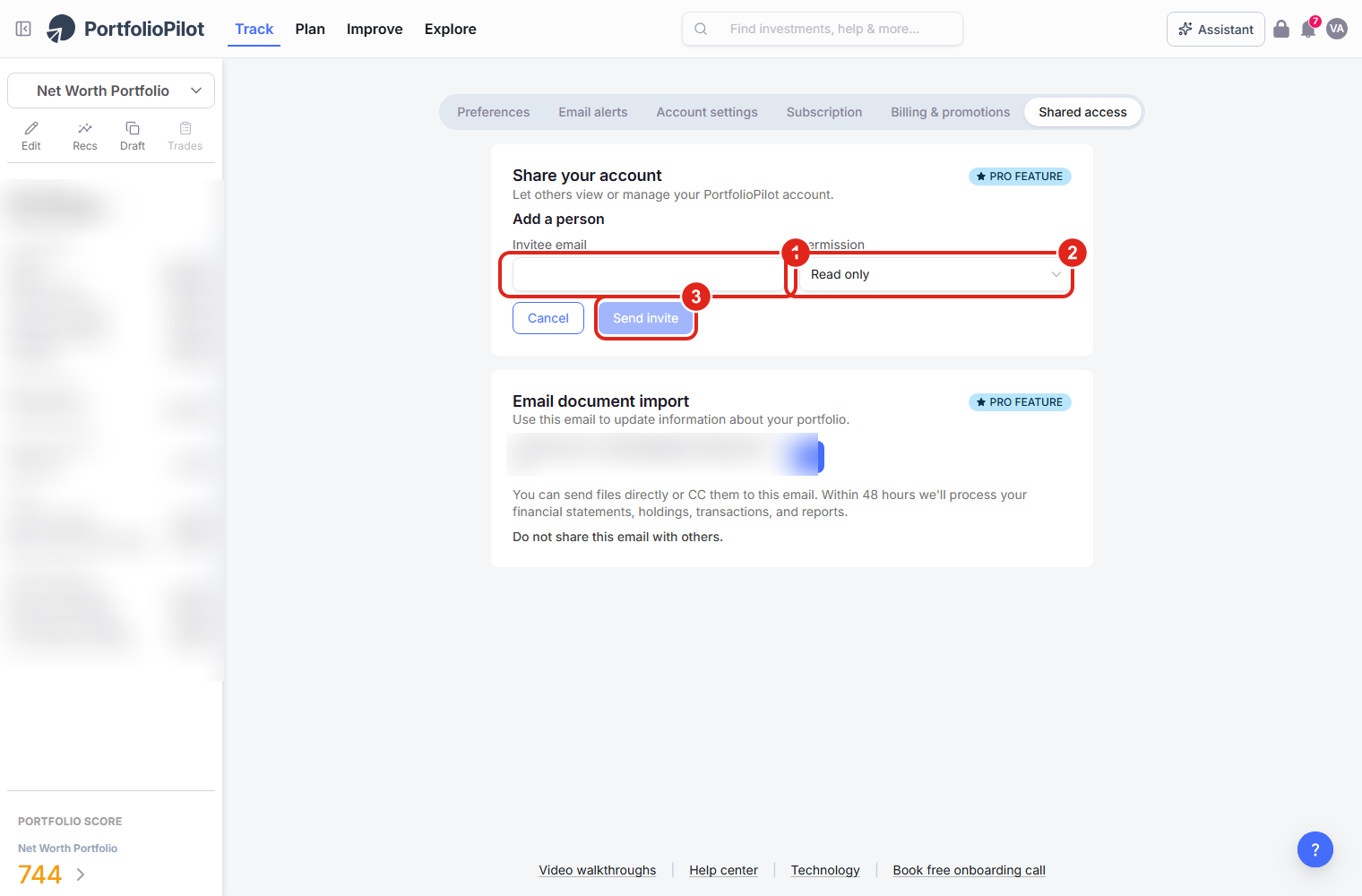
Settings → Shared access (a Pro feature): enter your partner's email (1), pick a permission level (2), and choose Send invite (3).
On a phone, the Add a person form stacks vertically: Invitee email (1), Permission (2), and Send invite (3).
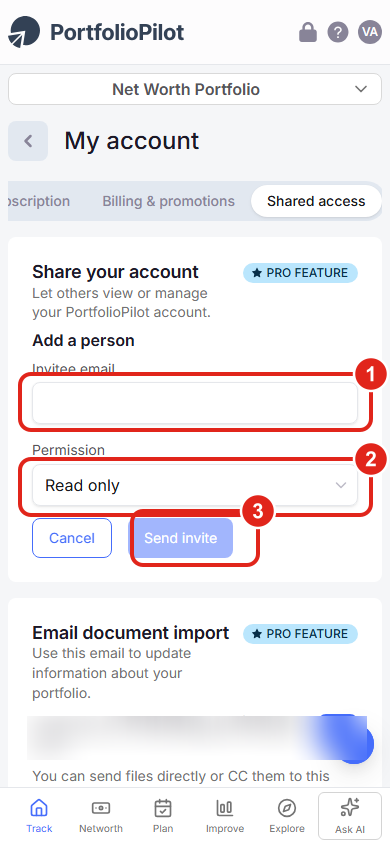
Mobile view: the Add a person form with email, permission, and Send invite.
Plan retirement as a couple
Go to Plan → Retirement Planning, choose More settings, and open the People tab. Fill in your own details (current age, retirement age, life expectancy, Social Security), then add your partner:
- Include separately?: under Spouse / partner, set it to Yes (1).
- Your partner's fields: a second set appears, their current age, retirement age, life expectancy, Social Security benefit and start age, and Income share (their share of household income) (2).
The 1,000 Monte Carlo simulations now model both incomes and both Social Security benefits, both retirement dates, and the years when only one of you is still working. For income, pensions, and one-time events that affect either of you, use the Money in & out and Life events tabs. For the full planner, see Tutorial: Retirement Planning.
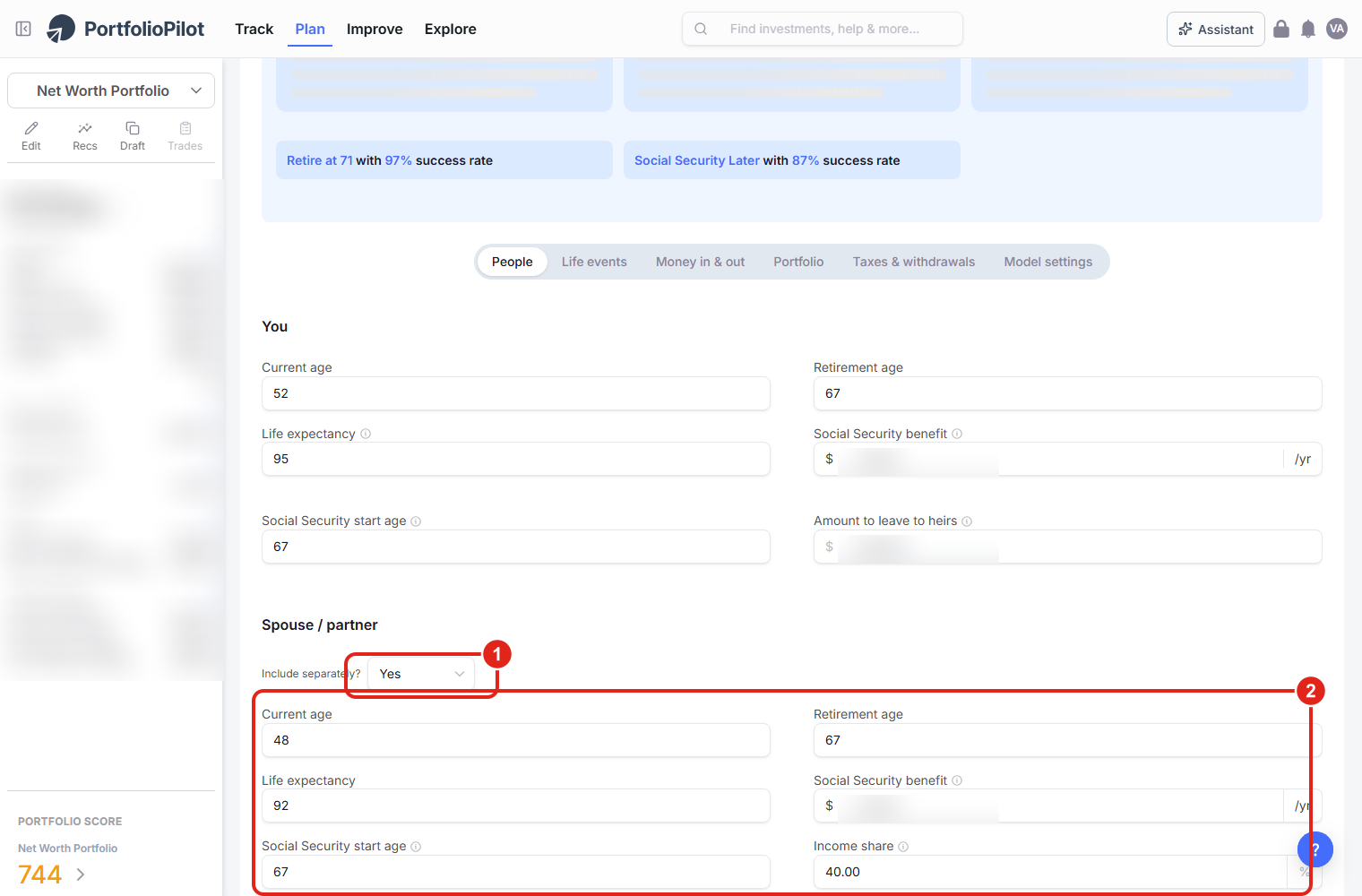
Plan → Retirement Planning → More settings → People: set Include separately? to Yes (1) and fill in your partner's details (2). Financial figures are blurred for privacy.
On a phone, the People tab stacks in a single column: Include separately? set to Yes (1), with your partner's fields below (2).

Mobile view: Include separately? set to Yes and the Spouse / partner fields. Financial figures are blurred for privacy.
The rest is background to help you get the most out of investing together.
Common use cases
Newly married, combining finances
Add both partners' brokerages and IRAs under one login, then look at your combined net worth and Portfolio Score for the first time. If you want your retirement accounts analyzed separately from a joint taxable account, set up asset groups.
One partner manages, the other wants visibility
Keep the accounts in one login and invite your partner with Read only access (Pro) so they can see the full picture without changing anything.
Planning a joint retirement with two Social Security benefits
In the People tab, include your spouse and enter both Social Security benefits and start ages, for example yours at 67 and your partner's at 70, and watch how your probability of success changes when one of you delays benefits.
Next steps
- Tutorial: Import Your Net Worth. Every way to bring both partners' accounts in.
- Tutorial: Retirement Planning. The full retirement planner, including RMDs, Roth conversions, and what-if scenarios.
- Tutorial: Asset Groups. Separate taxed and tax-advantaged accounts so recommendations are right.
Global Predictions provides investment advice only through its internet-based application, PortfolioPilot, and only to individuals who are advisory clients of Global Predictions pursuant to written advisory Client Agreements ("Advisory Services"). The publicly available portions of the Platform (i.e., the sections of the Platform that are available to individuals who are not party to a Client Agreement, including globalpredictions.com and portions of portfoliopilot.com) are provided for educational purposes only and are not intended to provide legal, tax, or financial planning advice. To the extent that any of the content published on publicly available portions of the Platform may be deemed to be investment advice, such information is impersonal and not tailored to the investment needs of any specific person. Nothing on the publicly available portions of the Platform should be construed as a solicitation or offer, or recommendation, to buy or sell any security. All charts, figures, and graphs on the publicly available websites are for illustrative purposes only. Before investing, you should consider whether any investment, investment strategy, security, other asset, or related transaction is appropriate for you based on your personal investment objectives, financial circumstances, and risk tolerance. You are also encouraged to consult your legal, tax, or investment professional regarding your specific situation. Registration does not imply a certain level of skill or training. Investing involves risk. The value of your investment will fluctuate, and you may gain or lose money.
The contents of the Platform may contain forward-looking statements that are based on management's beliefs, assumptions, current expectations, estimates, and projections about the financial industry, the economy, or Global Predictions itself. Forward-looking statements are not guarantees of the underlying expected actions or future performance, and future results may differ significantly from those anticipated by the forward-looking statements. Therefore, actual results and outcomes may materially differ from what may be expressed or forecasted in such forward-looking statements.
Case studies presented are hypothetical scenarios and intended for illustrative purposes only. They do not represent an actual client, investment or experience, but rather are meant to provide an example of the intended investment process and methodology. An individual's experience may vary based on his or her circumstances. There can be no assurance that the Firm will be able to achieve similar results in comparable situations. No portion of this case study is to be interpreted as a testimonial or endorsement of the Firm's investment advisory services. The information contained herein should not be construed as personal investment advice.
Note: our use of the term AI refers to all artificial intelligence models used, including large language models, proprietary economic models that incorporate regression or dynamic factors, and machine learning methods like supervised learning. For more information, see our disclosures at globalpredictions.com/disclosures.
Bringing both partners' accounts together, organizing them with asset groups, and retirement planning are part of the free plan. Sharing access with a partner (multi-user login) is part of the Pro plan, which includes a 10-day free trial, no credit card required.
