
Tutorial: Personalized Recommendations
Personalized Recommendations answer the question most tools leave you with: now that I can see my portfolio, what should I actually do about it?
PortfolioPilot looks at your holdings, your preferences, and current market conditions, generates many possible changes, buys, sells, swaps, and rebalances, checks each one against your Portfolio Score, and shows you only the moves that would actually improve your portfolio. Every suggestion comes with the reason behind it and its projected impact.
Nothing touches your real accounts until you decide to act: PortfolioPilot has read-only access to your connected accounts and never trades for you, and every change first goes into a safe draft so you can see the effect before you place a single trade.
What you'll find in this tutorial
You do not have to follow these in order. Click any section to jump straight to it, or open the Recommendations page in the app to follow along with your own portfolio.
- Open your recommendations
- Choose a strategy
- Read a recommendation and why it's suggested
- Add a recommendation to a draft
- Watch everything recalculate
- Review and place your trades
- Skip suggestions you don't want
- Tune your preferences
- A tour of the other strategies
Learn more: How the engine works, When recommendations aren't shown, Common use cases, and Next steps.
Throughout, the red markings on each screenshot point to exactly what the text is describing: a (1) in the text matches the 1 badge on the image. Where the phone layout differs, a mobile screenshot follows the desktop one.
Open your recommendations
Go to Improve and click on Recommendations, or Recs in the left sidebar (or open the Recommendations page directly). Good advice depends on good inputs, so before you dig in: if you haven't yet, import your net worth first, and set your preferences so the advice matches how you actually invest (see Tune your preferences below). The page opens on a menu of recommendation strategies:
- Top Recommendations, marked Start here: the highest-impact changes PortfolioPilot has found for your portfolio overall. When in doubt, begin here. (1)
- The rest of the menu, split into Main Recommendations and More options: each tile is a different way of looking at your portfolio, and you open them one at a time. (2)
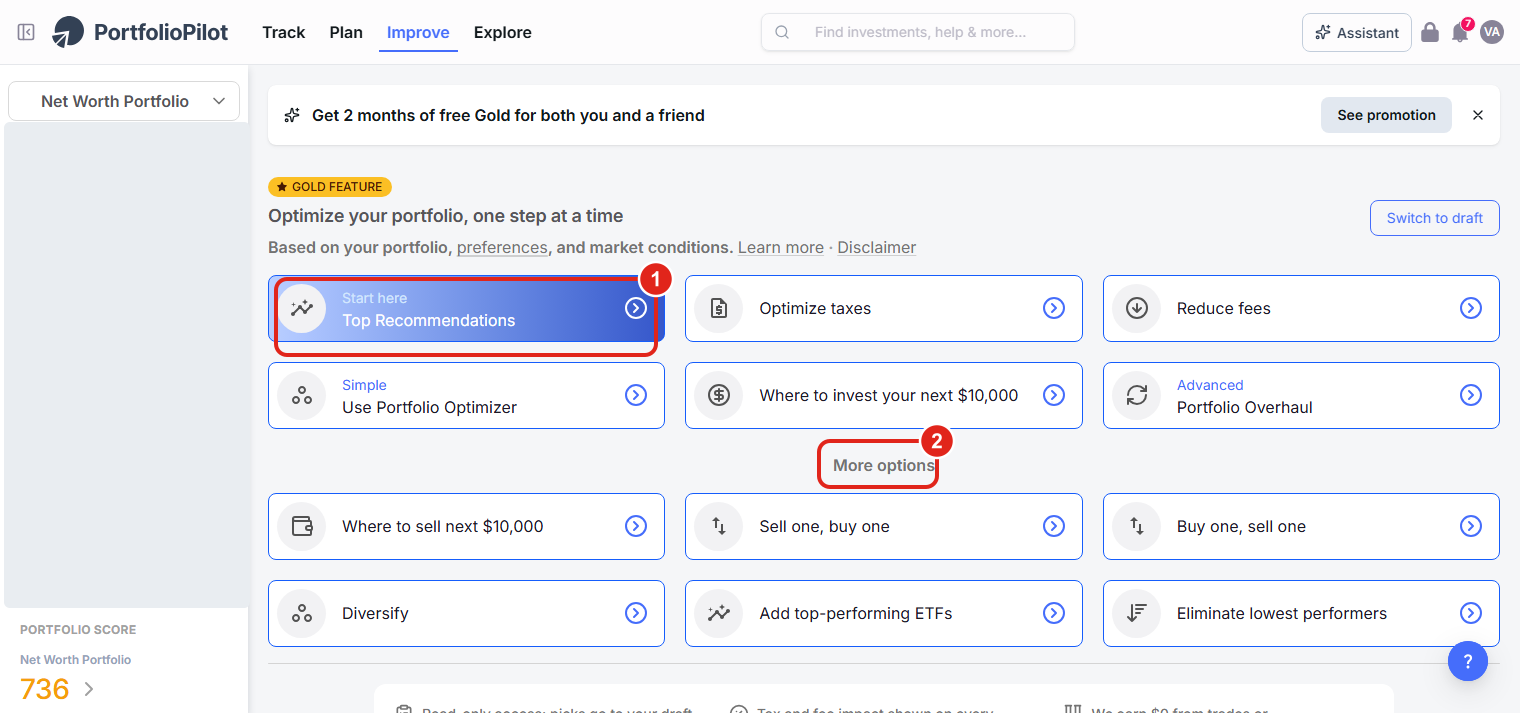
Improve → Recs: a menu of recommendation strategies. Start with Top Recommendations. Figures shown are illustrative.
On a phone, the same strategies stack into a single scrollable column, with Top Recommendations (1) at the top.
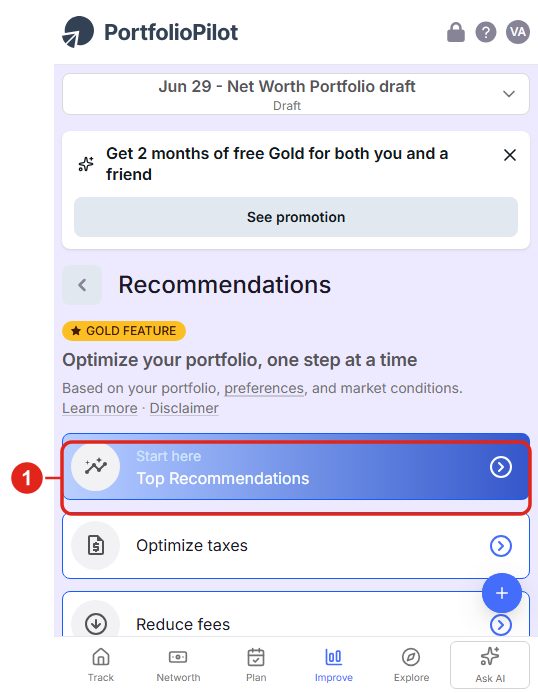
Mobile view: the strategy menu as a single column. Figures shown are illustrative.
Choose a strategy
The menu is a set of lenses on your portfolio, not a checklist to complete. Pick one strategy, work through what it suggests, then come back for another. Each change you add recalculates the rest (see Watch everything recalculate below). The Main Recommendations are calculated to raise your Portfolio Score:
- Top Recommendations: the biggest overall potential improvements; the best place to start.
- Optimize taxes: tax-aware moves such as harvesting losses (see the Tax Optimization tutorial).
- Reduce fees: swaps to lower-cost equivalents.
- Portfolio OptimizerUse : re-weights your holdings to improve risk-adjusted return (this one is in the free plan).
- Where to invest your next $10,000: the best way to put new cash to work with just a few buys (the dollar figure is calculated from your investable cash).
- Portfolio Overhaul: a larger, cumulative set of changes built by running the engine through ten iterations.
Under More options you'll also find Where to sell next, Buy one, sell one, and Sell one, buy one (two sides of the same idea: name the trade you already have in mind and PortfolioPilot finds the best counterpart), Diversify, Add top-performing ETFs, and Eliminate lowest performers. Whatever you pick, add it to a draft and check the Portfolio Score impact before acting.
Read a recommendation and why it's suggested
Open Top Recommendations. These cards are a menu of alternatives, not a to-do list: each is a different way to improve the same portfolio, ranked by how much it helps, so you pick what fits and add one at a time. On each card:
- The Score impact: how many points this single change is projected to add to your Portfolio Score. (1)
- Choose View details to open the full breakdown. (2)
- Choose Ignore to hide a suggestion you don't want. (3)
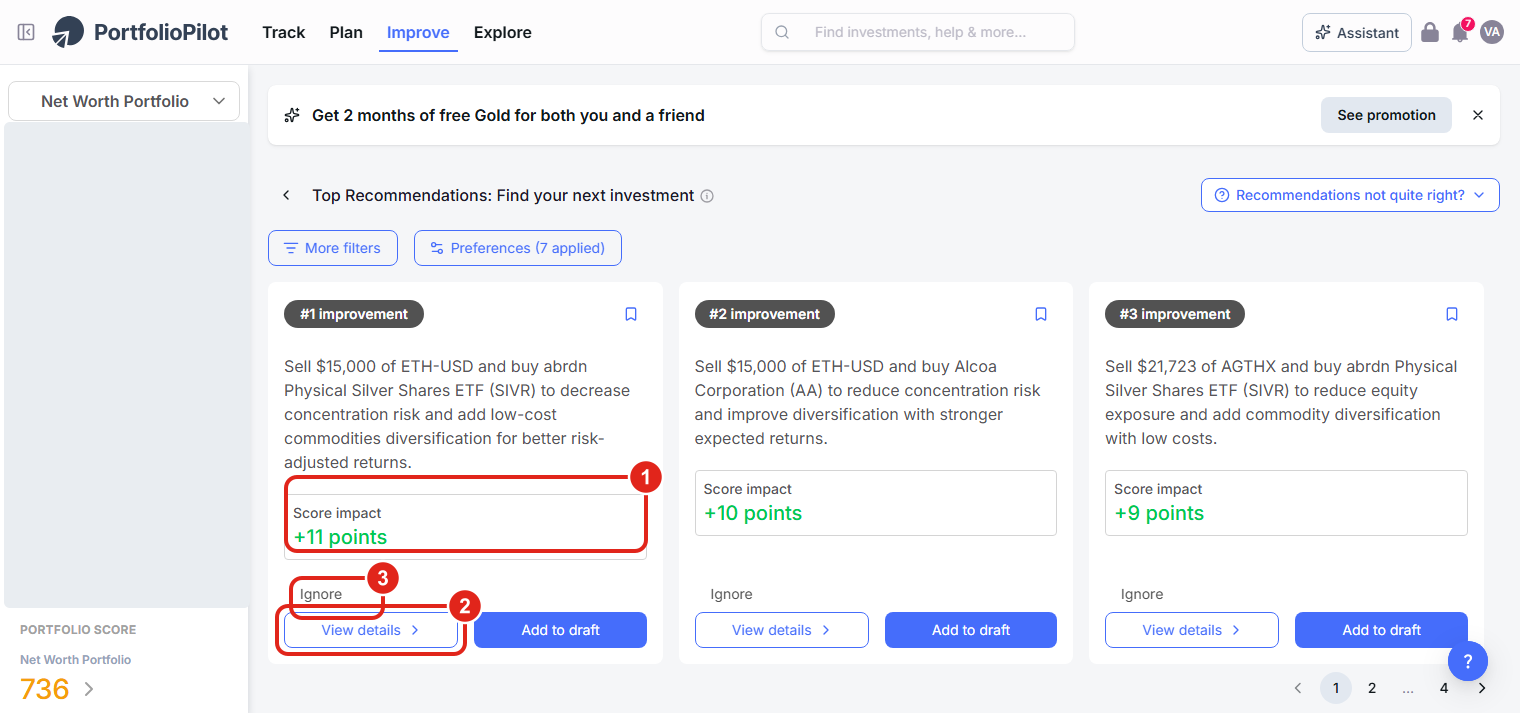
Each strategy lists ranked suggestions; every card shows its point impact on your Portfolio Score. Figures shown are illustrative.
View details is where a recommendation earns your trust: it shows you exactly why it's suggested and what it does:
- The projected Portfolio Score, before and after. (1)
- The change to each component of the score: Risk Match, Risk-adjusted Return, and Downside Protection, plus the effect on your expected return and dividend income. (2)
- A plain-English Why buy / Why sell explanation, with a Discuss button to talk it through with the AI Assistant. (3)
- When you're ready, Add to draft. (4)
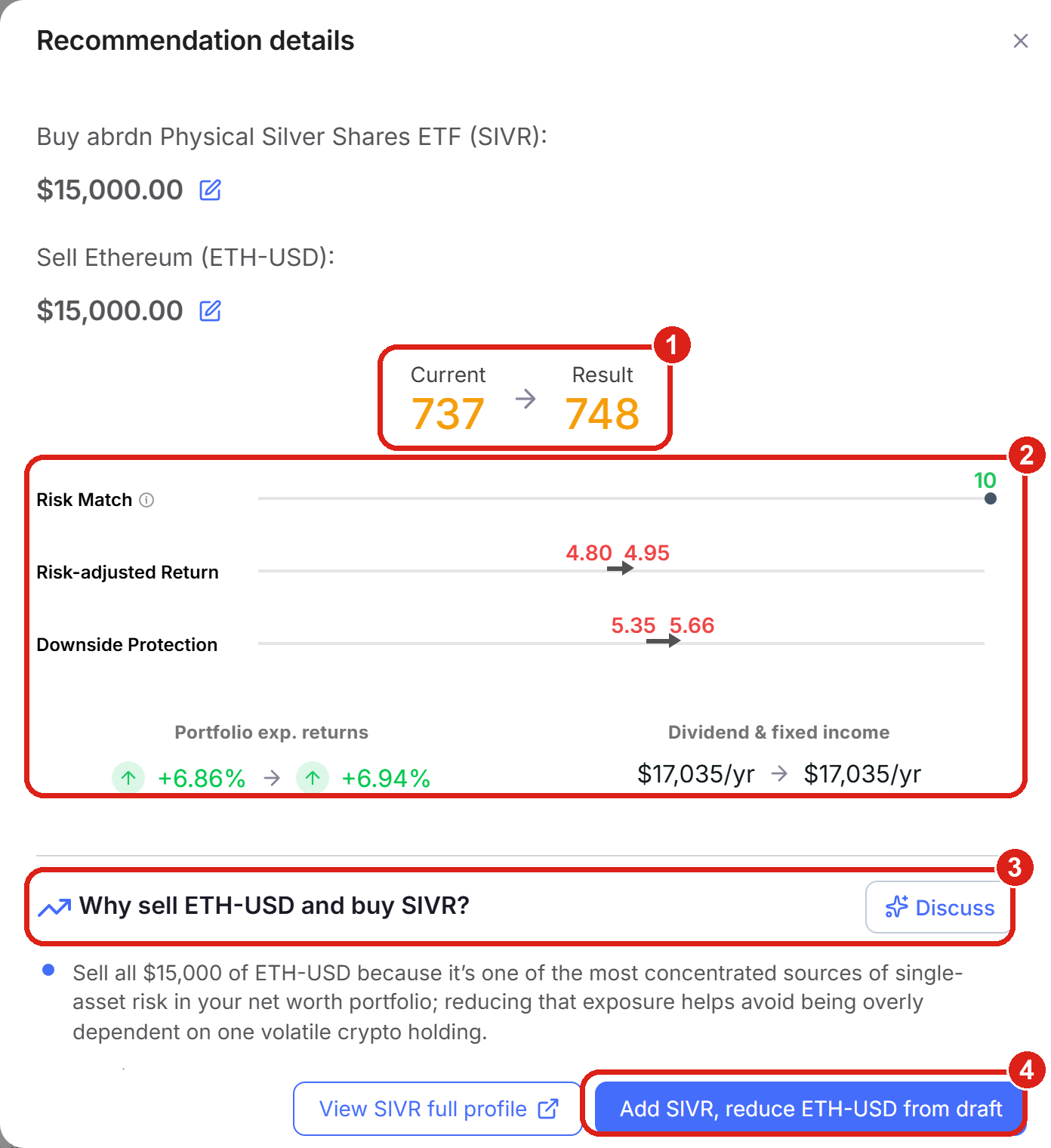
View details: the projected score, the per-component impact, the reason, and the Add to draft button. Figures shown are illustrative.
On a phone, the card shows the same Score impact (1) and View details (2), and the details open as a full-screen panel.
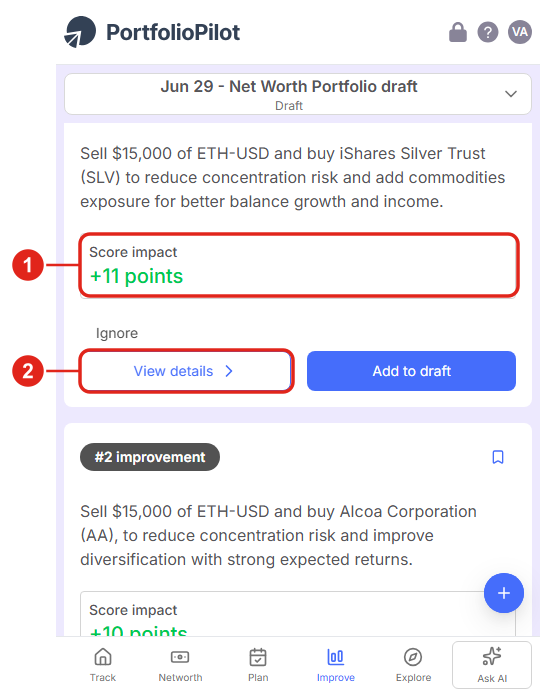
Mobile view: a recommendation card and its actions. Figures shown are illustrative.
Add a recommendation to a draft
Nothing you do here touches your real holdings. The first time you add a recommendation, PortfolioPilot offers to create a draft, a safe copy of your portfolio you can experiment in:
- The draft's projected Portfolio Score, so you can see the effect of the change before committing to it. (1)
- Choose Create draft to continue. (You can rename the draft first if you like.) (2)
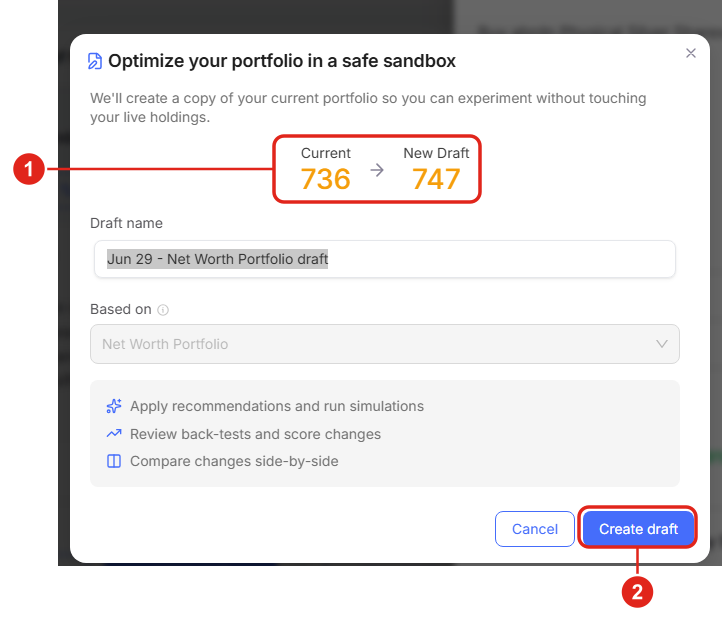
Adding your first recommendation creates a draft, a safe copy of your portfolio. Your live accounts are never touched. Figures shown are illustrative.
For a single buy, PortfolioPilot pre-fills a Calculated optimal amount and shows your investable cash; you can adjust the dollar amount before adding. To go deeper on drafts, see the Draft Portfolio tutorial.
Watch everything recalculate
This is the part that makes the menu make sense. As soon as a change is in your draft, all the recommendations recompute against your updated portfolio:
- Your draft's Portfolio Score updates while the live portfolio stays where it was. (1)
- New suggestions appear that take into account what you just added, so the next recommendation already reflects your last move. (2)
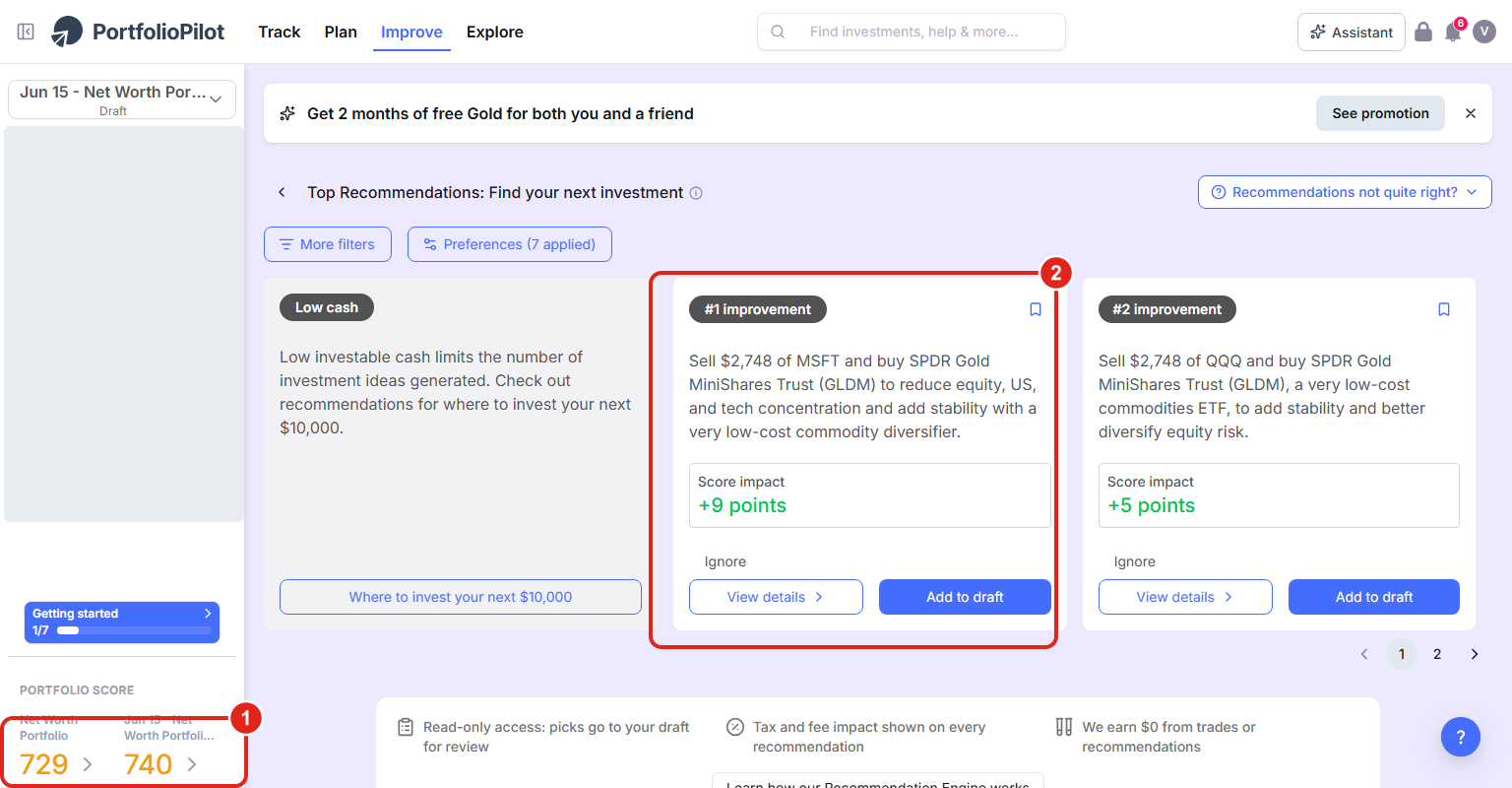
Add one change and everything recalculates, including your projected score, so the next suggestion reflects it. Figures shown are illustrative.
That's why recommendations are a menu you pick from one at a time, not a fixed list of competing instructions: add one, let it recalculate, then decide on the next.
Review and place your trades
When your draft looks right, turn it into a short shopping list of trades. Open Trades (the draft's trade list) to see the Order Execution List:
- Exactly what to buy and sell, with the quantity and dollar amount for each, plus the change to your cash balance and the projected score change. (1)
- Place those trades in your own brokerage, then choose Mark all trades as completed so PortfolioPilot resyncs. (2)
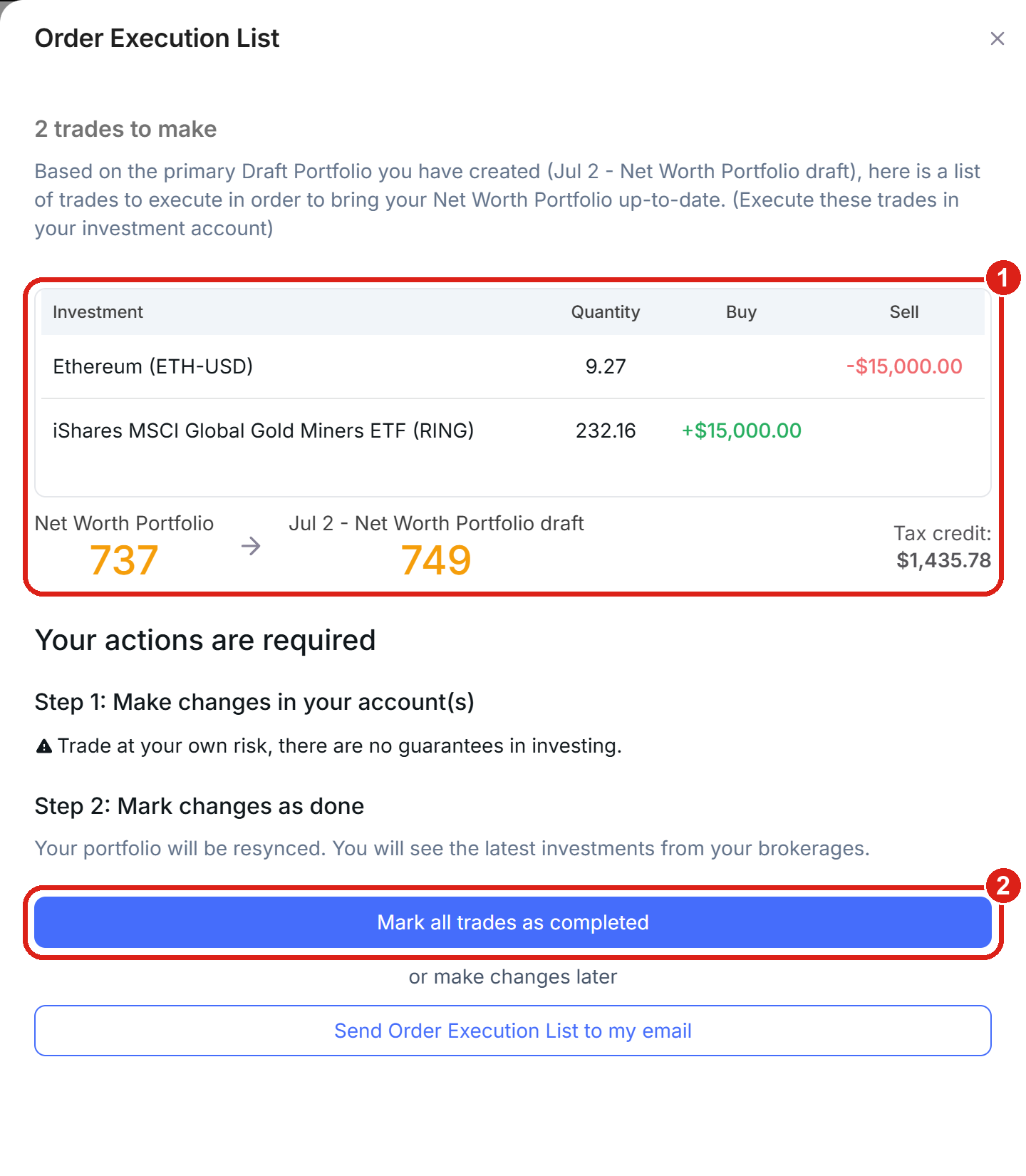
The Order Execution List is your shopping list of trades to place in your brokerage. Figures shown are illustrative.
One thing to check first: PortfolioPilot does not calculate the tax implications or transaction costs of a trade, so review each change, especially sells in a taxable account, before you execute it.
Skip suggestions you don't want
If a suggestion doesn't fit your strategy, choose Ignore on its card. PortfolioPilot remembers it and stops showing it; you can Undo right away, and reset ignored recommendations later under Settings. There's a single Ignore action, not separate "dismiss" and "not interested" choices, and there's no way to switch off a whole category permanently; to steer entire categories, use your preferences (next section).
If a whole set of recommendations feels off, use the Recommendations not quite right? menu at the top of any strategy (1). The fastest way to steer the engine is almost always to Update preferences or Personalize recommendations further, rather than ignoring suggestions one by one.
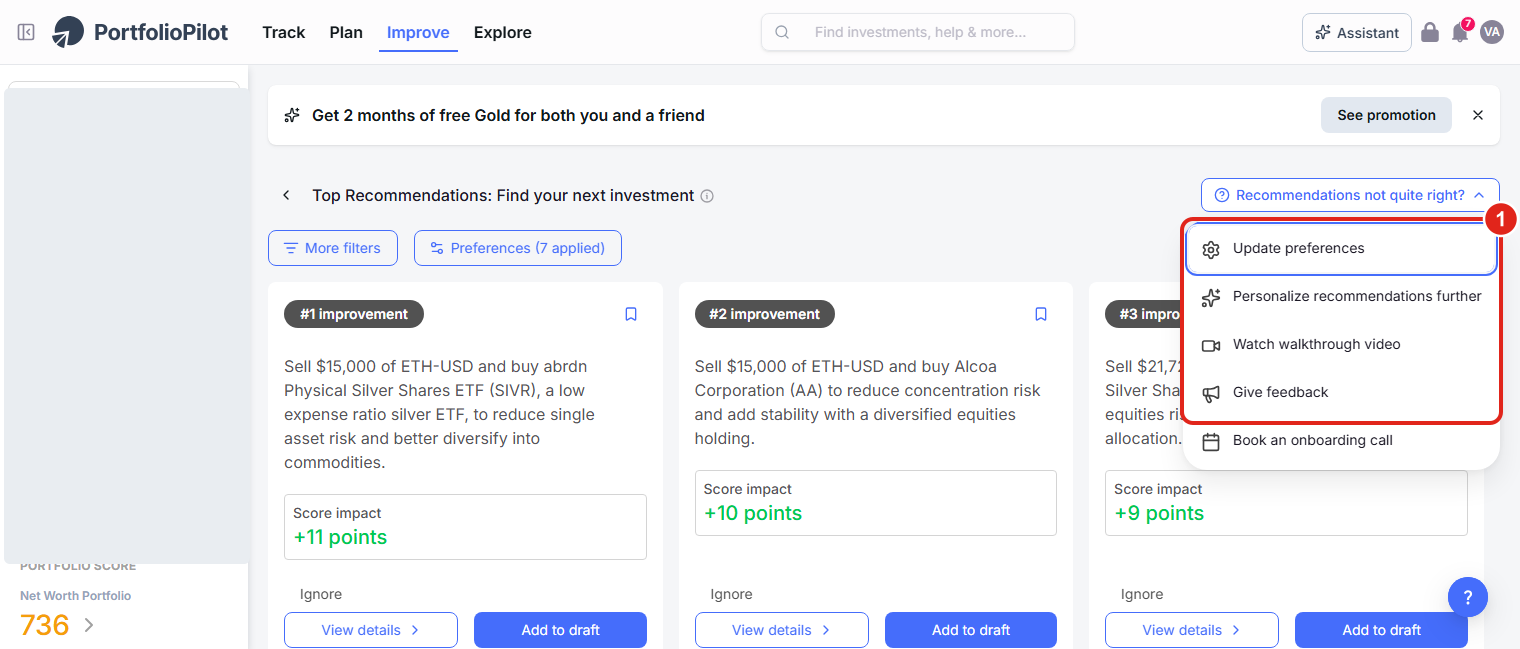
Recommendations not quite right? Steer the engine by refining your preferences rather than dismissing suggestions individually.
Tune your preferences
This is the key lever on how personalized your recommendations are. The same portfolio produces different recommendations under different preferences, so it's worth keeping them accurate. Open Settings, then Preferences. Three groups matter most.
Your investment profile: set the basics the engine reasons from: your Risk profile (1), investment objective, and your Model assumptions (2) (PortfolioPilot AI forecasts, market expected returns, or a blend, which changes how your portfolio is scored and what is recommended).
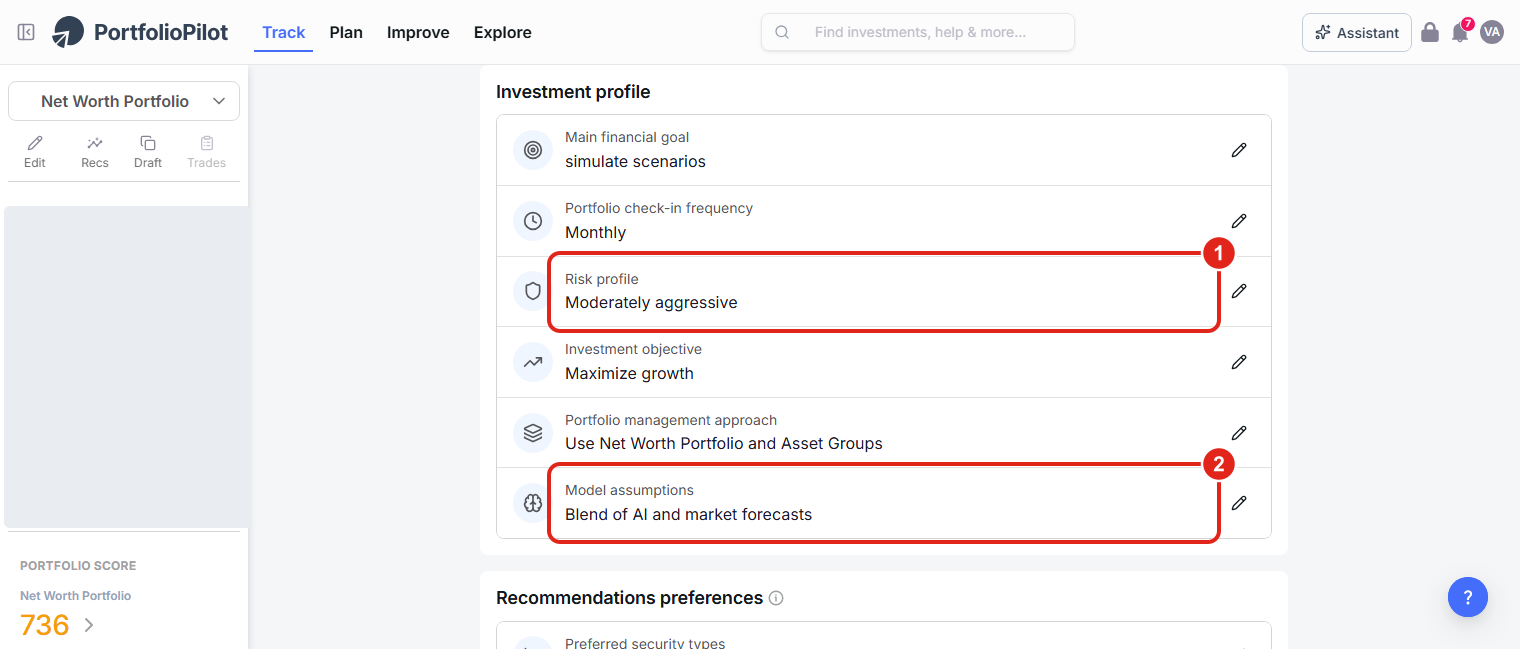
Your investment profile, risk, objective, and which return models to use, shapes every recommendation.
The extra-context box: the What else should PortfolioPilot know to personalize your insights? field (1) is the most direct way to make recommendations truly yours.
Describe anything that doesn't fit the structured fields: your investment thesis, themes to avoid, positions you never want to sell, a cash cushion to keep, or plans like buying a home. For example: "I prefer to keep at least $50k in cash. I'm planning to buy a house in 2 years. I want to avoid complex strategies and only invest in US stocks."
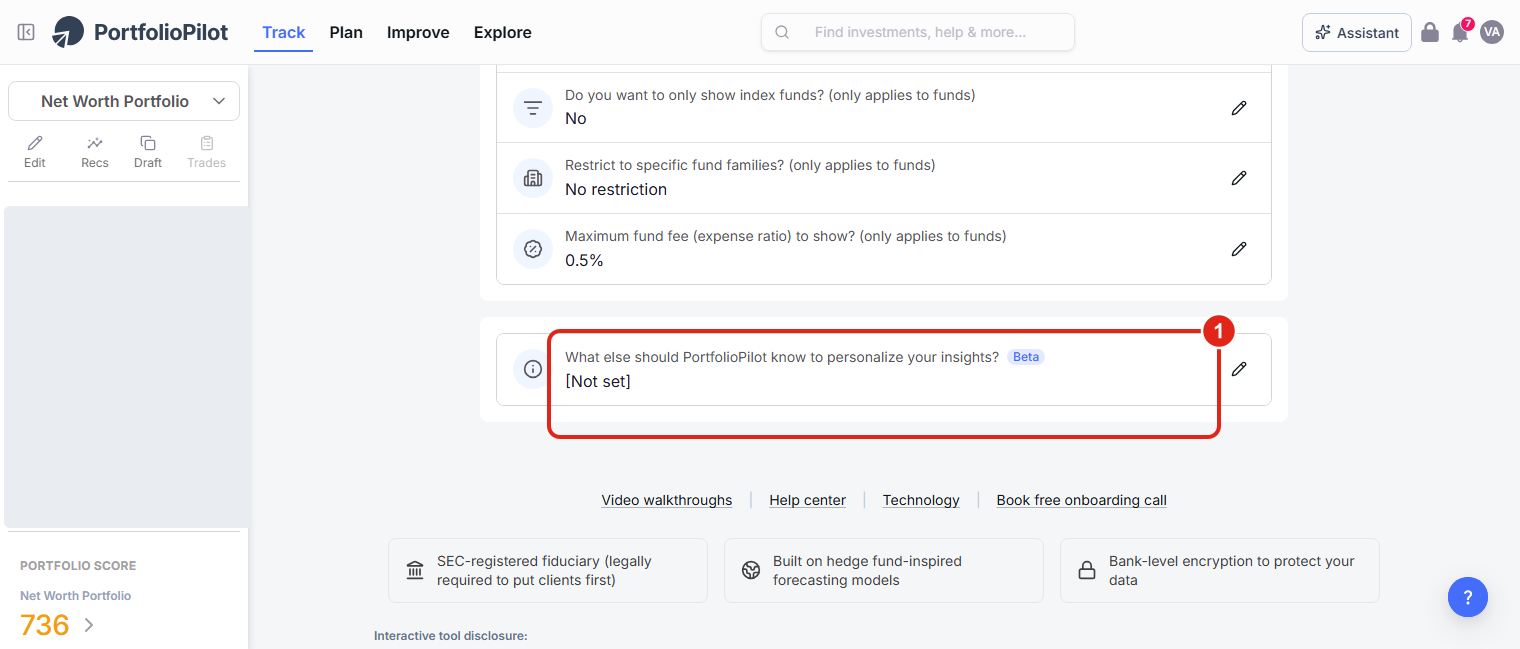
Describe your situation in plain language; the engine and the AI Assistant both use it to personalize what they suggest.
What gets recommended: the Recommendations preferences let you constrain the universe the engine draws from: the asset classes you want recommendations for (1) (leave one unticked and it won't be recommended), and whether to restrict to specific fund families (2) such as Vanguard, iShares, Fidelity, or SPDR, plus security types, an index-only toggle, and a maximum fund fee.
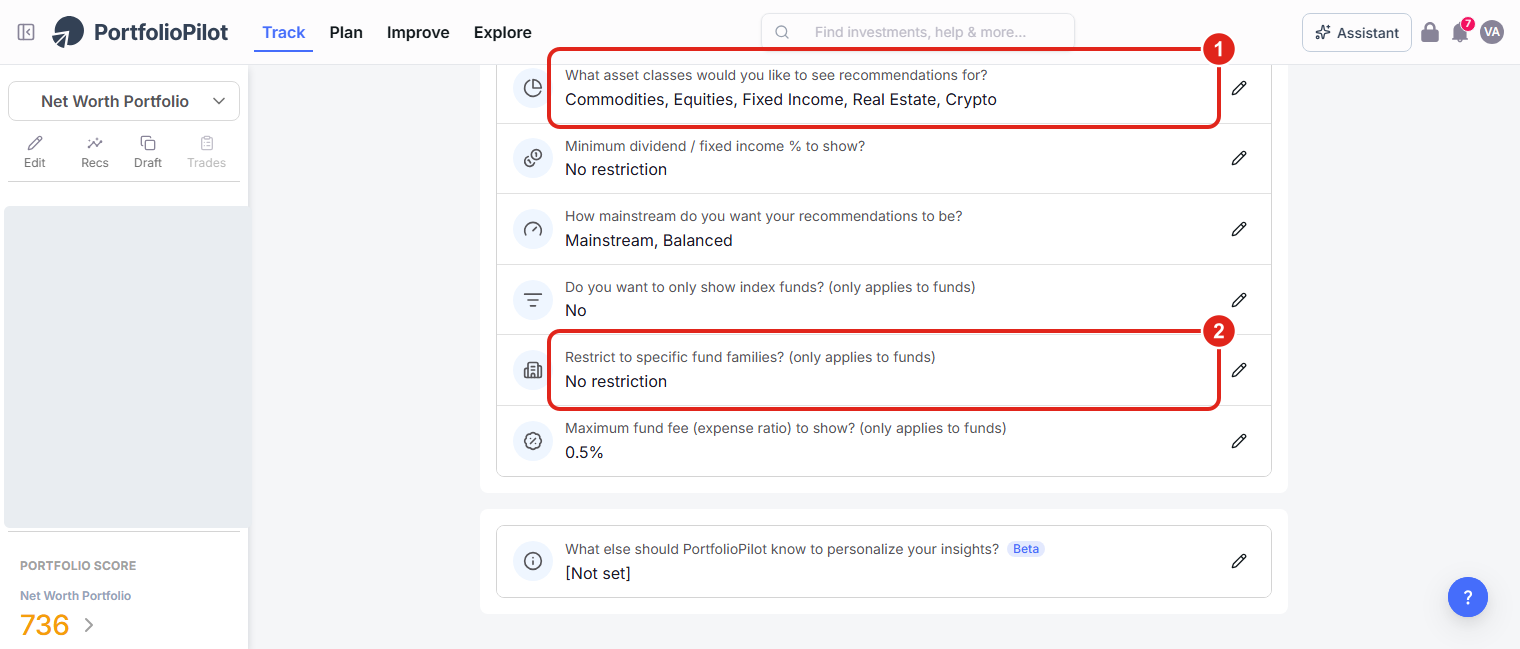
Recommendations preferences constrain what the engine can suggest: by asset class, fund family, security type, and fee.
On a phone, the same Preferences open as a single scrollable list: your investment profile, including your Risk profile (1) and Model assumptions (2), with the Recommendations preferences just below.
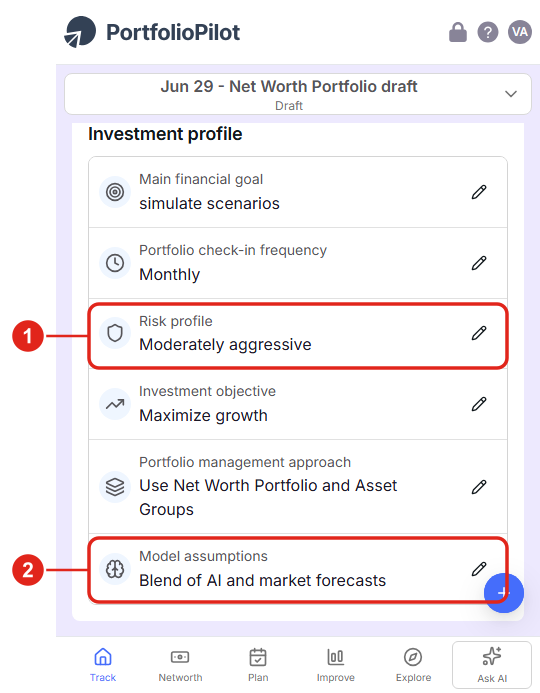
Mobile view: your preferences in one scrollable list. Figures shown are illustrative.
One thing the preferences don't include is a per-account on/off switch for recommendations. If you want different treatment for different accounts, use these preferences together with Asset Groups, where the tax treatment you assign each account changes which moves the engine suggests for it.
A tour of the other strategies
Every tile on the menu works the same way: open it, read the suggestions, add what you like to a draft. Two worth calling out:
Portfolio Overhaul bundles many top recommendations into one larger move, built by running the engine through ten iterations (1). Use it when you want to make more significant adjustments at once rather than one at a time.
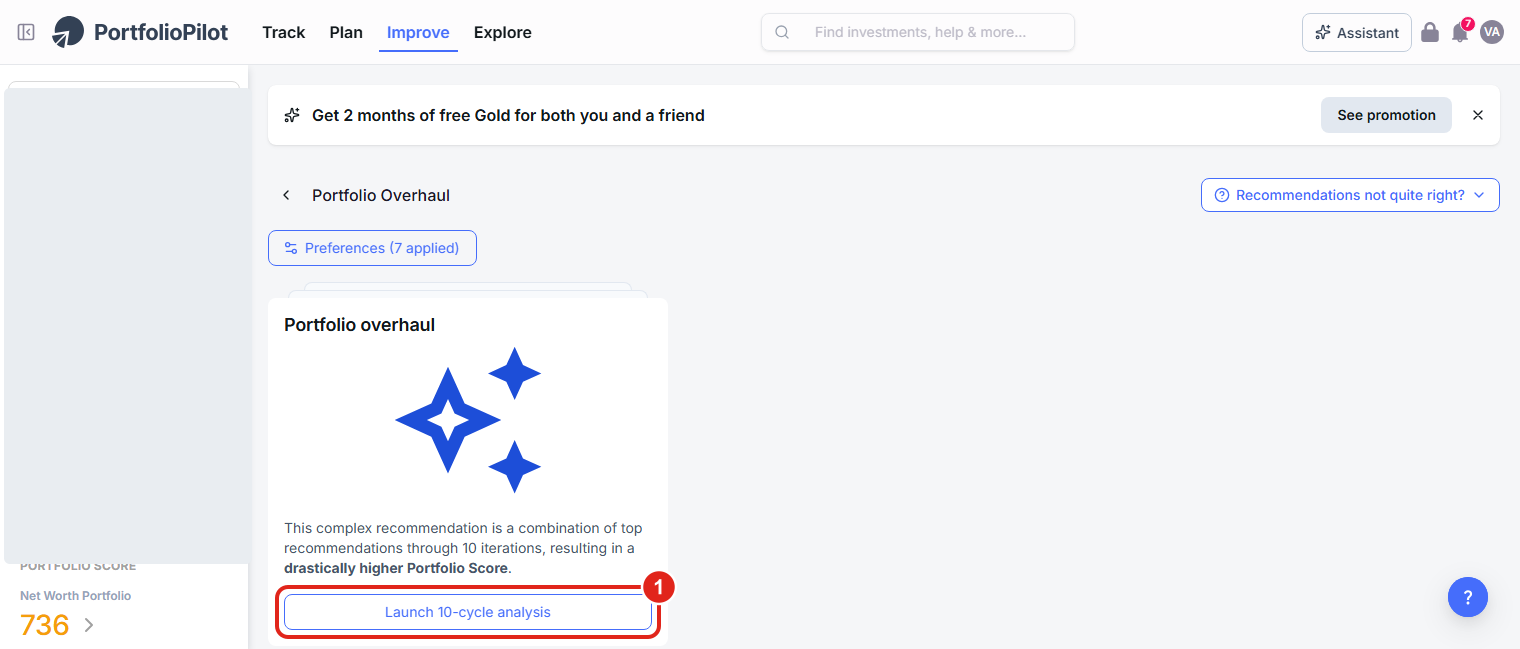
Portfolio Overhaul: a larger, multi-step rebalance when you want to move further in one go.
Diversify looks for asset classes you're underexposed to and suggests lower-cost index ETFs to round out the portfolio (1), a good habit for downside protection rather than only chasing the highest returns.
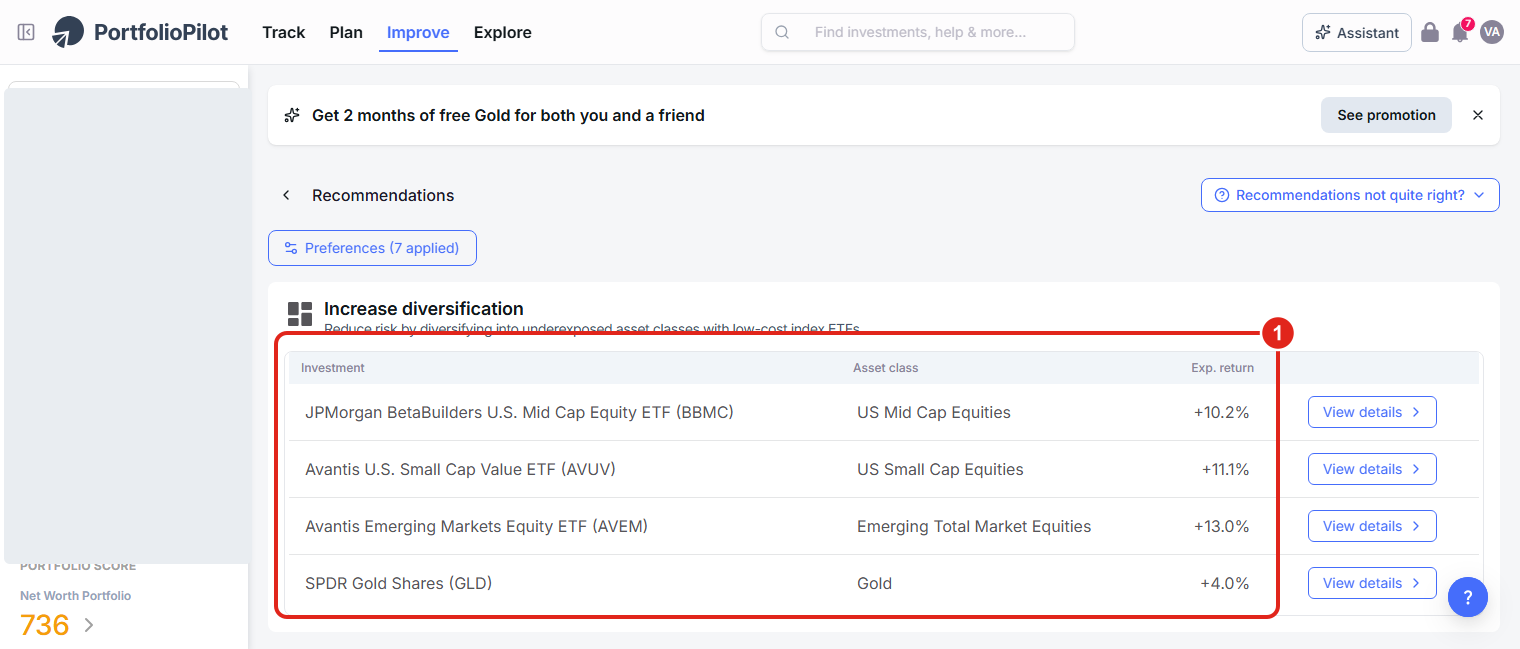
Diversify suggests low-cost ETFs in asset classes your portfolio is light on. Figures shown are illustrative.
The sections that follow, How the engine works, When recommendations aren't shown, Common use cases, and Next steps, are background reading rather than steps to complete.
How the engine works
A few details on what happens behind a recommendation:
- It scores against your Portfolio Score: the engine generates many candidate changes, then keeps only the ones that improve your Portfolio Score given your preferences and current holdings.
- It's personalized: your preferences, your capital-markets assumptions (AI forecasts, market, or a blend), and your actual portfolio all feed in. Change a preference and the recommendations change.
- It's built on forecasting: recommendations sit on top of Global Predictions' forecasting and portfolio-management models, personalized for you.
- You stay in control: connected accounts are read-only, every change goes to a draft first, and PortfolioPilot earns nothing from the trades or specific recommendations it suggests.
When recommendations aren't shown
Sometimes the engine can't generate suggestions, and the page will tell you why. The usual reasons:
- Your portfolio is empty, or significantly untracked (too many holdings the system doesn't recognize). Importing more accounts and resolving unrecognized tickers usually fixes it.
- Your portfolio is over-leveraged or has a negative value.
- Recommendations are blocked for your account.
- Low investable cash can also limit how many ideas appear. You'll see a note pointing you to Where to invest your next $10,000.
Common use cases
- "What's the single best move right now?" Open Top Recommendations and look at the #1 card and its Score impact.
- "I have new cash to invest." Use Where to invest your next $10,000 to deploy it with just a few buys.
- "My portfolio is too concentrated." Use Diversify, or add the Top Recommendations that reduce single-stock and sector risk.
- "I want to lower what I pay." Use Reduce fees to find lower-cost equivalents for the funds you hold.
- "The suggestions don't fit me." Open Preferences and refine your risk, asset classes, fund families, and the extra-context box, then reopen the recommendations.
Next steps
- Tutorial: Portfolio Score. Understand the number every recommendation is trying to improve.
- Tutorial: Draft Portfolio. Go deeper on the sandbox where recommendations land before you execute.
- Tutorial: Tax Optimization. See how the Optimize taxes view finds tax-loss-harvesting opportunities.
- Tutorial: Asset Groups. Separate taxable and tax-advantaged accounts so recommendations fit each one.
Global Predictions provides investment advice only through its internet-based application, PortfolioPilot, and only to individuals who are advisory clients of Global Predictions pursuant to written advisory Client Agreements ("Advisory Services"). The publicly available portions of the Platform (i.e., the sections of the Platform that are available to individuals who are not party to a Client Agreement, including globalpredictions.com and portions of portfoliopilot.com) are provided for educational purposes only and are not intended to provide legal, tax, or financial planning advice. To the extent that any of the content published on publicly available portions of the Platform may be deemed to be investment advice, such information is impersonal and not tailored to the investment needs of any specific person. Nothing on the publicly available portions of the Platform should be construed as a solicitation or offer, or recommendation, to buy or sell any security. All charts, figures, and graphs on the publicly available websites are for illustrative purposes only. Before investing, you should consider whether any investment, investment strategy, security, other asset, or related transaction is appropriate for you based on your personal investment objectives, financial circumstances, and risk tolerance. You are also encouraged to consult your legal, tax, or investment professional regarding your specific situation. Registration does not imply a certain level of skill or training. Investing involves risk. The value of your investment will fluctuate, and you may gain or lose money.
The contents of the Platform may contain forward-looking statements that are based on management's beliefs, assumptions, current expectations, estimates, and projections about the financial industry, the economy, or Global Predictions itself. Forward-looking statements are not guarantees of the underlying expected actions or future performance, and future results may differ significantly from those anticipated by the forward-looking statements. Therefore, actual results and outcomes may materially differ from what may be expressed or forecasted in such forward-looking statements.
Case studies presented are hypothetical scenarios and intended for illustrative purposes only. They do not represent an actual client, investment or experience, but rather are meant to provide an example of the intended investment process and methodology. An individual's experience may vary based on his or her circumstances. There can be no assurance that the Firm will be able to achieve similar results in comparable situations. No portion of this case study is to be interpreted as a testimonial or endorsement of the Firm's investment advisory services. The information contained herein should not be construed as personal investment advice.
Note: our use of the term AI refers to all artificial intelligence models used, including large language models, proprietary economic models that incorporate regression or dynamic factors, and machine learning methods like supervised learning. For more information, see our disclosures at globalpredictions.com/disclosures.
Personalized Recommendations are available with Gold, Platinum, or Pro (all with a 10-day free trial, no credit card required). The Portfolio Optimizer view is also part of the free plan, and a couple of advanced lenses, Reduce fees and Where to sell next, are part of Platinum.
