
Tutorial: Portfolio Alerts
PortfolioPilot watches your portfolio continuously so you don't have to check it every day, and taps you on the shoulder only when something is worth acting on: cash sitting idle, a tax-loss-harvesting window, fees you could cut, a change in your Portfolio Score, or a fresh set of recommendations. This tutorial shows you every alert you can turn on, how to set one up, edit it, or switch it off, and how to read your in-app notifications and decide what to do next.
What you'll find in this tutorial
You do not have to follow these in order. Click any section to jump straight to it, or open your alert settings in the app to follow along.
- Find your alert settings
- The alerts you can turn on, and what each one watches
- Set up, edit, or turn off an alert
- Read your in-app notifications
- What the common notifications mean
- If you haven't connected your accounts yet
- A note on security
Learn more: Common use cases, Why this matters, and Next steps.
Throughout, the red markings on each screenshot point to exactly what the text is describing: a (1) in the text matches the 1 badge on the image. Where the phone layout differs, a mobile screenshot follows the desktop one.
Find your alert settings
Open Settings, then the Email alerts tab. On desktop, click your profile avatar in the top-right, choose Settings, and select Email alerts. Your alerts are grouped into three cards by plan:
- Each row names the alert, shows its current setting, and has an Edit (pencil) control to change it (1).
- Optimizations alerts need a Gold plan (2), and Advanced optimizations alerts need Platinum (3). The Basic alerts are free on every plan.
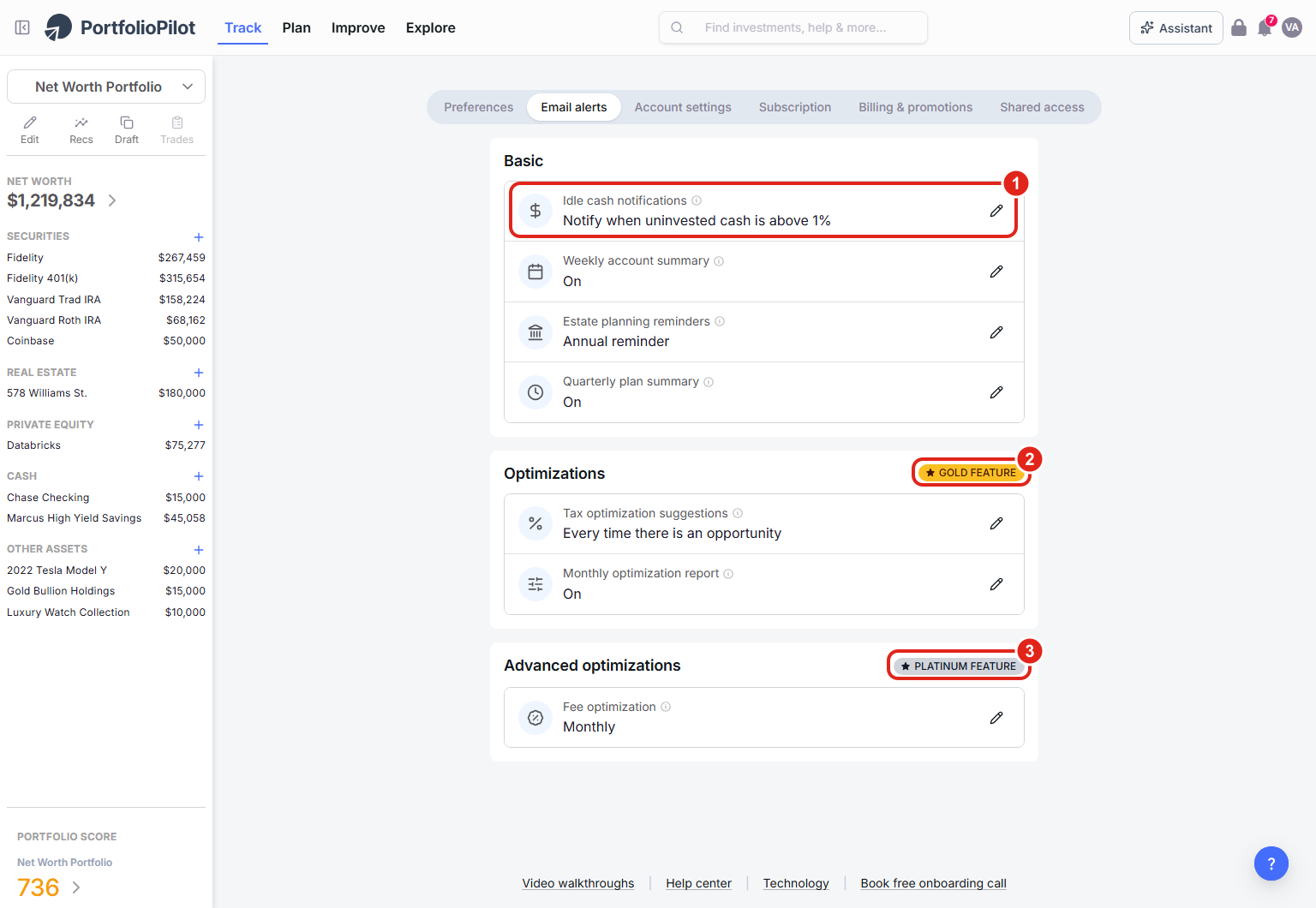
Settings > Email alerts: your alerts grouped into Basic, Optimizations (Gold), and Advanced optimizations (Platinum), each row showing its current setting and an Edit control. Figures shown are illustrative.
On a phone, open the menu, go to Settings, then Email alerts. The same three cards stack vertically. Each alert row shows its current setting and a pencil to edit it (1), with the plan tag on the Optimizations and Advanced cards (2).
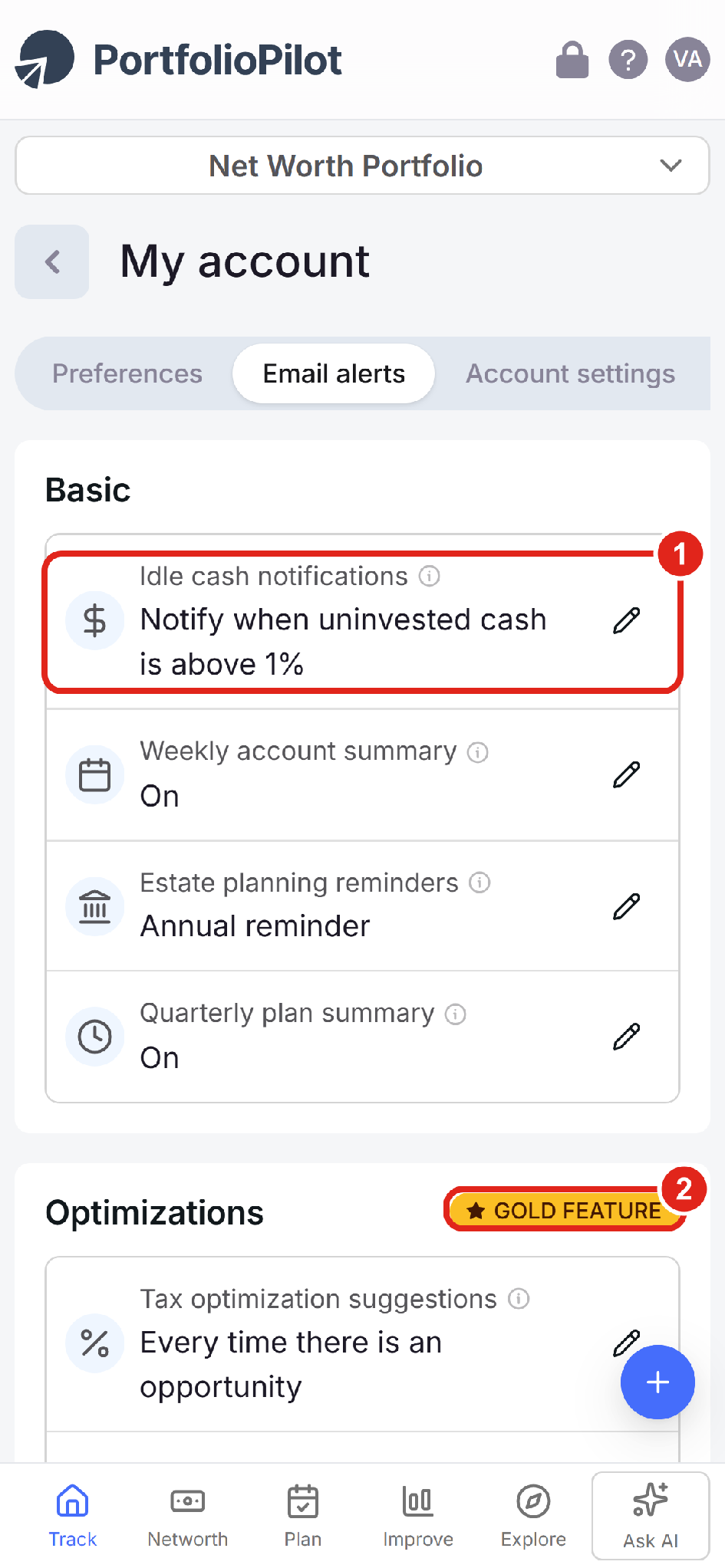
Mobile view: the same alert cards stack vertically, each with its setting and a pencil to edit. Figures shown are illustrative.
The alerts you can turn on, and what each one watches
Here is every alert, what it watches, and the options you can choose.
Basic (free on every plan)
- Idle cash notifications: watches the investable cash in your accounts and alerts you when it climbs above a threshold you set, so uninvested money doesn't sit and lose ground to inflation. Options: Off, or notify when uninvested cash is above 1%, 3%, or 5% of your portfolio.
- Weekly account summary: a personalized weekly email recapping how your portfolio changed and your top recommendations. Options: On or Off.
- Estate planning reminders: a periodic nudge to review and update your estate plan. Options: Annual reminder or Off.
- Quarterly plan summary: each quarter, a reminder to review your plan that highlights your top recommended actions. Options: On or Off.
Optimizations (Gold)
- Tax optimization suggestions: tells you whenever PortfolioPilot spots a chance to cut your taxes, such as a new tax-loss-harvesting opportunity. Options: Every time there is an opportunity, or Off.
- Monthly optimization report: a monthly summary of optimization tips with their expected tax effects and the steps for tax-loss harvesting. Options: On or Off.
Advanced optimizations (Platinum)
- Fee optimization: surfaces the fees you're paying on each security in your portfolio so you can find cheaper substitutes. Options: Monthly or Off.
If an alert is part of a plan you're not on yet, its row shows an Unlock button instead of Edit. Selecting it opens the plan options, each of which starts with a 10-day free trial.
Set up, edit, or turn off an alert
Every alert works the same way:
- Click the Edit (pencil) icon on the alert row. A panel opens with a short description of what the alert does and its Schedule: for idle cash, for example, the check runs weekly.
- Pick the option you want from the list (1): a threshold for idle cash, or On / Off / a frequency for the others. To switch an alert off, choose Off.
- Click Save (2). Save stays greyed out until you actually change the setting, so if it's inactive you're already on the option shown. Cancel closes without changing anything.
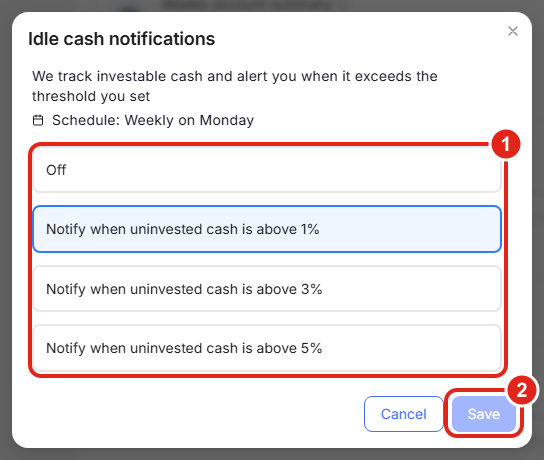
Clicking Edit opens the alert's options: pick a setting and Save, or choose Off to switch the alert off. (Idle cash shown.) Figures shown are illustrative.
On a phone, the same panel opens as a sheet. Pick an option (1) and tap Save (2).
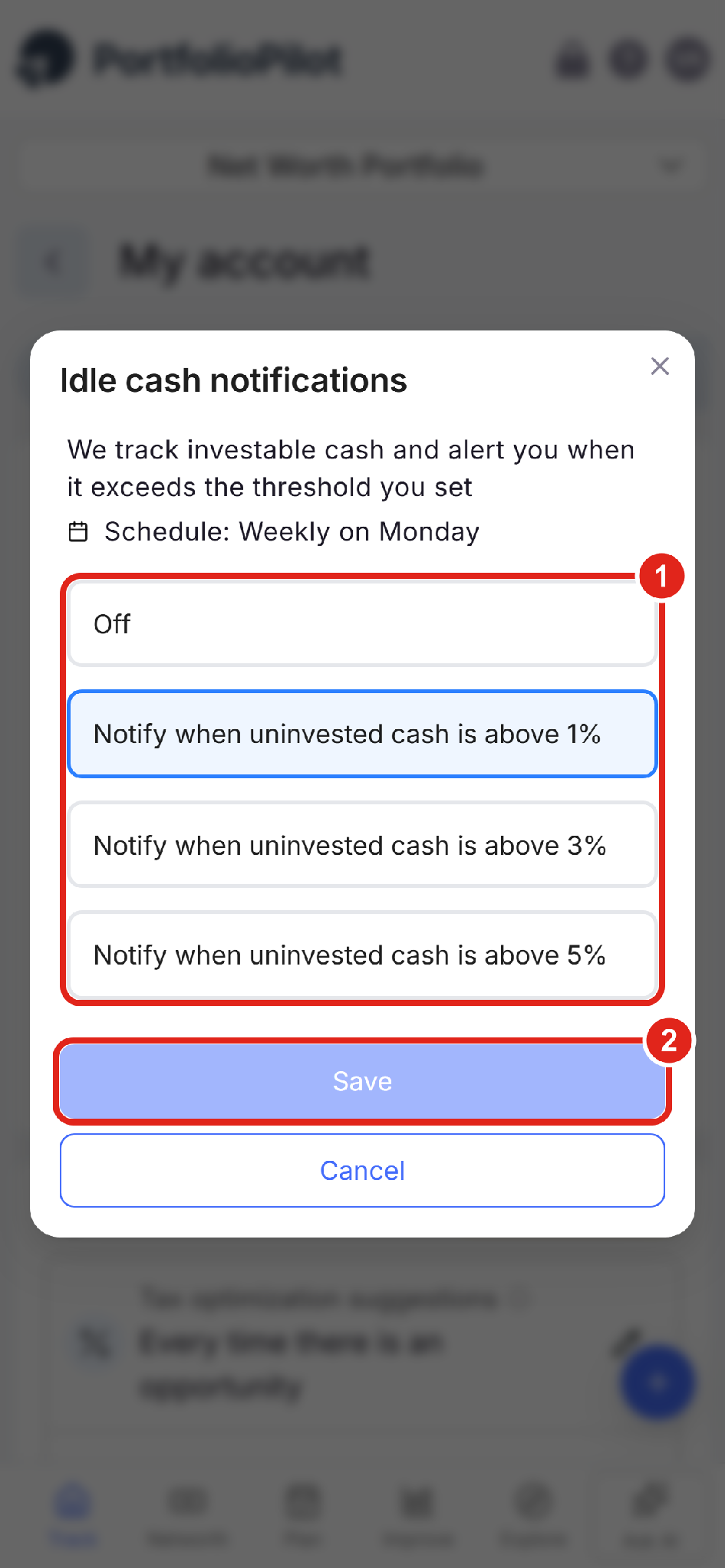
Mobile view: the alert's options open as a sheet; pick a setting and Save. Figures shown are illustrative.
Your choices apply right away, and you can change them as often as you like.
Read your in-app notifications
Alerts you act on in the moment also appear in the notification bell in the top bar. A red badge means you have unread notifications.
- Click the bell icon in the top navigation bar to open your notification center. Unread notifications sit on top, with older ones below (1).
- Read the update: each notification is a short, plain-English line: a change in your Portfolio Score, fee savings PortfolioPilot found, or how many new recommendations are waiting.
- Click through to act: clicking a notification takes you straight to the page where you can do something about it: your recommendations, the fees page, your portfolio overview, or the insights page. The notification is informational; the action is always yours to take.
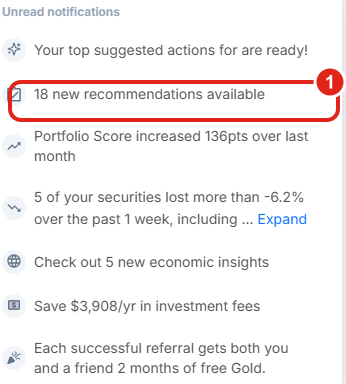
The bell is your notification center: unread items sit on top, and clicking any notification jumps you to the page where you can act on it. Figures shown are illustrative.
On a phone, the bell is not in the top bar. The same updates surface on your Track home, for example the "Top suggested actions" banner at the top of the page, and through the email alerts you set up, so you never miss them on a smaller screen.
What the common notifications mean
- "X new recommendations available" / "Your top suggested actions are ready": PortfolioPilot has fresh recommendations. Click to review and add any to a draft.
- "Portfolio Score increased / decreased N pts over the last month": your Portfolio Score moved. Click to see what changed and why.
- "Risk profile is off. Fix it": your portfolio's risk has drifted from your target. Click to open the Risk Match recommendations.
- "Save $X/yr in investment fees": PortfolioPilot found lower-cost alternatives. Click to open the fees page.
- Market and insights updates: a brief on something moving in the market or your portfolio. Click to read the full insight.
If you haven't connected your accounts yet
You don't need a connected account to explore alerts. Until you add your own holdings, PortfolioPilot runs on a demo portfolio, and any alerts or notifications you see are based on that sample data. They show you how the feature behaves, not your real money. (An idle-cash alert in demo mode, for example, reflects the demo portfolio's cash, not yours.) You may also see a notification inviting you to connect your account and exit Demo Mode; clicking it opens the importer so your alerts start tracking your actual portfolio.
A note on security
Alerts are a good moment to remember how PortfolioPilot treats your accounts and your data:
- Read-only and no trading: PortfolioPilot can read your holdings to analyze them, but it cannot move money or place trades. Every action an alert suggests is carried out by you, in your own brokerage.
- Alert emails never ask for your password: a genuine PortfolioPilot alert will never ask you to reply with your login, a verification code, or account credentials. If a message does, treat it as a phishing attempt: open the app directly instead of clicking links in a suspicious email.
- You manage everything in the app: turn any alert on or off at any time from Settings > Email alerts. You're always in control of what PortfolioPilot tells you and how often.
The sections that follow, Common use cases, Why this matters, and Next steps, are background reading rather than steps.
Common use cases
- Put idle cash to work: dividends and deposits pile up as cash in a brokerage account. Set Idle cash notifications to alert you above 3% of the portfolio; when it lands, you log in and invest the cash instead of letting it drift.
- Never miss a harvesting window: as a Gold member, turn on Tax optimization suggestions set to "Every time there is an opportunity." When a holding dips underwater, the alert tells you a tax-loss-harvesting opportunity has opened, so you can act while it lasts. (See the Tax Optimization tutorial.)
- Stay on top of your portfolio in five minutes a week: leave the Weekly account summary on and skim it each weekend. When it flags a score change or new recommendations, open the bell, click through, and handle it on the spot, a light-touch routine without daily check-ins.
Why this matters
Markets and your own portfolio change continuously, but the moments that actually call for a decision are rare. Alerts surface those moments: idle cash, a harvesting window, a fee you can cut, a score that slipped. And the notification bell gives you a one-click path to act on each one. Set the alerts that matter to you, ignore the rest, and let PortfolioPilot do the watching so you only step in when it counts.
Next steps
- Tutorial: Import Your Net Worth. Connect or add your accounts so alerts run on your real portfolio.
- Tutorial: Personalized Recommendations. Act on the recommendations your notifications point you to.
- Tutorial: Tax Optimization. Go deeper on the tax-loss-harvesting opportunities the tax alert surfaces.
- Tutorial: Portfolio Score. Understand the score change a notification tells you about.
Global Predictions provides investment advice only through its internet-based application, PortfolioPilot, and only to individuals who are advisory clients of Global Predictions pursuant to written advisory Client Agreements ("Advisory Services"). The publicly available portions of the Platform are provided for educational purposes only and are not intended to provide legal, tax, or financial planning advice. To the extent that any content may be deemed investment advice, such information is impersonal and not tailored to any specific person. Nothing on the publicly available portions of the Platform should be construed as a solicitation, offer, or recommendation to buy or sell any security. All charts, figures, and graphs are for illustrative purposes only. Before investing, consider whether any investment, strategy, security, or transaction is appropriate for you based on your objectives, financial circumstances, and risk tolerance, and consider consulting your legal, tax, or investment professional. Registration does not imply a certain level of skill or training. Investing involves risk. The value of your investment will fluctuate, and you may gain or lose money.
Case studies and examples presented are hypothetical scenarios intended for illustrative purposes only. They do not represent an actual client, investment, or experience, but rather are meant to provide an example of the intended investment process and methodology. An individual's experience may vary based on his or her circumstances. There can be no assurance that the Firm will achieve similar results in comparable situations. No portion is to be interpreted as a testimonial or endorsement of the Firm's investment advisory services.
The contents of the Platform may contain forward-looking statements based on management's beliefs, assumptions, current expectations, estimates, and projections. Forward-looking statements are not guarantees of future performance, and actual results may differ materially from those expressed or forecasted.
Note: our use of the term AI refers to all artificial intelligence models used, including large language models, proprietary economic models that incorporate regression or dynamic factors, and machine learning methods like supervised learning. Alerts and notifications that reference recommendations, optimizations, or your Portfolio Score are generated by these models. For more information, see our disclosures at globalpredictions.com/disclosures.
Note: the Basic alerts are free on every plan. The Optimizations alerts (Tax optimization suggestions, Monthly optimization report) are available to Gold, Platinum, or Pro subscribers, and Fee optimization to Platinum or Pro, all available with a 10-day free trial. Confirm the current plan tiers on the pricing page before you rely on them.
