
Tutorial: Troubleshooting Connection Issues
Connecting your banks, brokerages, and crypto wallets is what lets PortfolioPilot see your whole financial picture, but a connection can occasionally fail to finish, sync the wrong numbers, or stop updating. This tutorial walks through the most common connection problems, from an institution that won't appear in search to a balance that looks doubled, and the exact fix for each, almost all of which start from one place: your Net Worth page.
What you'll find in this tutorial
You do not have to read these in order. Find the problem that matches what you're seeing and click it to jump straight there, or open your Net Worth page in the app to follow along.
- Start here: where your connections live
- My institution isn't in the search list
- The connection didn't finish
- It connected, but no holdings show up
- My balance shows as zero
- My balance is wrong
- My account total looks doubled
- My account stopped updating
- My account appears twice
- My account has both pre-tax and Roth money
Learn more: How syncing and connections work, and Next steps.
Throughout, the red markings on each screenshot point to exactly what the text is describing: a (1) in the text matches the 1 badge on the image. Where the phone layout differs, a mobile screenshot follows the desktop one.
Start here: where your connections live
Almost every fix in this guide happens in one place. Open your Net Worth page and find the Securities section, which lists your investment accounts.
- At the bottom of the section, Add account starts a new connection. You can search for your institution, upload a statement or screenshot, or enter holdings manually.
- On the right of each account row are its controls. Every account has a View portfolio (the eye) and a Delete portfolio (the trash). To fix an account's data, a manually added or uploaded account uses Edit portfolio (the pencil) (3); a live-connected account instead uses the wrench (1), which reports a data issue for our team to fix, since synced holdings and cash cannot be typed over.
- Under the account name, a status line shows how fresh the data is. A live-connected account shows a Last successful sync date, with a Reconnect button beside it (2) to restore access when the link needs attention. An account you uploaded or typed in shows Last manual input instead.
One more control appears once you have a live-connected account: a Sync accounts button in this same section that forces an immediate refresh. The fixes below use it wherever a refresh is the answer.
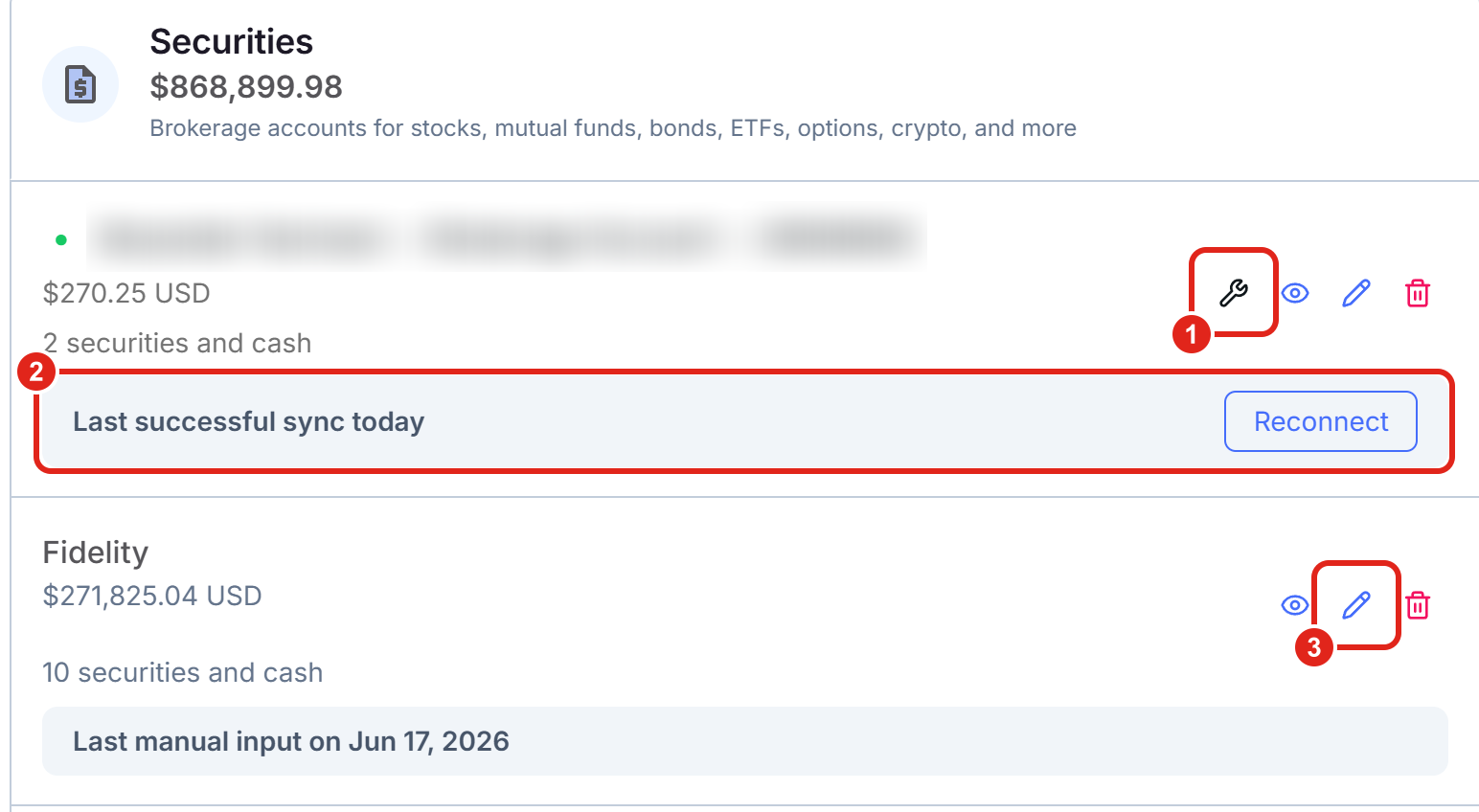
In the Securities section, the control you use to fix an account depends on how it is tracked. The connected account shows a wrench (1), which reports a data issue, and a Last successful sync line with a Reconnect button (2). The manually added Fidelity account below shows a pencil (3) for editing it by hand, and a Last manual input line. Figures shown are illustrative.
On a phone, the same Securities section sits on the Net Worth page. Each row shows the same controls: a connected account has a wrench (1) and a Last successful sync line with a Reconnect button (2), while a manually added account shows a pencil instead. Add account and Sync accounts sit at the bottom of the section.
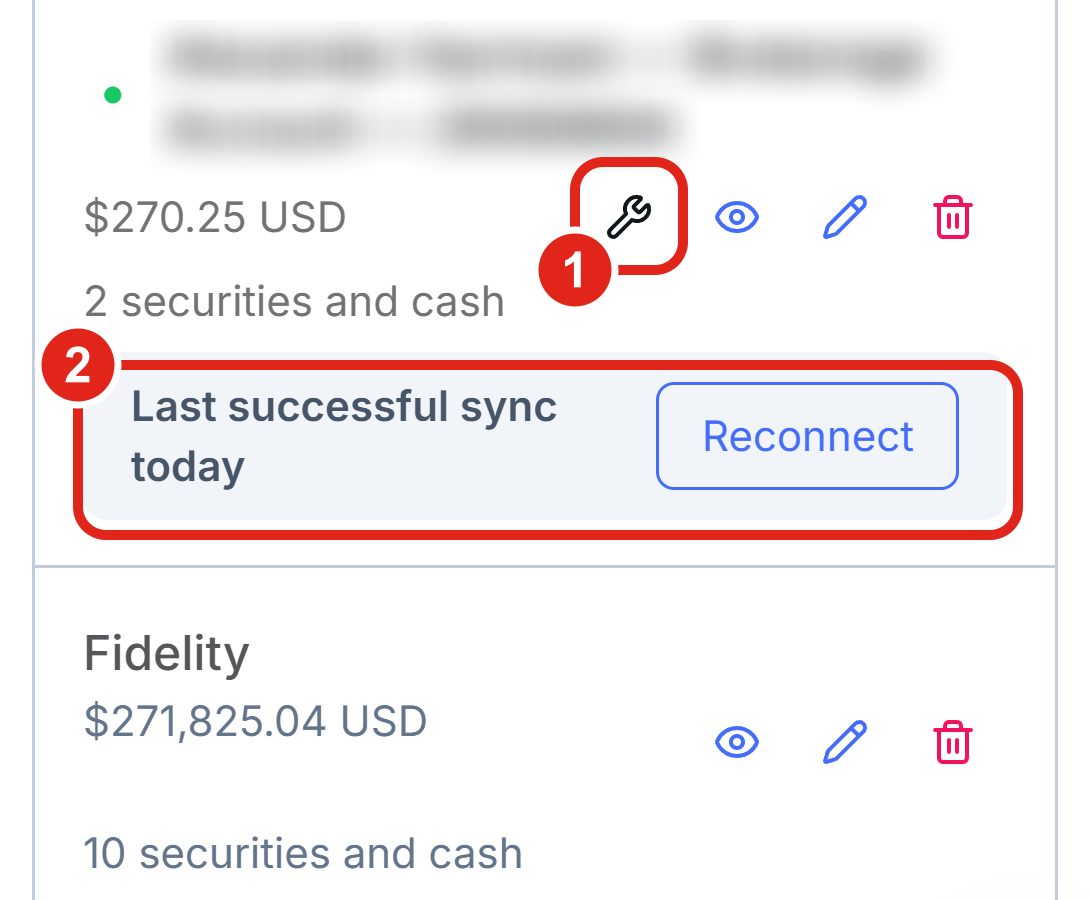
Mobile view: the connected account shows a wrench (1), it reports a data issue, and a Last successful sync line with a Reconnect button (2). The Fidelity account below is manually added, so it shows a pencil and no wrench. Figures shown are illustrative.
My institution isn't in the search list
What's happening: when you choose Add account and search, you're searching the institutions our connection partners support. If nothing matches, the name you typed may not line up with how the institution is listed, or that specific institution may not be supported for a connected sync.
Work through these in order:
- Try other names for the same institution: in the search box (1), many banks are listed under a parent or full legal name. Search JPMorgan Chase as well as Chase, or the brokerage's full name rather than a nickname.
- Pick the exact match from the results: some institutions have several entries (for example a personal-investing entry separate from a workplace one). Choose the one that matches the login you actually use.
- Add it another way: if a live connection isn't available, you can still track the account. Choose Other ways to import securities (2) to Upload statement (import a PDF, screenshot, or spreadsheet) or Enter manually (type the holdings in yourself). See Tutorial: Import Your Net Worth for the full walkthrough of all three methods.
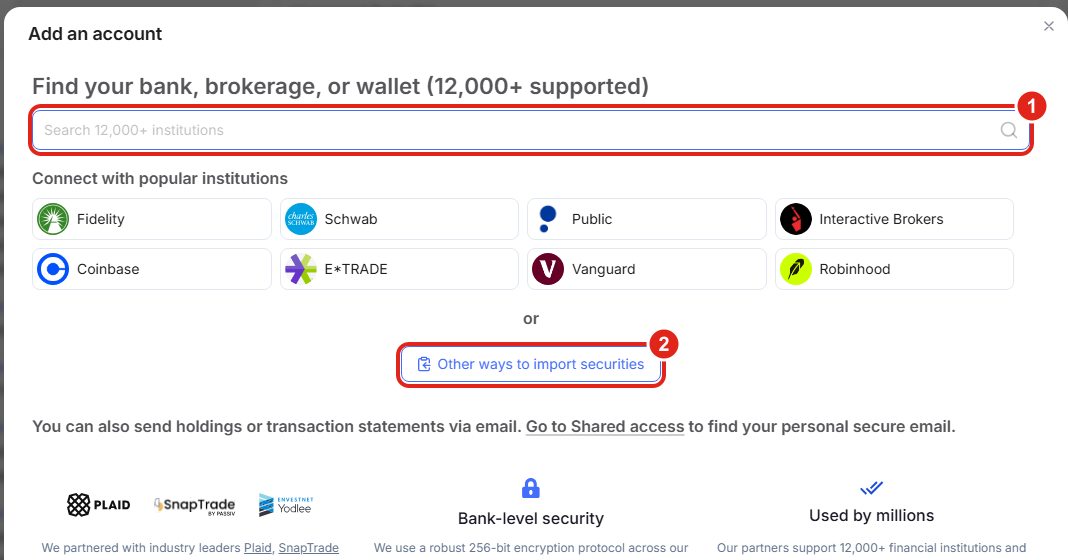
Search for your institution in the search box (1); if it isn't listed, choose Other ways to import securities (2) to upload a statement or enter holdings yourself. Figures shown are illustrative.
On a phone, the Add account window opens full-screen with the same search box (1) at the top and the Other ways to import securities option below it.
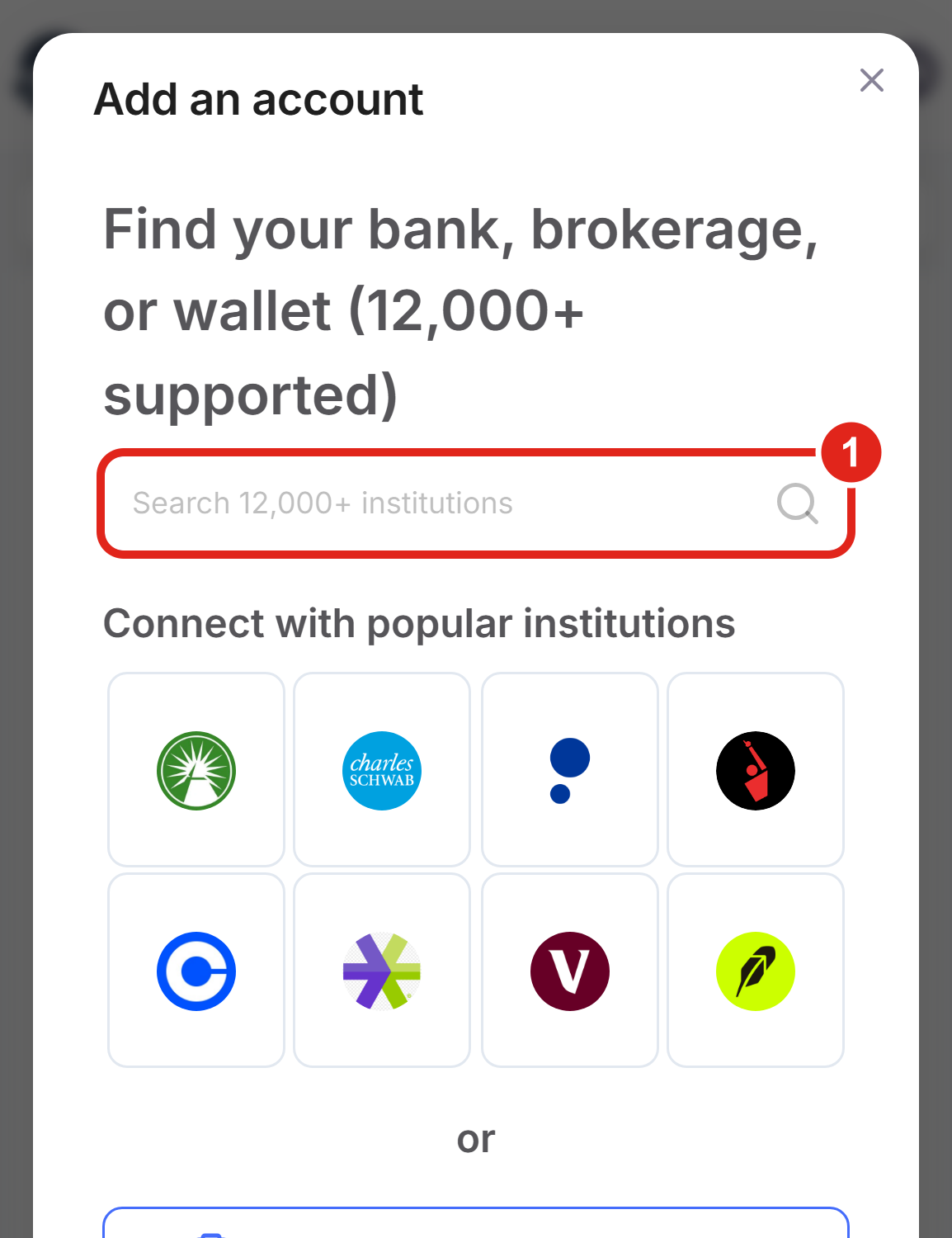
Mobile view: the Add account window full-screen, with the institution search box (1) at the top. Figures shown are illustrative.
The connection didn't finish
What's happening: a connection can stop partway for a few reasons: the institution's systems were briefly unavailable, a login or multi-factor step didn't complete, the consent screen was closed early, or the request simply timed out.
The good news is that retrying usually works, because these are most often temporary.
- Try again right away: reopen Add account, choose your institution, and complete every step, including any multi-factor code or security question the institution asks for. Don't close the window until it returns you to PortfolioPilot.
- If a partial account was created, reconnect it: if the account appears in your Securities list but looks stale, use the Reconnect button on its row (covered under My account stopped updating) rather than adding it a second time, which prevents a duplicate.
- Wait and retry if the institution is down: if you saw a server or temporary error, give it a little time and try once more; institution-side outages clear on their own.
- Try a different connection option: some institutions can be reached through more than one connection partner. In the Add account window, search for your institution and, if more than one result appears, try another: a route that fails once can work on the next try, since outages on a partner's side clear on their own.
- statement uploadUse a as a fallback: if a live connection keeps failing, Upload statement in the Add account window gets the account in now, and you can try the live connection again later.
It connected, but no holdings show up
What's happening: right after a connection, holdings can take a minute or two to arrive, so an account can briefly look empty. Occasionally an account genuinely holds only cash, or the institution sent the balance without the position detail.
- Give a brand-new connection up to a day: the first sync from some institutions can take several hours, and occasionally a full day, so a freshly linked account can show $0 or no holdings even though it connected correctly. Wait, then choose Sync accounts again before adding anything by hand.
- Give it a moment, then force a refresh: choose Sync accounts at the bottom of the Securities section and wait a short time for the positions to populate.
- Confirm the account actually holds positions: sign in to the institution directly and check that it holds securities and not only cash. A cash-only account correctly shows no positions, just a balance.
- Reconnect if it stays empty: use the Reconnect button on the account row to refresh the link and pull the holdings again.
- Add the holdings yourself if needed: if the positions still don't come through, you can add them yourself as a manually tracked account so your analysis stays complete. See Tutorial: Manual Input.
My balance shows as zero
What's happening: most often the positions came through but the account's cash balance arrived as zero, so the total looks empty. On a manually added or uploaded account you can set the cash figure yourself with the pencil; on a connected account the cash is synced, so refresh it with Sync accounts and, if it still reads zero, use the wrench to report a data issue.
- On a manually added or uploaded account, choose Edit portfolio (the pencil) to open it.
- Find the Brokerage cash field (2) and enter the cash balance shown in your institution's account.
- Choose Save. The total updates immediately.
- If positions are missing too, force a Sync accounts first, then check the cash figure.
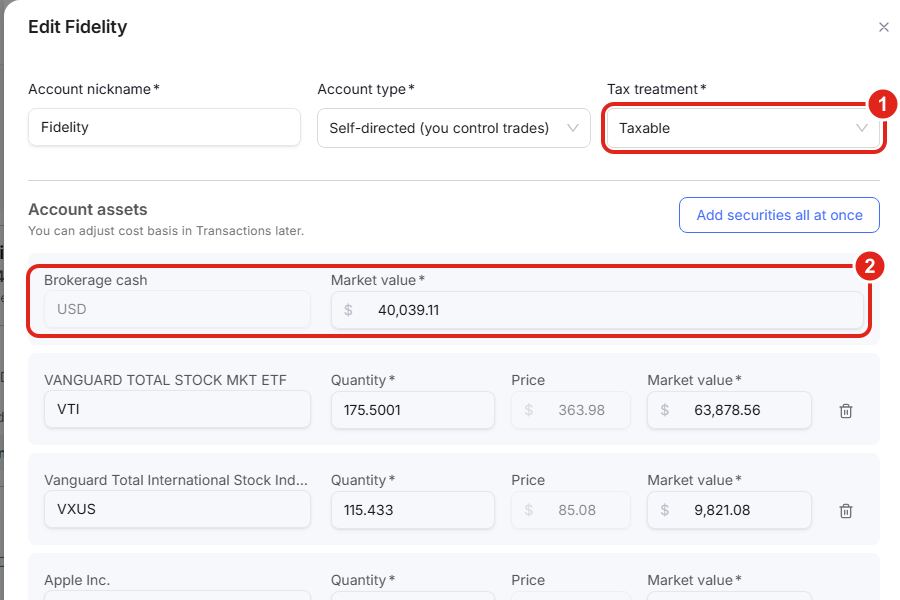
In a manually added account's edit drawer, the Brokerage cash field (2) holds the account's cash; set it to the right amount and Save. Each account also carries a single Tax treatment (1), used later in this guide. Figures shown are illustrative.
On a phone, Edit portfolio opens the same drawer full-screen; scroll to the Brokerage cash field (2) and tap Save.
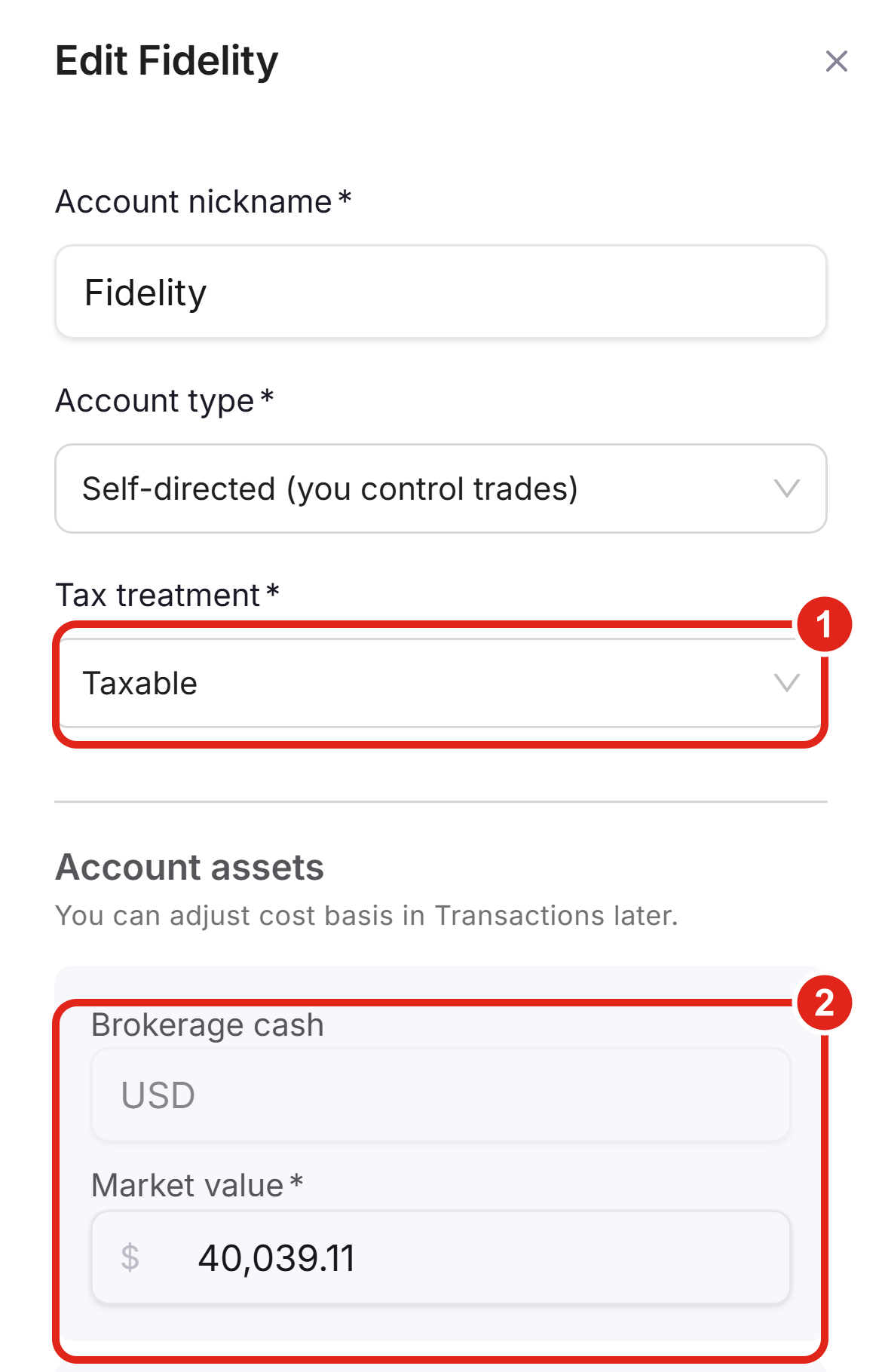
Mobile view: the edit drawer full-screen, with the Tax treatment field (1) and the Brokerage cash field (2). Figures shown are illustrative.
My balance is wrong
What's happening: a balance can be off if the data is stale, if the cash figure the institution sent is inaccurate, or if foreign-currency holdings are being converted at a lagging rate.
- Refresh first: choose Sync accounts and give it a moment; a stale price or quantity often corrects itself on a fresh sync.
- Correct the cash figure on a manually added account: if the holdings are right but the total is off, open Edit portfolio (pencil) and adjust the Brokerage cash field to match your institution, then Save. On a connected account, cash is synced rather than typed, so use the wrench on the row to report a data issue instead.
- Check individual prices: open a holding to see its price and quantity. If a specific security looks wrong, you can override its assumptions; see Tutorial: Custom Securities & Proxies.
- Reconnect if it persists: if the figures are still wrong after a sync, use Reconnect on the row to re-establish the link, which can return corrected data.
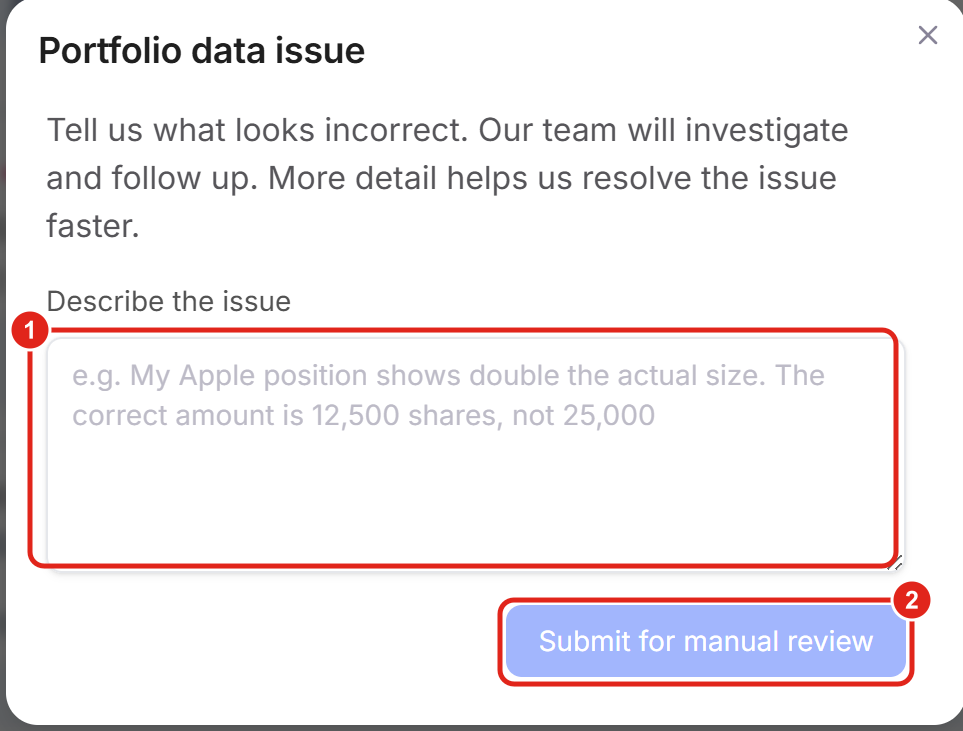
The wrench opens a Portfolio data issue form for a connected account: describe what looks wrong (1), then Submit for manual review (2) and our team fixes the synced data. On a phone the same form opens full-screen. Figures shown are illustrative.
My account total looks doubled
What's happening: some institutions report a settlement or money-market fund both as a holding and again as the account's cash, so the same money is counted twice (for example, $5M of securities plus a phantom $5M of cash reading as $10M). The fix is to remove the duplicated cash. On a manually added account you can remove it yourself; on a connected account, use the wrench on the row to report the double-count for our team to correct.
- On a manually added or uploaded account, choose Edit portfolio (the pencil).
- Set the Brokerage cash field to 0 if the cash is already represented by a settlement-fund holding in the list. The total drops by the duplicated amount as soon as you Save.
- If you do hold real, separate cash, enter that actual amount instead of zero, so only the genuine cash is counted.
- Alternatively, if a settlement-fund holding (a money-market position) is the duplicate, you can remove that holding from the account instead, then Save.
This is the same Brokerage cash field shown above under My balance shows as zero; here you're lowering it to remove a double-count rather than raising it.
My account stopped updating
What's happening: a connection can go stale when its secure access expires, when you change your password at the institution, or when the institution's systems are temporarily down. The Last successful sync line on the account row tells you how long it's been.
- Force a sync first: choose Sync accounts at the bottom of the Securities section. If it succeeds, the Last successful sync line updates to just now.
- Reconnect if the sync doesn't refresh it: when access has expired, a Reconnect button appears next to the sync line on the row. Choose it and complete the institution's login again; holdings re-sync within a minute or two.
- Check for changes at the institution: if reconnecting keeps failing, confirm you haven't changed your password or triggered a security hold on the institution's own website, then try Reconnect again.
- Start fresh as a last resort: if it still won't reconnect, remove the account (see the next section) and add it again with Add account.
My account appears twice
What's happening: deleting and re-adding an account, or reconnecting before the old copy finished clearing, can leave two rows for the same account, which inflates your total. Keep the current one and remove the old copy.
- Tell them apart: compare the Last successful sync line on each row; the one updated most recently is your live connection, and the older one is the leftover.
- On the older row, choose Delete portfolio (the trash icon). A window asks which action you want for that account.
- Choose Delete portfolio to remove it entirely, or Keep portfolio as manually added to continue seeing insights if you'd rather keep its history as a manual entry, then choose Continue.
- Confirm your net worth returns to the correct total. If it's still high, open the remaining account's Edit portfolio and check the Brokerage cash field wasn't entered twice.
My account has both pre-tax and Roth money
What's happening: tax treatment is set at the account level, with a single choice of Taxable, Tax-Advantaged, or Tax-Free. Some workplace plans hold both a pre-tax portion (Tax-Advantaged) and a Roth portion (Tax-Free) under one login, so a single account can't represent both correctly. The fix is to track the two portions as separate accounts so each carries the right tax treatment.
- Open the account's Edit portfolio (pencil) and, in the Tax treatment field (1), set it to whichever portion the connection holds, for example Tax-Advantaged for the pre-tax money.
- Add the other portion as its own account. Choose Add account, then Enter manually, give it a clear name (such as adding "Roth" to the plan name), and set its Tax treatment to Tax-Free. Enter that portion's holdings.
- If you'd rather not type holdings in, Upload statement for the second portion and assign its Tax treatment the same way.
PortfolioPilot suggests a tax treatment from the account name (an account named "Roth" is suggested as Tax-Free), and warns you if your choice doesn't match the name, so the two portions stay correctly classified. Grouping accounts by tax treatment also helps recommendations target the right money; see Tutorial: Asset Groups.
Tax treatment is one choice per account (1): Taxable, Tax-Advantaged, or Tax-Free. Track a mixed pre-tax and Roth plan as two accounts so each is set correctly. Figures shown are illustrative.
The section that follows, How syncing and connections work, is background reading rather than steps to complete.
How syncing and connections work
- Connections are read-only: PortfolioPilot connects through established connection partners to read your balances and holdings; it never moves money or trades on your behalf.
- Syncing is automatic, with a manual option: connected accounts refresh automatically when you open the app, and the Sync accounts button forces an immediate refresh any time you want the latest figures.
- Reconnect restores expired access: secure access can lapse over time or when your institution credentials change; the Reconnect button re-establishes the link without removing your account or its history.
- Report a data issue when numbers look wrong: on a connected account, the wrench on the account row opens a short form to flag an incorrect balance or holding, and our team investigates and follows up.
- Manual and uploaded accounts don't sync: holdings you upload or enter by hand won't update on their own, so revisit them when their values change.
Next steps
- Tutorial: Import Your Net Worth. The full walkthrough of all three ways to get an account in: connect, upload, or enter by hand.
- Tutorial: Manual Input. How to enter and maintain holdings yourself when a connection isn't available.
- Tutorial: Asset Groups. Group accounts by tax treatment so recommendations target the right money.
- Tutorial: Custom Securities & Proxies. Fix or fill in a specific holding's assumptions when a synced figure looks off.
Global Predictions provides investment advice only through its internet-based application, PortfolioPilot, and only to individuals who are advisory clients of Global Predictions pursuant to written advisory Client Agreements ("Advisory Services"). The publicly available portions of the Platform (i.e., the sections of the Platform that are available to individuals who are not party to a Client Agreement, including globalpredictions.com and portions of portfoliopilot.com) are provided for educational purposes only and are not intended to provide legal, tax, or financial planning advice. To the extent that any of the content published on publicly available portions of the Platform may be deemed to be investment advice, such information is impersonal and not tailored to the investment needs of any specific person. Nothing on the publicly available portions of the Platform should be construed as a solicitation or offer, or recommendation, to buy or sell any security. All charts, figures, and graphs on the publicly available websites are for illustrative purposes only. Before investing, you should consider whether any investment, investment strategy, security, other asset, or related transaction is appropriate for you based on your personal investment objectives, financial circumstances, and risk tolerance. You are also encouraged to consult your legal, tax, or investment professional regarding your specific situation. Registration does not imply a certain level of skill or training. Investing involves risk. The value of your investment will fluctuate, and you may gain or lose money.
Account names, balances, and holdings shown in the graphics herein are illustrative examples from a sample account and do not represent an actual client account or a recommendation. Tax treatment categories are for portfolio organization within PortfolioPilot and are not tax advice; consult a qualified tax professional about your situation.
Case studies presented are hypothetical scenarios and intended for illustrative purposes only. They do not represent an actual client, investment or experience, but rather are meant to provide an example of the intended process and methodology. An individual's experience may vary based on his or her circumstances. There can be no assurance that the Firm will be able to achieve similar results in comparable situations.
Connecting, syncing, and managing your accounts is part of building your net worth and is available on every plan, including Free. The personalized recommendations and deeper analysis that use this data are available to Gold, Platinum, or Pro subscribers, all with a 10-day free, no-credit-card trial.
