
Tutorial: Import Your Net Worth
PortfolioPilot tracks your whole net worth in one place: your investment accounts, plus real estate, private equity, cash, and everything else you own. This tutorial shows you the fastest way to bring each kind of asset in, so your net worth, Portfolio Score, and recommendations reflect your full picture. There are five ways to bring an investment account in: 1. connect it automatically; 2. upload a statement; 3. paste a list; 4. email it; 5. or enter it by hand. There's also a dedicated section for every other asset type, so there's always a path.
What you'll find in this tutorial
You do not have to follow these in order. Click any section to jump straight to it, or open your Net Worth page in the app to follow along.
- Connect an investment account automatically
- Import an investment account another way
- Set an account's type and tax treatment
- Add a security and its value
- Add real estate, cash, and your other assets
- Handle tickers we don't recognize
- Learn more: How importing works, Common use cases, and Next steps.
Throughout, the red markings on each screenshot point to exactly what the text is describing: a (1) in the text matches the 1 badge on the image. Where the phone layout differs, a mobile screenshot follows the desktop one.
Connect an investment account automatically
This is the fastest way to bring in a brokerage, retirement, or bank account, and the one most people start with. Go to Track, then Net worth, the one screen where you add, view, fix, or remove accounts. Each kind of asset has its own section there (Securities, Real estate, Private equity, Cash, and Other assets). In the Securities section, choose Add account.
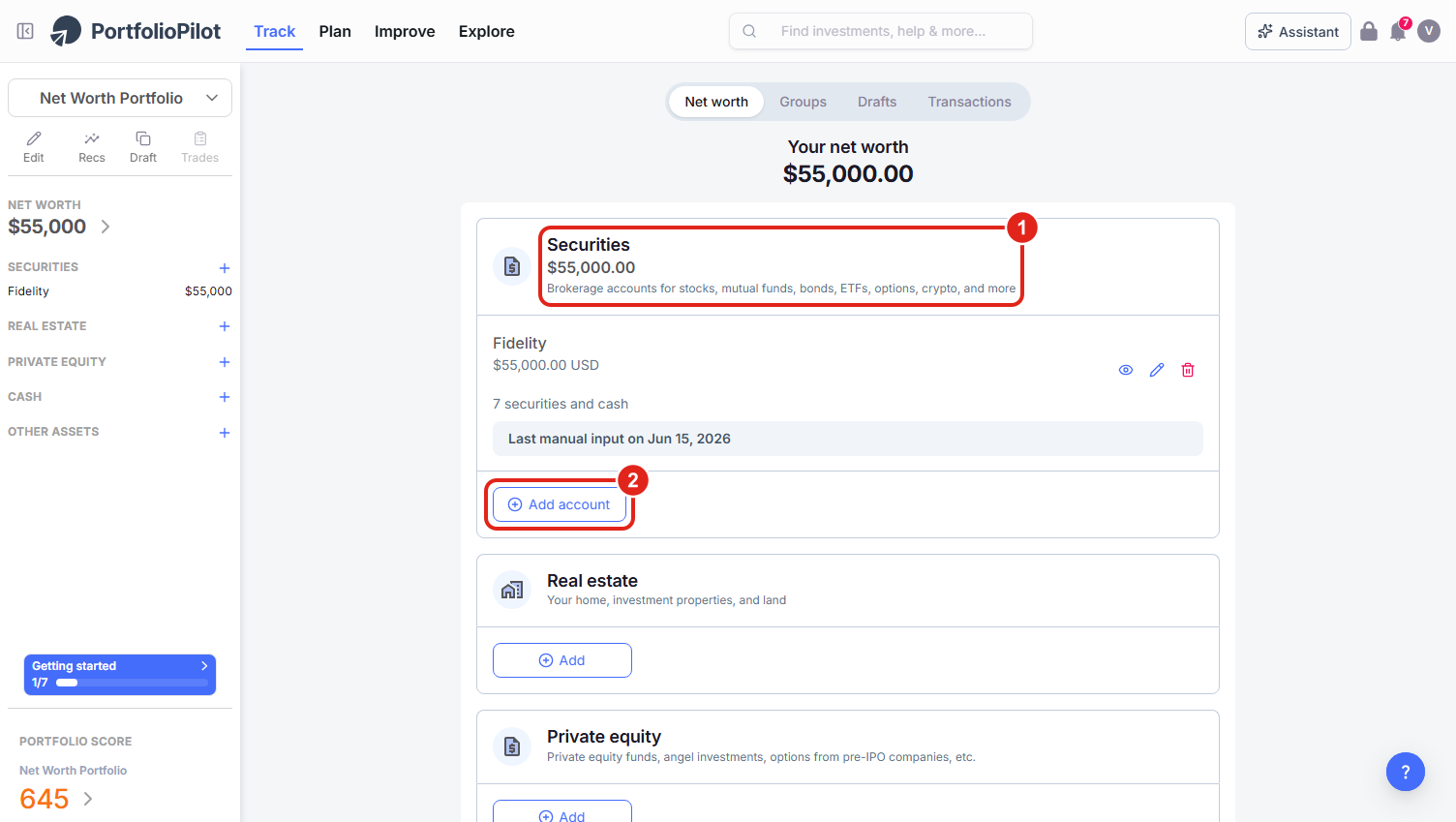
Track > Net worth is home base. The Securities section (1) holds your investment accounts; Add account (2) opens every way to import. (Figures illustrative.)
That opens the Add an account window. Type your institution's name into the search box: over 12,000 banks, brokerages, and wallets are supported (1), or pick a common one from the grid of popular institutions (2), then follow the secure sign-in. PortfolioPilot never sees your username or password; the connection runs through bank-level encryption and trusted aggregation partners, and from then on your holdings sync automatically (on app open, and about every 24 hours). If your account does not link, choose Other ways to import securities (3). The next sections cover each of those.
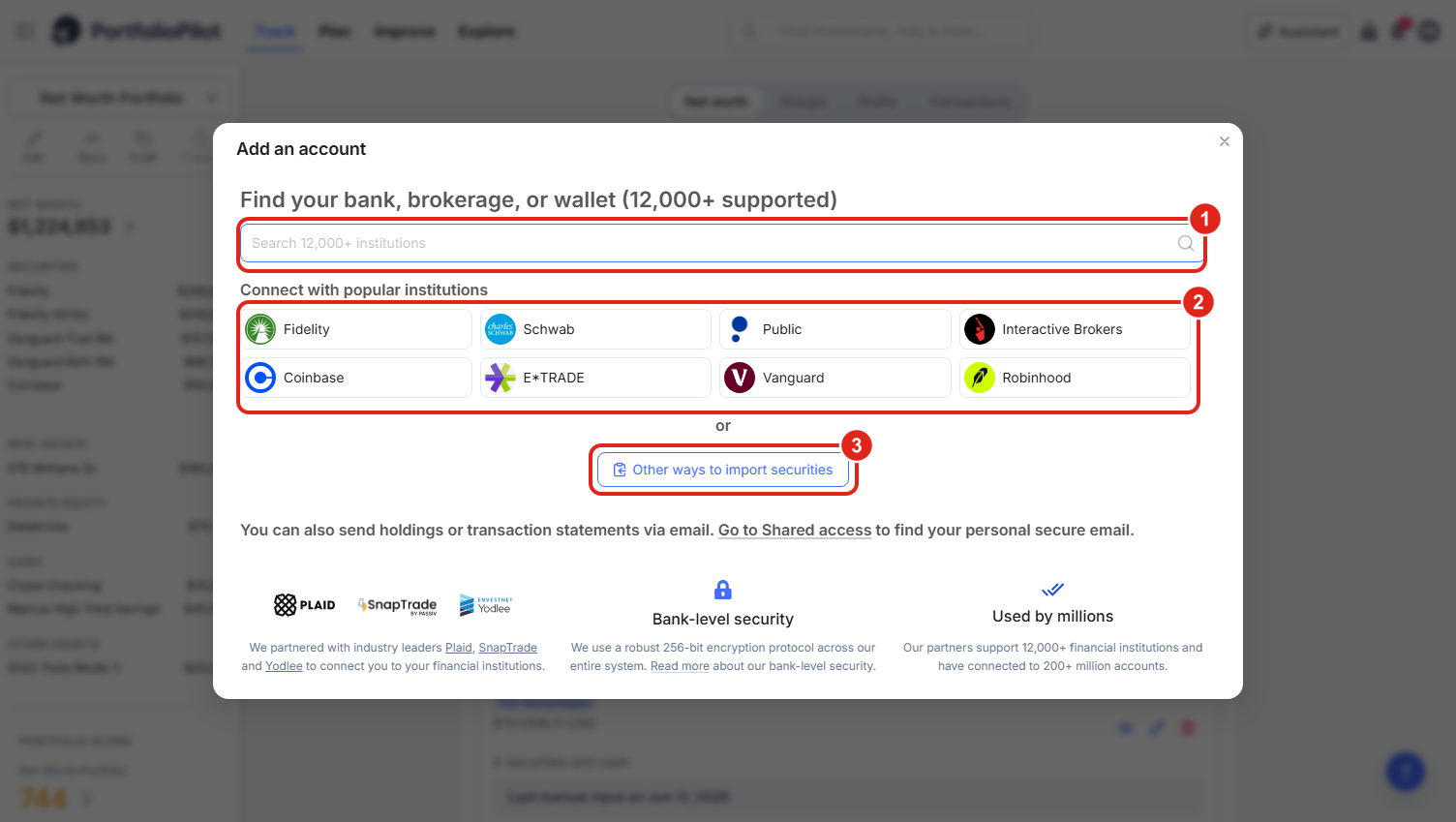
Search for your institution (1) or pick a popular one (2) to connect and auto-sync. Everything else is behind Other ways to import securities (3).
On a phone, the same flow lives under the bottom Track tab: open Net worth, tap Add account in the Securities section, and the Add an account window opens full-screen with the same search, popular institutions, and Other ways to import securities.
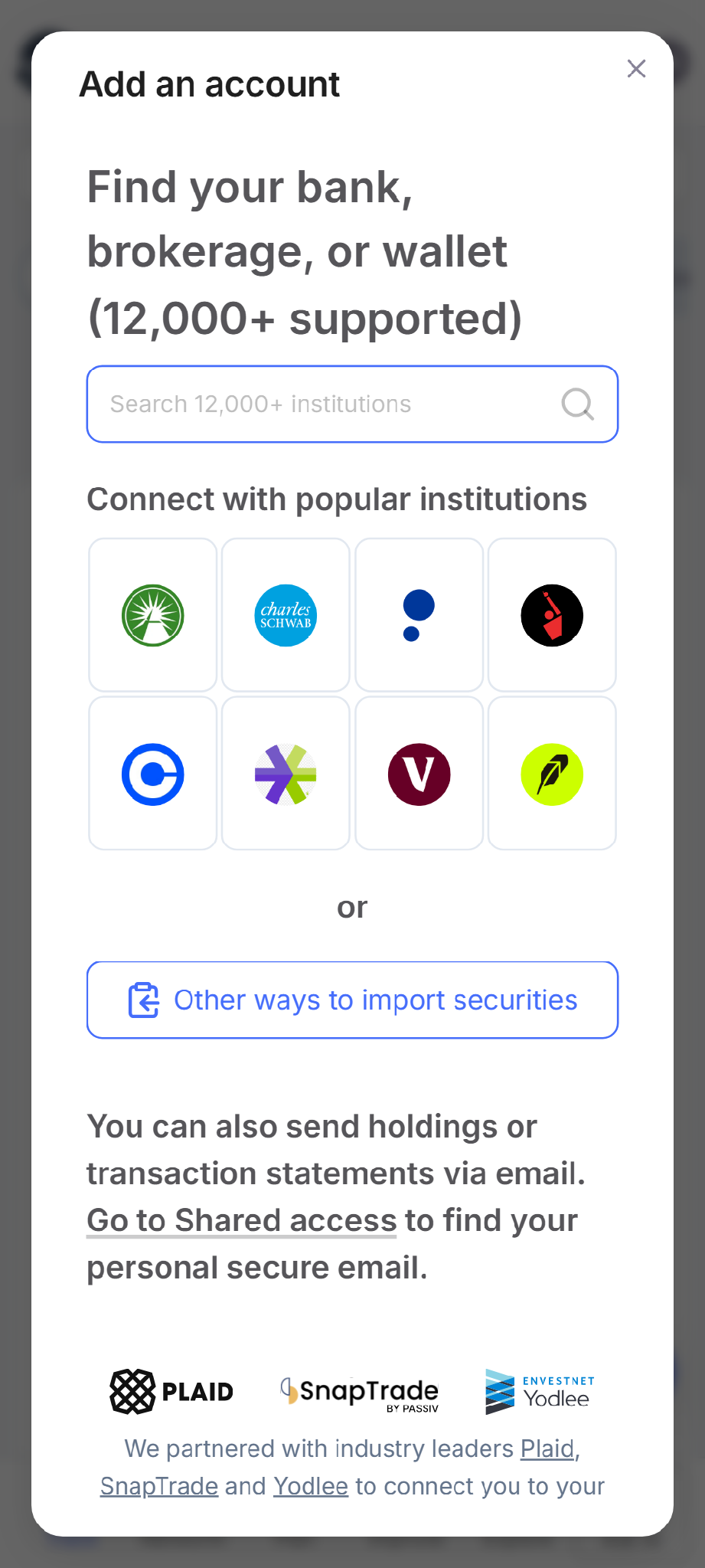
Mobile view: the same Add an account window on a phone. Figures shown are illustrative.
Tip: if your exact institution is not listed or the first match will not connect, search the institution's name and try the other results that appear for it: a bank or brokerage can offer more than one connection option, and one may work when another is temporarily down. Only if none of them connect, add the account by hand with one of the methods below; a manually added account is analyzed exactly like a connected one, it just will not refresh on its own.
Import an investment account another way
Choosing Other ways to import securities opens the Import securities menu: four more ways to bring an account in. Pick whichever is easiest for the account in front of you; each one gets its own section below.
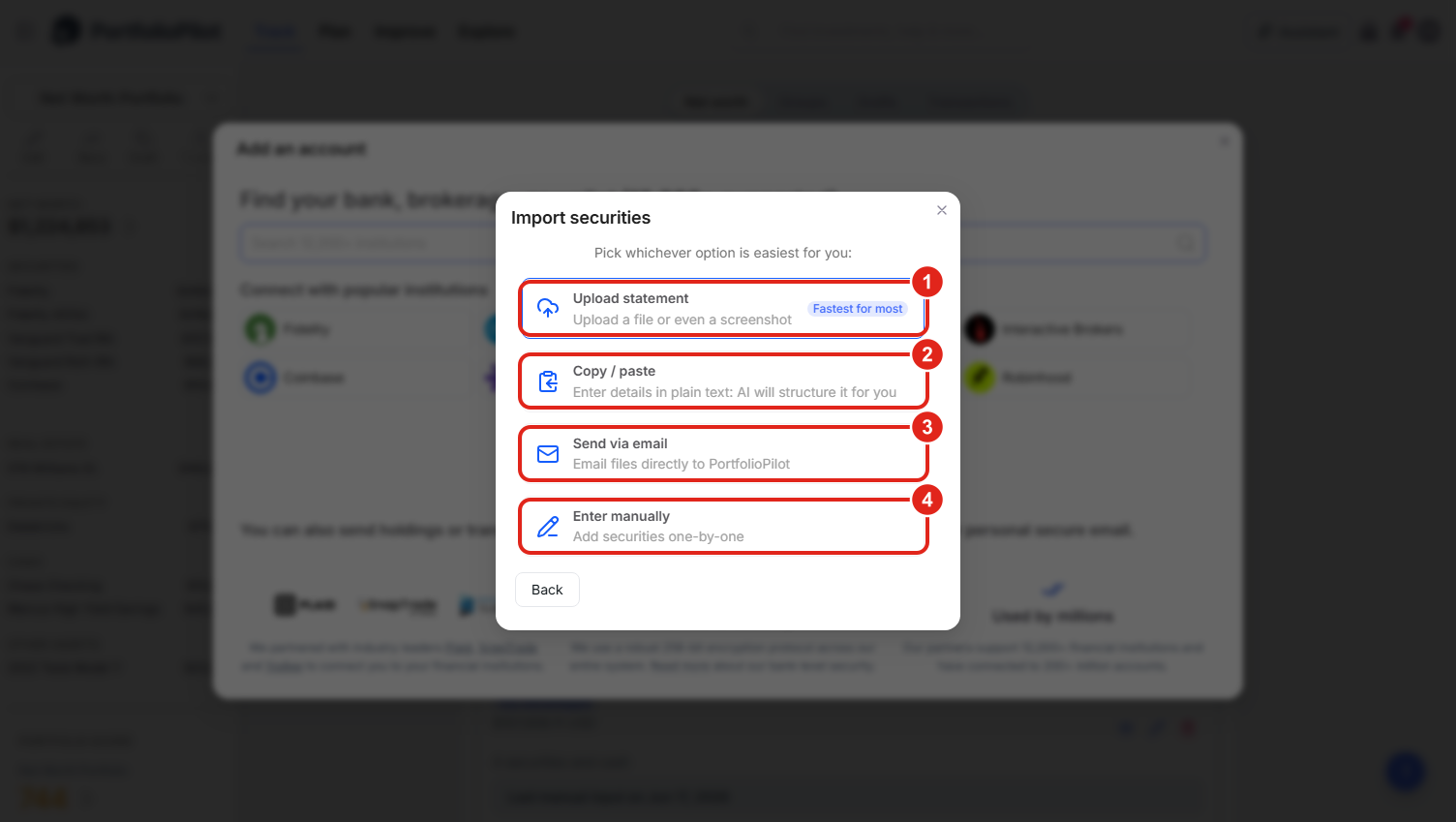
Four more ways in: upload a file (1), paste a list (2), email it (3), or type it by hand (4).
Upload a statement or screenshot
The fastest of the four for most people. Choose Upload statement, then drag in or browse for a file. Make sure the document actually shows your holdings: the ticker, quantity, and market value (1). Acceptable formats are broad: CSV, spreadsheet, PDF, and most image files, including a screenshot of your brokerage's holdings page. Drop the file (2), choose Upload, and PortfolioPilot's AI reads the positions out of it for you to review before saving.
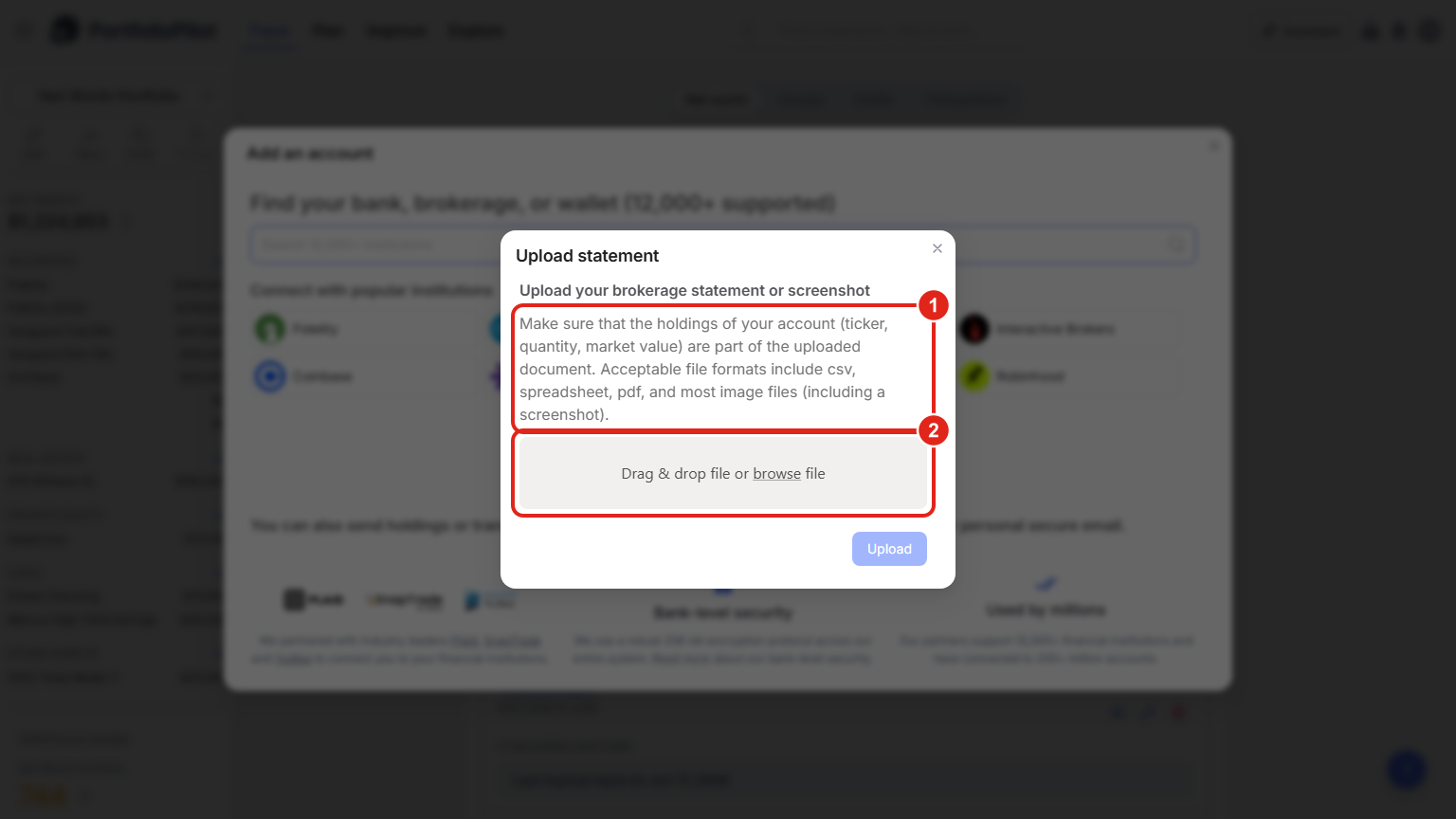
Upload a CSV, spreadsheet, PDF, or even a screenshot (2). Just make sure ticker, quantity, and value are visible in it (1).
Copy and paste your holdings
If you already have your holdings as text, you do not need a file. Choose Copy / paste and paste your list into the box (1), straight from your brokerage, a spreadsheet, or even in your own words. The AI handles most formats. The rule is simple, and the Format instruction link spells it out (2): give each holding a ticker or company name and either a market value (prefixed with $) or a number of shares (prefixed with #), one per line: for example Apple $3214, VOO $23500, TSLA #200, Cash $900. Choose Add and review what it parsed before saving.
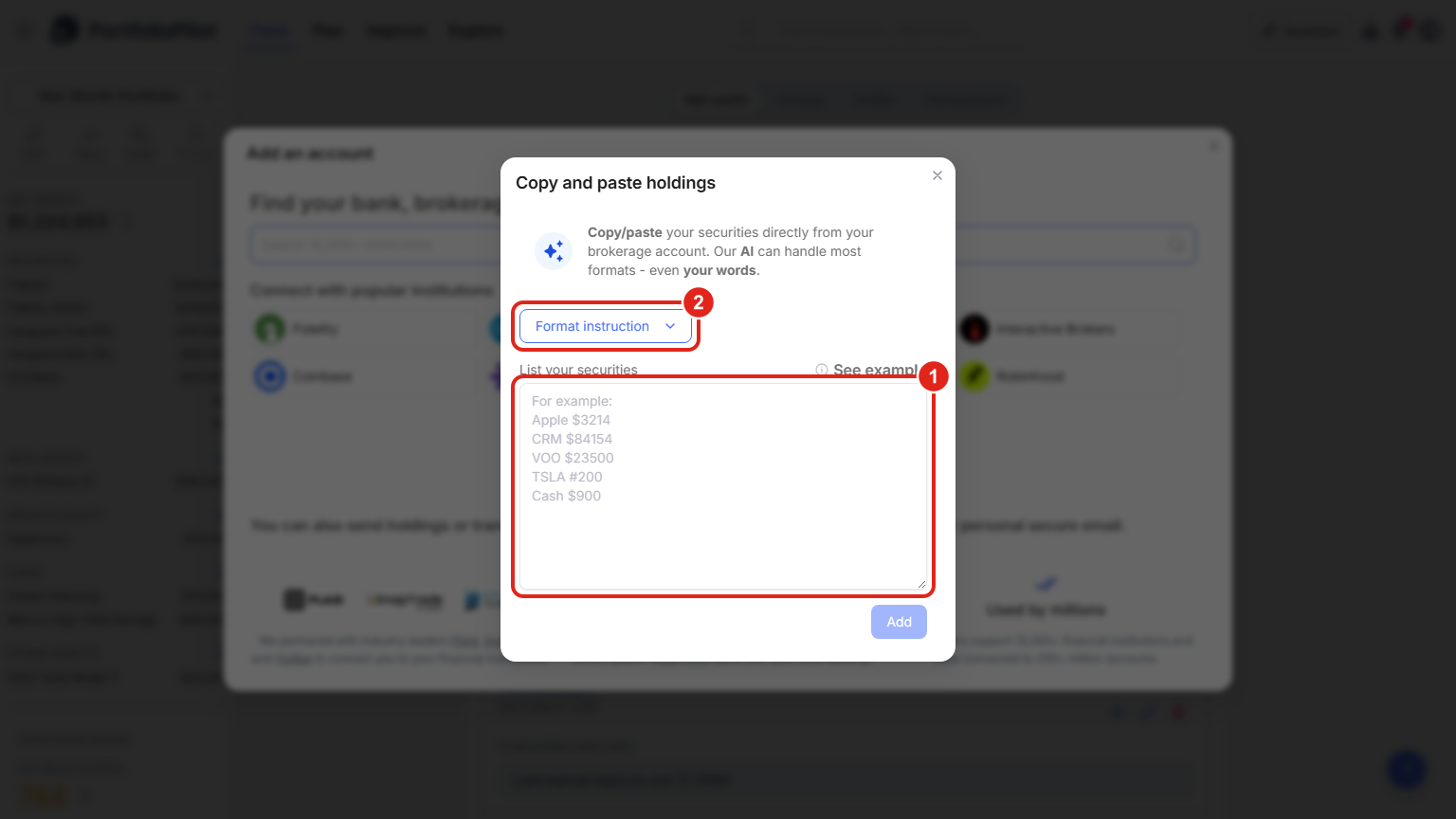
Paste a list and let the AI structure it (1). Use $ for a dollar value and # for a share count, one holding per line (2).
Email your statements in
PortfolioPilot also gives you a personal, secure email address that ingests statements automatically. Choose Send via email, or find the address under Settings, then Shared access. Forward a brokerage statement to it, or have your accountant copy it on periodic updates, and the holdings flow into your account without a real-time connection. It is handy for accounts you update a few times a year, like a private fund or a manually managed account.
Enter holdings by hand
Choose Enter manually to type an account in yourself, the reliable way to add anything that will not connect, in a couple of minutes. First, the account details at the top: a nickname you will recognize, such as "Fidelity 401(k)" (1); the Account type (2); and the Tax treatment (3). Then add your holdings in the Enter security box (4):
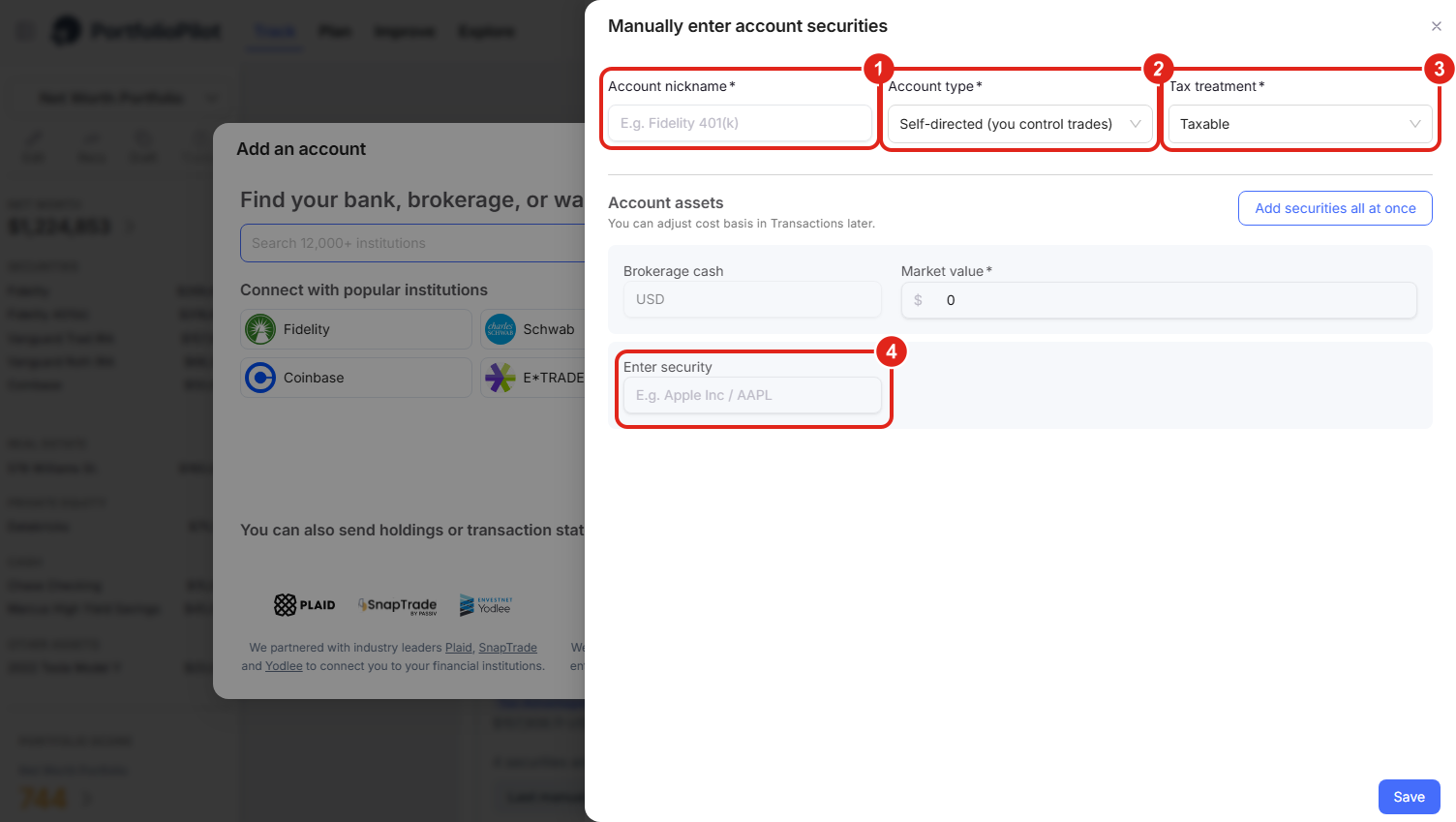
Name the account (1), set how it is managed (2) and taxed (3), then add holdings one by one in Enter security (4).
On a phone, the same form opens full-screen with the fields stacked vertically: nickname, then Account type, then Tax treatment, then the Enter security box, and a Save button fixed at the bottom.
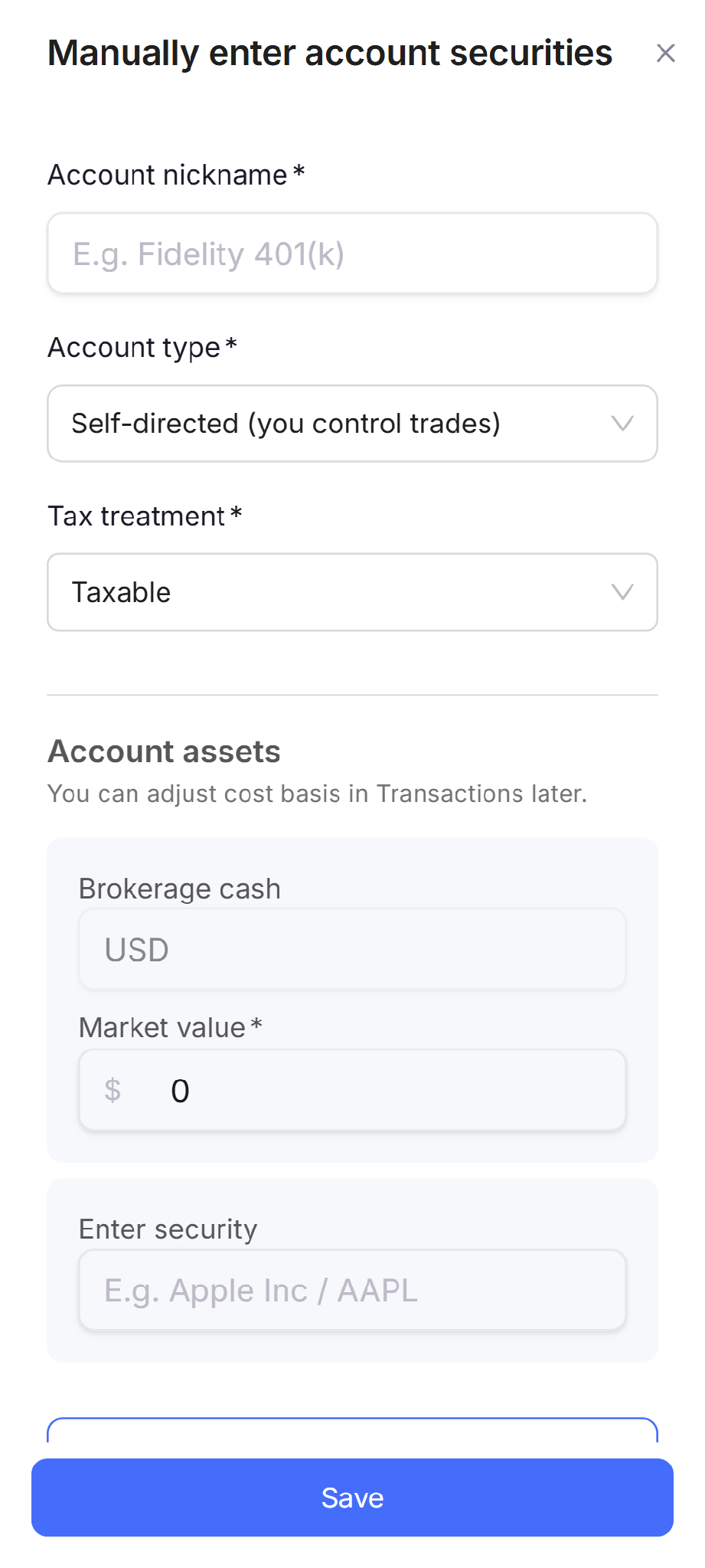
Mobile view: the manual-entry form stacks vertically on a phone. Figures shown are illustrative.
Set an account's type and tax treatment
Two fields on the manual form do a lot of quiet work, because they tell PortfolioPilot how to analyze the account. Account type is how the account is run:
- Self-directed: you control the trades.
- Externally managed: a financial advisor or robo-advisor runs it.
- Direct indexing: a managed basket of individual stocks that tracks an index.
Tax treatment is how the account is taxed, which makes your tax analysis and recommendations far more accurate:
- Taxable: a regular brokerage account, where dividends and gains are taxed each year.
- Tax-Advantaged: Traditional IRA, 401(k), or SEP-IRA: contributions may be tax-deductible, and withdrawals are taxed as income.
- Tax-Free: Roth IRA, Roth 401(k), or HSA: contributions are after-tax, and growth and withdrawals are generally tax-free.
Setting these the same way for a connected account is worth doing too: it is the difference between a generic analysis and one that respects how each account is actually taxed and managed.
Add a security and its value
In the Enter security box, type a ticker (for example AAPL) or a company name (for example Apple Inc) and pick it from PortfolioPilot's library of ETFs, stocks, mutual funds, and cryptocurrencies. Once you select it, the security is added as a row (1); you then enter the position's Market value (2), and a new empty row appears so you can add the next holding. Put any uninvested cash in the Brokerage cash row. You can fine-tune cost basis later under Transactions. When the account is complete, choose Save.
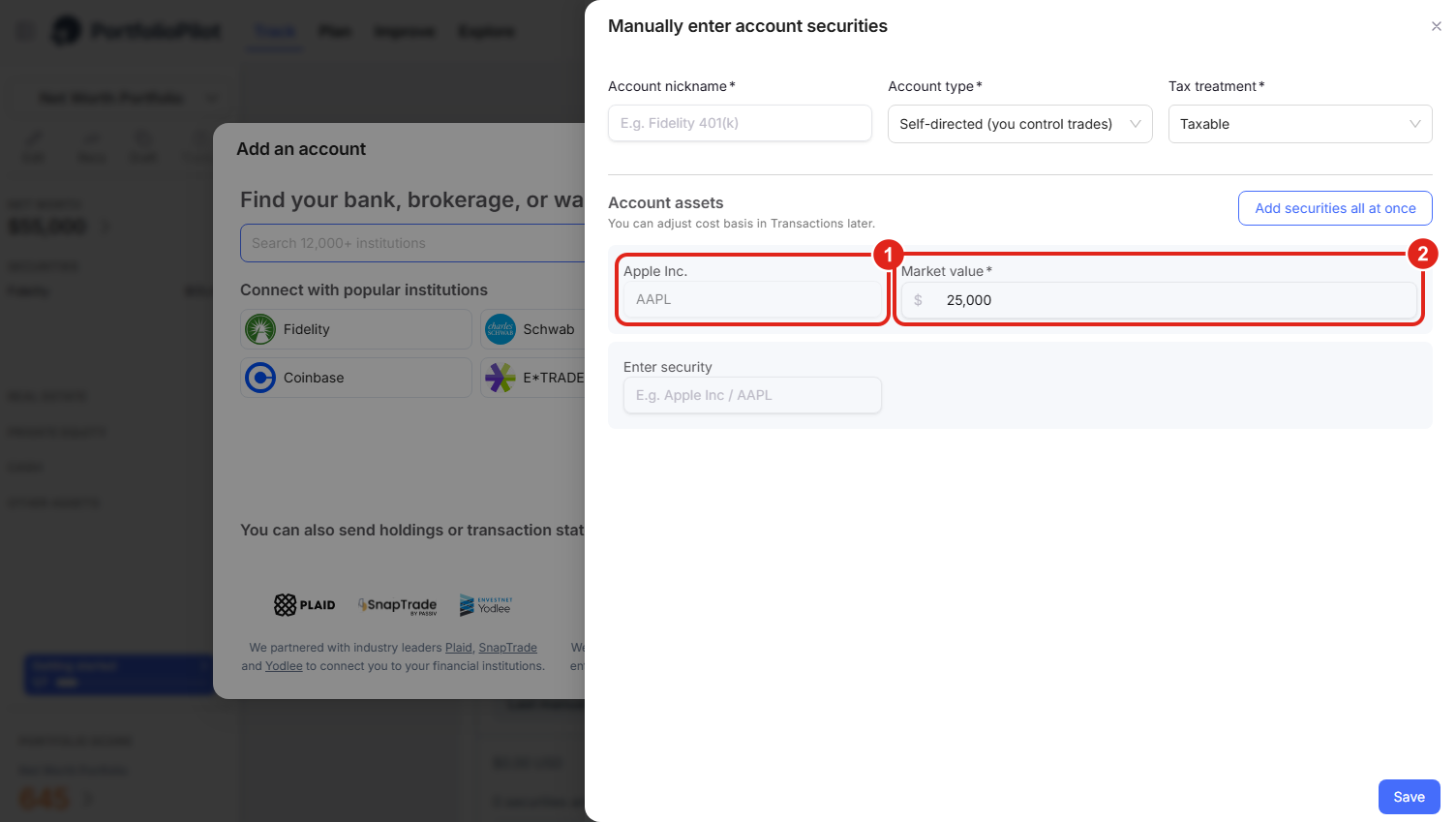
Type a ticker or name and it resolves to a holding (1); enter its market value (2) and add the next. (Figures illustrative.)
Add real estate, cash, and your other assets
Your net worth is more than your brokerage accounts, and the Net worth page has a section for every part of it. Each one has its own Add button that works just like the Securities flow above: connect where possible, or add by hand:
- Real estate: your home and any investment properties or land. Add a property and its current value; you can update the value over time, and some homes can be auto-valued. Tracking more than one property is a Pro feature.
- Private equity and alternatives: private equity funds, angel investments, pre-IPO shares, hedge funds, and other alternative investments. Add the holding and your latest mark.
- Cash: savings, checking, money-market, loans, and credit cards. Connect a bank to sync balances automatically, or enter a balance by hand.
- Other assets: anything else that contributes to your net worth: collectibles, a business stake, alternative investments, or any custom asset. Add a name and a value.
Adding these gives you a true net worth and makes the rest of PortfolioPilot more accurate: your retirement plan can count your home equity, and your Portfolio Score and recommendations can account for cash and illiquid assets instead of guessing. You can choose what each analysis includes using asset groups.
Handle tickers we don't recognize: ADRs, foreign shares, and bonds
If a ticker is not found
Most securities resolve instantly, but the library does not list every instrument in the world. If yours does not appear as you type, add it anyway: PortfolioPilot runs a background search against a larger database and maps it automatically when it finds a match. Until it does, the holding is shown as untracked, with the option to set up a proxy so it still counts toward your net worth and analysis.
Foreign shares and ADRs
Major ADRs are usually recognized. For an unusual ADR or a foreign-listed share that is not, use a proxy: choose a closely equivalent security to stand in: for example the company's primary listing, or a representative same-sector fund, and set its classification (asset class, country, and sector). PortfolioPilot tracks your position through the proxy and replaces it with the real security's properties once it has mapped it, so your exposures stay roughly right in the meantime.
Individual bonds
Search for the bond by its CUSIP or description. If PortfolioPilot tracks it, select it and enter the market value. Its maturity, coupon, and credit characteristics come from the security database automatically. If the specific bond is not tracked (common for individual issues), use the proxy route: classify the holding as fixed income, choose the type of bond, and pick a proxy bond fund or ETF with a similar maturity and credit quality. Enter the bond's current market value (not its face value) so your net worth is accurate. This lets PortfolioPilot model the position's interest-rate and credit exposure even though it does not keep a separate coupon-and-maturity field for each individual bond.
The sections that follow, How importing works, Common use cases, and Next steps, are background reading rather than things to set up.
How importing works
- It covers your whole net worth: every account you import, securities, real estate, cash, and the rest, rolls into one picture, and your Portfolio Score, risk, and recommendations are calculated across all of it together.
- Connected accounts sync automatically: linked accounts refresh on app open and about every 24 hours; there is also a manual Sync accounts button on the Net Worth page once you have at least one connected account.
- Manual accounts are first-class: a typed, pasted, uploaded, or emailed account is analyzed exactly like a connected one. It simply does not refresh on its own: you update it when its value changes.
- Unrecognized tickers are searched in the background: if a ticker is not in the library, a wider database search runs automatically, and you can map the holding to a proxy in the meantime.
- Cost basis lives in Transactions: importing captures what you hold and what it is worth; you can refine purchase history and cost basis later under the Transactions tab for more precise tax analysis.
Common use cases
"My money is spread across several institutions."
Connect the brokerages that link automatically, then add the old 401(k) that will not connect with Enter manually or a statement upload. In a few minutes, your net worth and Portfolio Score reflect all of it.
"I want my house and savings counted, not just my investments."
Add your home under Real estate and your bank accounts under Cash. Now your net worth is complete, and your retirement plan can use your home equity and cash.
"I hold individual bonds or a Treasury ladder."
Search each bond by CUSIP. For any that are not tracked, classify it as fixed income, pick a proxy bond fund of similar maturity and credit quality, and enter its current market value: your interest-rate exposure then shows up correctly.
"I have a screenshot of my holdings but no export."
Use the Upload statement and drop the screenshot in: the AI reads the tickers and values straight off the image.
Next steps
- Tutorial: Portfolio Score. Now that your accounts are in, see how your portfolio scores and where to improve.
- Tutorial: Retirement Planning. Project whether your imported net worth supports the retirement you want.
- Tutorial: Asset Groups. Separate taxable and tax-advantaged accounts so each is analyzed correctly.
- Tutorial: Invest Together as a Couple. Bring both partners' accounts together and plan a joint retirement.
- Tutorial: Adding Bonds, Options, Annuities, and Other Hard-to-Track Holdings. Add the individual bonds, options, annuities, and other holdings a connection often misses, one at a time, so they count toward your net worth.
Note: Specific investments described herein (for example, Apple / AAPL) do not represent all investment decisions made by Global Predictions and are shown only to illustrate how to use the product. The reader should not assume that any investment referenced was or will be profitable. Specific investment references are for illustrative purposes only and are not necessarily representative of investments that will be made in the future.
Global Predictions provides investment advice only through its internet-based application, PortfolioPilot, and only to individuals who are advisory clients of Global Predictions pursuant to written advisory Client Agreements ("Advisory Services"). The publicly available portions of the Platform (i.e., the sections of the Platform that are available to individuals who are not party to a Client Agreement, including globalpredictions.com and portions of portfoliopilot.com) are provided for educational purposes only and are not intended to provide legal, tax, or financial planning advice. To the extent that any of the content published on publicly available portions of the Platform may be deemed to be investment advice, such information is impersonal and not tailored to the investment needs of any specific person. Nothing on the publicly available portions of the Platform should be construed as a solicitation or offer, or recommendation, to buy or sell any security. All charts, figures, and graphs on the publicly available websites are for illustrative purposes only. Before investing, you should consider whether any investment, investment strategy, security, other asset, or related transaction is appropriate for you based on your personal investment objectives, financial circumstances, and risk tolerance. You are also encouraged to consult your legal, tax, or investment professional regarding your specific situation. Registration does not imply a certain level of skill or training. Investing involves risk. The value of your investment will fluctuate, and you may gain or lose money.
The contents of the Platform may contain forward-looking statements based on management's beliefs, assumptions, current expectations, estimates, and projections. Forward-looking statements are not guarantees of future performance, and actual results may differ materially from those expressed or forecasted. Note: our use of the term AI refers to all artificial intelligence models used, including large language models, proprietary economic models that incorporate regression or dynamic factors, and machine learning methods like supervised learning. For more information, see our disclosures at globalpredictions.com/disclosures.
Importing your net worth and all the import methods are part of the free plan. You do not need a paid subscription to bring your accounts in. Deeper features that act on your imported portfolio, personalized recommendations and tax-loss harvesting, are available with Gold, Platinum, or Pro (all with a 10-day free trial, no credit card required).
