
Tutorial: Dividend & Income
This tutorial is for educational purposes. The examples shown are illustrative, and projected income is an estimate, not a guarantee. Full disclosures appear at the end.
The Dividend & income page shows how much income your portfolio and the rest of your net worth are expected to pay you over the next 12 months: dividends, interest, rent, pension payouts, and more.
It's the quickest way to answer "how much will my money pay me, when, and from where?", and to spot holdings that aren't counted yet. This tutorial also shows how to point your recommendations at income and check any holding's dividend details.
Nothing on this page changes your accounts. It only reads what you already hold.
What you'll find in this tutorial
You do not have to follow these in order. Click any section to jump straight to it, or open Dividend & income in the app to follow along.
- Open the Dividend & income page
- See income for one portfolio or asset group
- Your income at a glance
- Where your income comes from
- Expected income by month
- Upcoming payments
- Raise your income, and your score
- When a holding is missing income data
- Tailor your recommendations for income
- Check and edit a holding's dividend details
Learn more: What counts as income, Common use cases, Frequently asked questions, and Next steps.
Throughout, the red markings on each screenshot point to exactly what the text is describing - a (1) in the text matches the 1 badge on the image. Where the phone layout differs, a mobile screenshot follows the desktop one.
Open the Dividend & income page
There are two ways in:
- From the Track menu: open Track (1) in the top bar and choose Dividend & income (2).
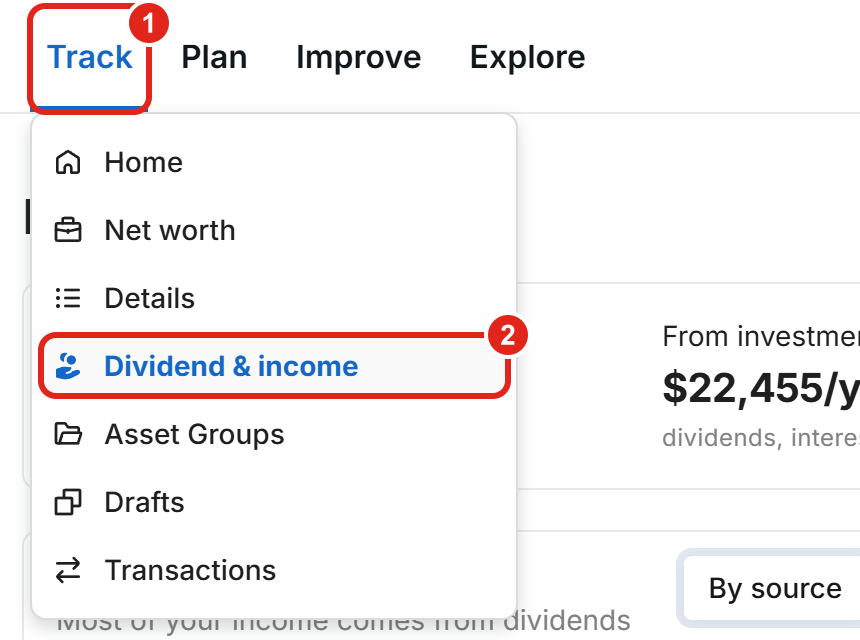
Desktop: open Track (1) and choose Dividend & income (2).
- From your Track home: on Track, click the blue Dividend & fixed income figure in the Net worth stats card (3). It links straight to this page.

Desktop: the Dividend & fixed income figure on your Track home (3) opens the same page. Figures shown are illustrative.
On a phone, tap Track in the bottom bar (4) to open your Track home, then scroll to Net worth stats and tap the blue Dividend & fixed income figure.

Mobile view: the Track tab in the bottom bar (4).
See income for one portfolio or asset group
The page always shows income for the portfolio selected at the top left (1), so you can look at all of it or just one part:
- Net Worth Portfolio: everything you've added, including rental properties, pensions, and private equity.
- An asset group (2): only the accounts in that group. For example, a Retirement group shows just the income your retirement accounts are expected to pay, which is useful if you plan to live off those accounts first.
- A single account (3): only that account's dividends and interest.
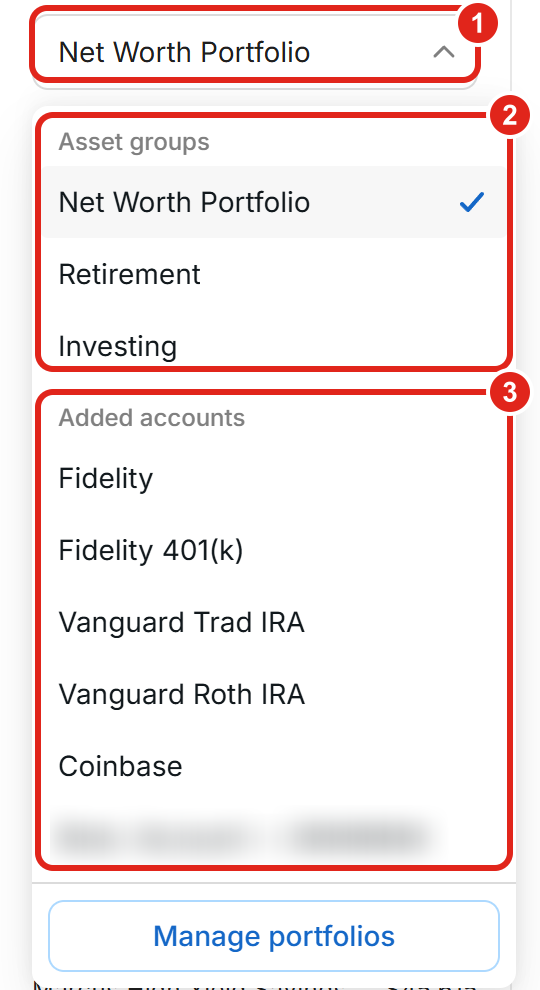
Desktop: the portfolio selector (1), your asset groups (2), and your individual accounts (3). Figures shown are illustrative.
Every number on the page recalculates for the selection. The Raise your income, and your score card appears only on the Net Worth Portfolio. To create or change a group, choose Manage portfolios at the bottom of the list, or see Tutorial: Asset Groups.
Hypothetical Example: an investor keeps a Retirement group (401(k) and IRAs) and an Investing group (a taxable brokerage account). Selecting Retirement shows that those accounts are expected to pay about $9,000 a year, mostly from bond funds in December and June, so they can plan withdrawals around those months.
On a phone, the same selector sits at the top of the screen.
Your income at a glance
The strip at the top of the page sums up the next 12 months:
- Total income: everything you're expected to receive per year, with the monthly average underneath (1).
- From investments: the part that comes from dividends, interest, and cash in your securities accounts (2).
- Portfolio yield: your investment income as a percentage of the invested value it's measured on, which is shown underneath (3).
- Next payment: the amount, source, and date of the next payment on the calendar (4).

Desktop: Total income (1), From investments (2), Portfolio yield (3), and Next payment (4). Figures shown are illustrative.
Hypothetical Example: a $500,000 investment portfolio with a 2.00% portfolio yield is expected to pay about $10,000 a year, or roughly $833 a month on average. If you also added a rental property that pays $1,500 a month, Total income would read about $28,000 a year, while From investments stays at $10,000.
Where your income comes from
The Income breakdown card splits your total into a donut chart with a list beside it. Switch between two views at the top of the card (1):
- By source: groups income by type, such as Dividends from stocks & funds, Bond & fixed income interest, Cash & savings interest, Rental income, Pension & annuity payouts, and Private equity distributions (2).
- By holding: lists the individual securities, accounts, and properties that pay you, largest first. Small payers are grouped into an Others row you can expand.
A one-line summary under the chart calls out what stands out, such as your largest single payer or when one property pays more than all your securities combined.
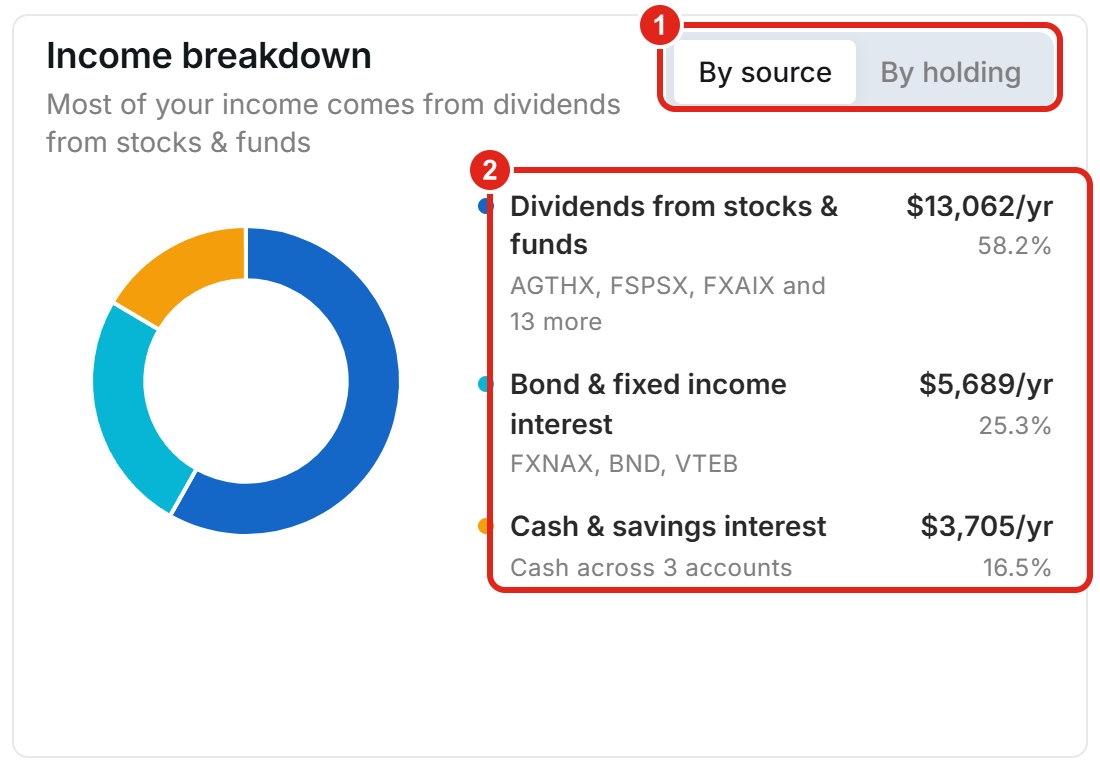
Desktop: the By source / By holding switch (1) and the list of sources with each one's share (2). Figures shown are illustrative.
Expected income by month
The Expected income by month chart shows one bar for each of the next 12 full months, so you can see which months are heavy and which are light (1).
- Where the numbers come from: a payment that has already been announced uses the announced amount; otherwise it's estimated from the holding's latest declared rate (or its trailing yield) on its usual payment schedule.
- Reading the pattern: rent and pension payments make the bars flat, while funds that pay quarterly create regular bumps. The note under the chart names the biggest quarterly payers (2).
- Exact amounts: hover over a bar to see that month's total.

Desktop: one bar per month for the next 12 months (1), and the note explaining the pattern (2). Figures shown are illustrative.
Upcoming payments
The Upcoming payments card lists the individual payments you're expecting. Choose how to see them with the switch at the top right (1):
- List: the payments due in the next 90 days, with each source, pay date, and amount, and the total across all of them in the card's subtitle. The first few are shown; choose See all at the bottom to expand the rest.
- Calendar (desktop): a month grid with each payment on its pay date. Use the arrows beside the month name (2) to move through the next 12 months, and the subtitle shows that month's total.

Desktop: the List / Calendar switch (1) and the month arrows in Calendar view (2). Figures shown are illustrative.
On a phone, Upcoming payments are shown as a list.
Raise your income, and your score
When you're viewing your Net Worth Portfolio, and there are recommendations that would lift your Portfolio Score, a blue Raise your income, and your score card appears below the payments. It shows how many recommendations are ready, your current score, and the estimated score after acting on them (1).
Choose See income recommendations (2) to open your Top Recommendations. They're a menu of options, not a to-do list: pick what fits you. See Tutorial: Personalized Recommendations for how to read and act on them.

Desktop: the current and estimated Portfolio Score (1) and See income recommendations (2). Figures shown are illustrative.
If the card isn't there, either you're viewing a portfolio other than your Net Worth Portfolio, or there are no recommendations right now that would raise your score.
When a holding is missing income data
If some of what you hold can't be counted, a Not everything you hold is covered banner appears at the bottom of the Dividend & income page. It names the holdings that are missing dividend or income information, and roughly how much of your portfolio isn't reflected in the totals.
- Fix it: choose Fix on the banner to open Portfolio details with the affected holdings flagged, then fill in the missing information. See Tutorial: Custom Securities & Proxies for how to edit a holding's assumptions.
- No income at all: if the page says No income to show yet, the selected portfolio doesn't hold anything that pays income. Add dividend or interest paying investments, or add rental properties, pensions, or private equity on your Net Worth page. See Tutorial: Import Your Net Worth.
The banner only appears when something is missing, so if you don't see it, every holding in the selected portfolio is already counted.
Tailor your recommendations for income
If income is your main goal, tell PortfolioPilot. Two settings steer your recommendations toward investments that pay dividends and interest. Both live in Settings: click your initials in the top right and choose Settings.
- Set your investment objective: open Investment profile (1), then choose the pencil next to Investment objective (2). Pick Maximize income to lean your recommendations toward dividend and interest payouts, or Balance growth & income if you want both.
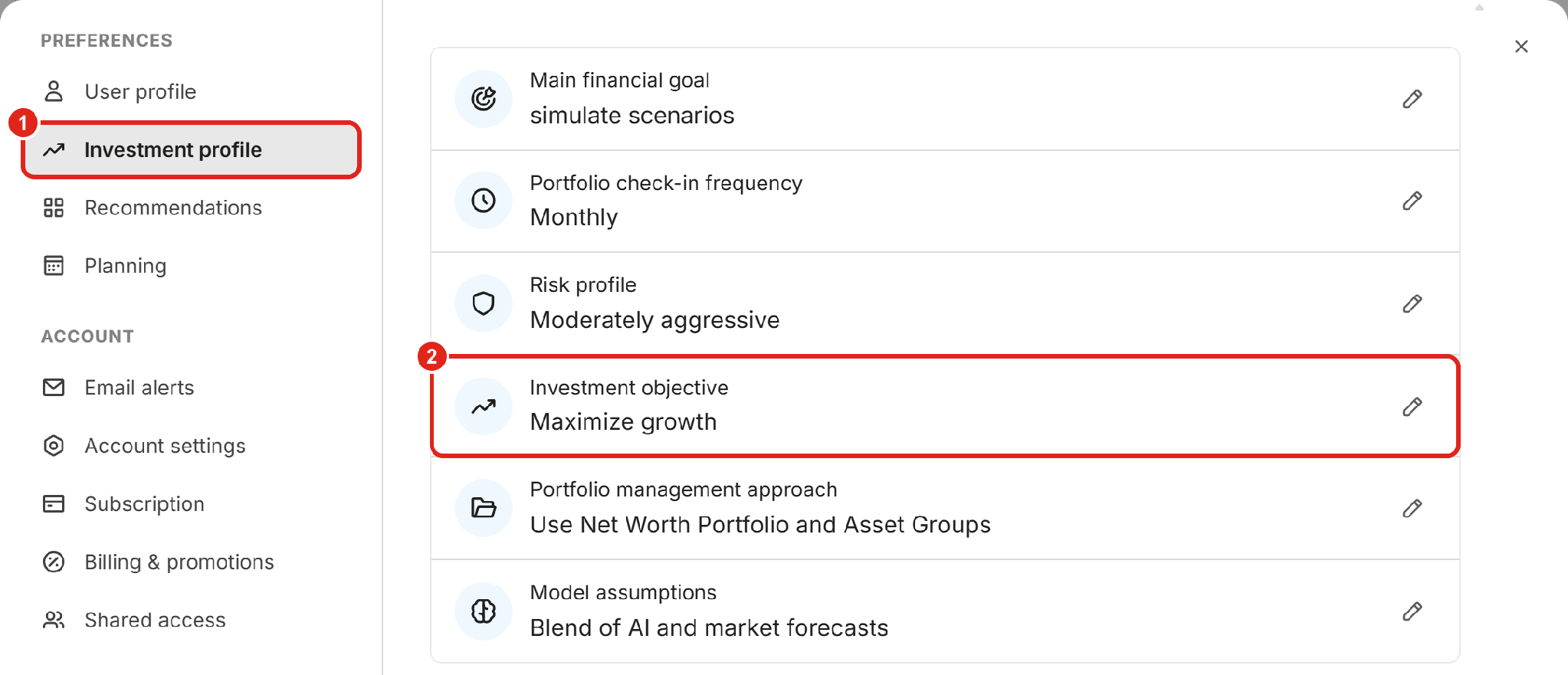
Desktop: Investment profile (1) and the Investment objective row with its edit pencil (2). Figures shown are illustrative.
- Set a minimum yield: open Recommendations (3), then choose the pencil next to Minimum dividend / fixed income % to show? (4). Pick 0.1%, 1%, or 2% to leave out recommended securities that pay less than that, or keep No restriction.

Desktop: Recommendations (3) and the minimum dividend / fixed income setting (4). Figures shown are illustrative.
Your objective also shows up on this page: the Raise your income, and your score card names it when it counts your recommendations. From Top Recommendations, Tune your recommendations > Update preferences also takes you to the same settings.
Hypothetical Example: an investor living partly off their portfolio sets the objective to Maximize income and the minimum yield to 2%. Their recommendations now favor dividend and bond funds yielding at least 2%, and they can try one in a draft portfolio before changing anything real.
Check and edit a holding's dividend details
To see why a holding pays what it does, or to fix a number that looks wrong:
- Look up any security: search for it in the bar at the top of the app to open the Security Explorer, then choose the Events tab. The Dividends card shows the Yield, TTM dividend (the last 12 months), Frequency, Last paid, and Next ex-dividend date (1), with the full payment History below it (2).
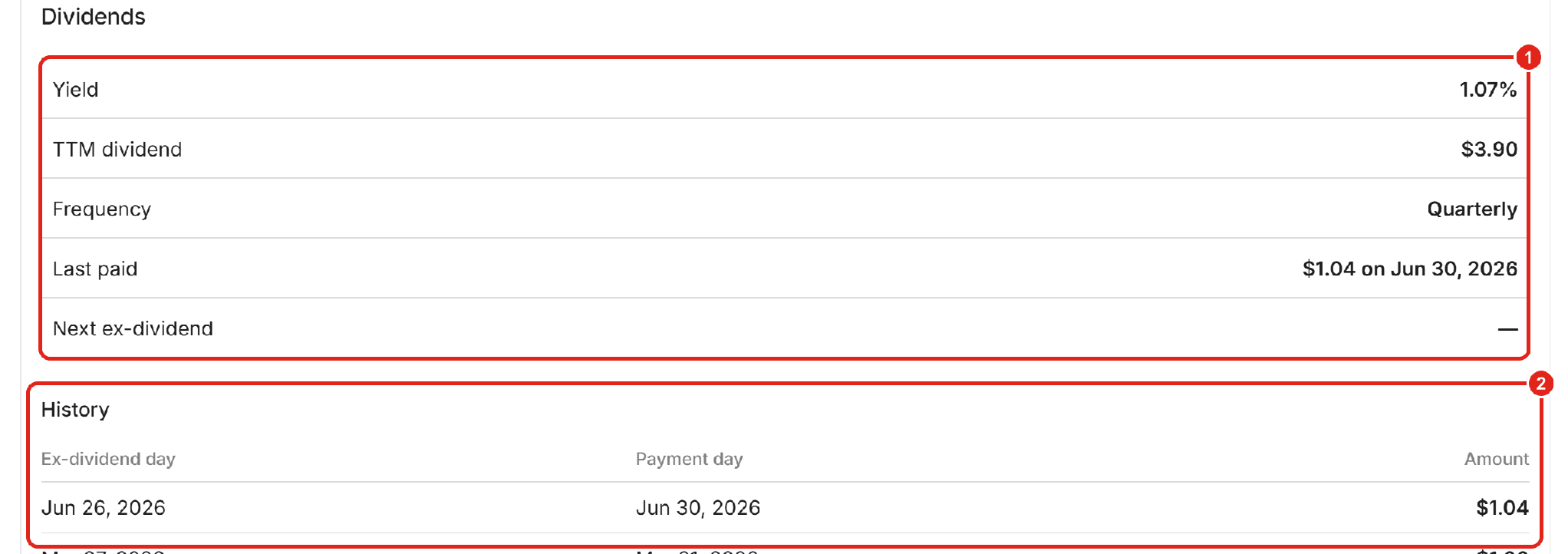
Desktop: the Dividends summary (1) and the payment history (2) for a fund. Figures shown are illustrative.
- See it for your own holdings: on Details, the Dividend & fixed income figure at the top sums your portfolio, and the Dividend column shows each holding's amount. If the column is hidden on a smaller screen, add it with the column selector.
- Edit a holding's yield: if a yield is missing or wrong, click the holding on Details, choose Edit security, and set its Dividend Yield. The Fix button on the coverage banner takes you straight to the holdings that need it. See Tutorial: Custom Securities & Proxies for the full walkthrough.
- Ask the AI Assistant: questions like "What does VTI yield and when is its next dividend?" get the same details in a sentence. See Tutorial: AI Assistant.
The sections that follow are background reading rather than steps.
What counts as income
- Investment income: dividends from stocks and funds, interest from bonds and other fixed income, and interest on cash and savings.
- Other income you've added: rent from properties, pension and annuity payouts, and private equity distributions. These count on the Net Worth Portfolio.
- Forward-looking only: the page shows what you're expected to receive from today on. Income you've already received isn't listed here.
- Estimates can change: companies and funds can raise, cut, or skip a payment, and estimated amounts update as new payments are announced.
Common use cases
- Planning around cash flow: check the monthly chart and the calendar to see which months your income is light before you schedule a big expense.
- Living off your portfolio: compare Total income with what you spend each year to see how much of it your holdings already cover.
- Checking concentration: switch the breakdown to By holding to see whether one fund or one property carries most of your income.
- Finding gaps: use the coverage banner to make sure every holding is counted before you rely on the totals.
Frequently asked questions
Does PortfolioPilot have a dividend calendar?
Yes. On desktop, switch Upcoming payments to Calendar to see each expected payment on its pay date for the next 12 months; on a phone the same payments are shown as a list. For one security's next ex-dividend date, open it in the Security Explorer.
Do PortfolioPilot's returns include dividends?
Yes. Performance and expected returns use total return, meaning price change plus dividends. A fund whose price stayed flat but paid a 4% dividend shows a 4% return. A high yield is not the whole story, though: a stock can pay 10% while its expected total return is lower, if its price is expected to fall.
How does PortfolioPilot handle dividend reinvestment (DRIP)?
For connected accounts, shares your brokerage buys with reinvested dividends appear at the next sync. For accounts you added by hand, PortfolioPilot assumes dividends are fully reinvested; if you take them as cash, update the share quantities on your Net Worth page from time to time.
Why is the dividend yield shown for my fund incorrect?
Occasionally a one-off or special distribution is read as ongoing income, or a regular payment isn't captured in time. Portfolio Score and most recommendations use total return, so they stay roughly right, but the minimum yield setting can be affected. Email support@portfoliopilot.com with the ticker and we'll correct it, or set the yield yourself as shown in Check and edit a holding's dividend details.
Can I get recommendations specifically to improve my dividend income?
Yes. Set your investment objective to Maximize income and, if you like, a minimum yield; see Tailor your recommendations for income.
Next steps
- Tutorial: Personalized Recommendations - how to read and act on the income recommendations.
- Tutorial: Import Your Net Worth - add the accounts, properties, and pensions that feed this page.
Disclosures
Global Predictions provides investment advice only through its internet-based application, PortfolioPilot, and only to individuals who are advisory clients of Global Predictions pursuant to written advisory Client Agreements ("Advisory Services"). The publicly available portions of the Platform (i.e., the sections of the Platform that are available to individuals who are not party to a Client Agreement, including globalpredictions.com and portions of portfoliopilot.com) are provided for educational purposes only and are not intended to provide legal, tax, or financial planning advice. To the extent that any of the content published on publicly available portions of the Platform may be deemed to be investment advice, such information is impersonal and not tailored to the investment needs of any specific person. Nothing on the publicly available portions of the Platform should be construed as a solicitation or offer, or recommendation, to buy or sell any security. All charts, figures, and graphs on the publicly available websites are for illustrative purposes only. Before investing, you should consider whether any investment, investment strategy, security, other asset, or related transaction is appropriate for you based on your personal investment objectives, financial circumstances, and risk tolerance. You are also encouraged to consult your legal, tax, or investment professional regarding your specific situation. Registration does not imply a certain level of skill or training. Investing involves risk. The value of your investment will fluctuate, and you may gain or lose money.
Case studies presented are hypothetical scenarios and intended for illustrative purposes only. They do not represent an actual client, investment or experience, but rather are meant to provide an example of the intended process and methodology. An individual's experience may vary based on his or her circumstances. There can be no assurance that the Firm will be able to achieve similar results in comparable situations.
Projected income, yields, payment dates, and estimated Portfolio Scores are forward-looking estimates based on announced payments, historical payment patterns, and assumptions that may not prove accurate. Dividends and distributions are not guaranteed and may be changed, reduced, or eliminated at any time. Actual results may differ materially.
The Dividend & income page is available on every plan, including Free. The personalized recommendations it links to, including the income settings above, are available to Gold, Platinum, or Pro subscribers, all with a 10-day free trial.
